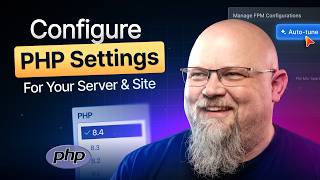
Learn how to manage PHP versions and settings on xCloud hosting. The tutorial covers global settings like memory limits and upload sizes, per-site configuration options, and the Auto-Tune feature that automatically suggests optimal values based on your server's RAM.
Chapters
WordPress Core runs on PHP, and ideally you'll always be running the latest version of PHP on your website. The latest versions have the, the most recent security updates and usually have a significant speed boost over previous versions. So I'm going to show you how to install, manage, and configure PHP on xCloud. Let me show you. I'm looking at the configuration page for a server. Mine is called Group Client Server, and on the left under Management, there's PHP Configuration. And right here you can manage what versions of PHP are installed. Now you can't add new ones because there are limitations placed by the operating system and the web server you're using. I'm using OpenLiteSpeed, and that gives me the option for 4 different versions. Now, you don't really want more installed than you need. It's going to take up drive space, and if you're not going to use it, don't install it. I have 8.4 and 8.3 installed, and 8.3 is set as the default. Which means my sites are all going to use that unless I configure the site individually. We'll look at that in a minute. You can also turn opcode cache off, on and off. I always recommend you have it on. It dramatically speeds up PHP. It's really great. Now, while we're here at this page, you'll notice there are three dots here on the right, so you can click and manage configuration. For this install of PHP. Now here it lists the version. You can't change it here, of course, but you can manage all of these things. When I was getting started in WordPress, you had to manually edit php.ini files and hope you didn't mess up the syntax. This is better. You can manage your max execution time, max input time, max input vars, 3,500 is huge. Uh, your memory limit. Now this may get changed periodically with WordPress because sometimes WordPress needs a little more. Max post size. So this is, um, the largest payload that PHP can accept. Now that's really large unless you're doing images. But like, I can't imagine exceeding that with text. But here we also have max file upload size, 250 meg. And you'll see this in WordPress right here. So if you need to change this, then this is the spot to do it. And lastly, we have SESSION_MAX_LIFETIME, and, uh, I looked that up and it is 24 minutes. So, uh, there are variables that change how long a session will actually live. This is one that is untouched, and it doesn't actually just get destroyed at the end, it just gets marked as stale. So how PHP chooses to handle that is is variable, but this is a good setting to keep in mind because at some point you're going to want to change that. Now I mentioned that the versions you install are constricted by a couple of things. I have another server here, this one is running NGINX, and you can see that I have many more options. This is not an arbitrary limitation of xCloud, but rather the, uh, HTTP server that you're using. Nginx can deal with more versions than OpenLiteSpeed. That's something you simply need to keep in mind. I wanted to show you, uh, the documentation right here because if you really want the details on what's available and why and all that, the documentation is great. It's right here on how to upgrade PHP version with xCloud Hosting. I also want to show you that you can manage PHP configurations for individual sites. I'm here on a site config panel and I'm under site settings here on the left. And right here you can choose a PHP version, which is pretty simple. But then more importantly, under this manage dropdown, you can manage a variety of things. Let's take a look. Under PHP configurations, you can see you can't change this. This is what we're configuring. But you can change stuff like max execution time, input time, uh, max input bars, memory limit, max file upload size, post size. I recommend these actually be the same, but yeah, whatever. Um, and then the session max lifetime. And there's a button up here called Auto-Tune, which I'm going to get to in just a second because it's on each of the 3 configuration panels. Um, so then we have FPM, which stands for FastCGI Process Manager, and it's a tool that PHP uses to run PHP. Um, here's your process manager type, start servers, uh, spare servers, etc., etc. And again, you see the autotune. But then the last thing is the opcache configurations. Now this is, um, caching your actual PHP code binaries so that they run faster, and you can do things like memory, memory consumption. Now I didn't go into super detail on the FPM stuff or the opcache stuff because I'm not a system administrator and I don't really know what they are, which is where the magic of Auto-Tune comes in. Let's click that. So Configuration values have been automatically calculated based on your server's available RAM. Please review the suggested values. Note that these are just suggestions and then save. So, um, for opcache, they suggest these settings. Um, I don't know what they are, so I have two options. I can go find a system administrator to advise me Or I can trust that xCloud knows what they're doing, and I do. So I'm going to click save settings here, and then I'm going to go back to the FPM and run the Auto-Tune there as well. So let's see what changes. There we go. So now we have these suggested changes. So I'm going to save these again. Now PHP straight up, I know pretty well, but I'm really curious to see what Auto-Tune does for me there. So it's 180, 180, 512 for the memory and 1440. So let's see what they suggest here. Okay. Only 100 or only 60 seconds. So they set the max file upload size to 50 megabytes. For my site, that works great. I'm only uploading pictures. If you get somebody who's uploading videos or something, then you probably want to boost this quite a lot, as well as max post size. Um, they suggest 256 memory. It was 512 before. Um, I'm gonna go with it. I'm usually a grab all the memory you can kind of guy. But that's just because I don't really understand what's going on and I want all the memory I can get. Uh, so I'm going to go with the 256. Let me hit save settings. There. Now we have a tuned PHP configuration for this individual website. That's important because I mentioned that maybe you have somebody uploading, uh, large videos and stuff. So you can have this configuration with just a 50 meg upload for this site, and yet for your movie site you can have a completely different PHP configuration, which is super, super valuable. So I recommend you set up a staging server and try out the latest versions of PHP. They're really great. The speed is a dramatic increase, and I heartily recommend it.