How to Configure WhatsApp with xCloud Hosting? | Get Site Update Notifications Directly on WhatsApp
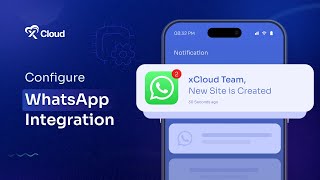
This content was created by M Asif Rahman. This content was uploaded by M Asif Rahman. This is a YouTube video titled "How to Configure WhatsApp with xCloud Hosting? | Get Site Update Notifications Directly on WhatsApp" created on July 11, 2024. It provides a tutorial on integrating WhatsApp with xCloud hosting to receive site update notifications directly on WhatsApp.
Chapters
More from M

How to Deploy EmDash CMS in One Click on xCloud: A Fast, Lightweight WordPress Alternative

Self-Host OpenPanel in One Click on xCloud: A Privacy-Friendly Google Analytics Alternative

xCloud September 2026 Release Notes: Site Security Pro, AI Caching, Docker Backups & More | xCloud







xCloud August 2026 Recap: App-First Deployment, 250+ One-Click Apps & DeepSeek Harness Hosting

Deploy Vaultwarden Password Managed on xCloud (Self-Hosted Open Source Password Manager)