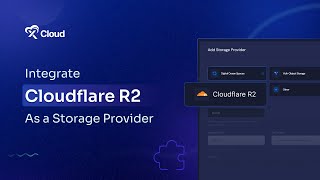
How to Use Cloudflare R2 Storage Provider for xCloud Site Backups?

M Asif Rahman walks through setting up Cloudflare R2 as a backup storage for xCloud sites. You'll create a Cloudflare account, generate API tokens, and configure the backup settings in xCloud to store your site data.
Chapters
Welcome to Xcloud Tutorial Today we are showing how to integrate Cloudflare R2 as a storage provider on Xcloud. Go to Cloudflare website and create an account, then login with your credentials from Cloudflare dashboard. Expand R2 sub menu and select Overview. Then click Create Bucket. Here add a bucket name, select a location and hit the Create Bucket button again. Navigate to Overview. Under R2 submenu, select Manage Art2API API tokens, then hit Create API Token button. Now choose the Admin Read and Write. Select Forever option to choose how long the token will be active and click on Create API Token button. Here you will see the generated token value, Access Key, ID Secret Access key and Endpoint URL. From your xcloud dashboard. Click on the team dropdown and select team settings. Navigate to integration, then select storage provider. Hit the add new provider button and select cloudflare r2 add bucket name. Select the region add access key id secret access key and endpoint URL. Then click on submit. Go to Sites tab and select your Site. Navigate to Site Backup menu and select Backup Settings here. In Remote Backup Settings, first choose Backup type, then click on the drop down icon to select Cloudflare as a bucket source. Add Paths to exclude specific paths from backup. Toggle on Automatic Backup to activate Auto Backup. Select your Backup frequency and Enable or disable automatic deletion of backups and click Save button to update Backup settings. Now head over to previous Backups and simply click on Backup now button to generate a backup manually. Following these steps, you can integrate Cloudflare Art 2 as a storage provider on xCloud. Thank you for watching and subscribe to our Channel.
More from M

How to Deploy EmDash CMS in One Click on xCloud: A Fast, Lightweight WordPress Alternative

Self-Host OpenPanel in One Click on xCloud: A Privacy-Friendly Google Analytics Alternative

xCloud September 2026 Release Notes: Site Security Pro, AI Caching, Docker Backups & More | xCloud

xCloud August 2026 Recap: App-First Deployment, 250+ One-Click Apps & DeepSeek Harness Hosting

Deploy Vaultwarden Password Managed on xCloud (Self-Hosted Open Source Password Manager)