xCloud Hosting: First Look - Let's Take A Look At How It Works
M Asif Rahman walks through xCloud's hosting control panel, showing how to set up servers with Vultr, install WordPress, manage staging environments, and integrate Cloudflare DNS and Elastic Email. The UI is cleaner than Cloudways but has some lag, and xCloud's lifetime deal pricing could save money compared to per-month plans.
Chapters
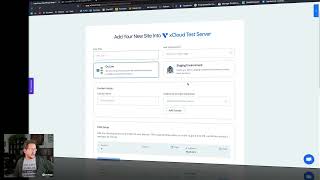
Okay. In my last video I talked about xCloud hosting and I was talking about it just from the outside. Just some quick thoughts on for people who might be considering their lifetime deal. Well, since then I've actually gotten access to xCloud and so what I thought I would do is just take you into the back end of xCloud, let you see how the thing actually works. And what I'm going to do is just kind of like look around and kind of just talk off the cuff on some things that I'm thinking as I use it. I'm not going to do a full in depth thing here because it's, you know, at the end of the day it's a control panel that looks and acts sort of kind of like cloudways. And so let's just get in there and use it and let's see how things work. Okay, so here we are inside the xCloud control panel. Now when I first got in here, it was in dark mode because that's the way my Mac is set up. So you can make it look like this or you can switch it over to light. So that's kind of a nice little touch there. Just a matter of personal preference. What we first find is that at least when you compare it to cloudways, I do find the interface to be more spacious, a little bit more modern in how it works. You got the dashboard, which gives you what we're looking at right now. You'll see your list of sites. You can do grid or list. The magic login will pop me right into the admin panel for that site. And it works nice and quick because I actually did install this already. There it is. One thing I do like about this is when I installed WordPress, it's a nice clean install. It's not installing a bunch of weird plugins and stuff, it's. It's installing the, the performance stuff for and for the server and object caching and stuff like that. And then it does put in fluent SMTP and it's automatically hooked up to Elastic, which is their built in email provider. So very similar to Cloudways. It's just with Cloudways you have to go in there and you have to like set up the Elastic account as an add on. Then you gotta like bind it to the server. It's much more nerdy. It's actually a lot more automated here with these guys, which is nice, but it's a nice clean install and no other clutter in there, which is cool. Now when I first set up, got in here the first thing I needed to do was set up a server. I've already done it at this point, but it needs to be done at the get go. And what you'll do is you'll have a list of of your server providers like Google Cloud or what have you. Vultr is the main one that they're going to most recommend. And so I happened to already have a Vultr account, so I popped on over there, logged into my Vultr account, got my API key, stuck it into xCloud. I had to enable access for all IP4 addresses or IP6 addresses, which is interesting. You can't just white label or white list one IP and do it. You kind of have to open the gates, so to speak. But I went ahead and did that and then I was able to basically create the server from inside of xCloud. It was a bit of a wait. It took several minutes to do it, but it did it. You just sit there and go about your business while it does it and it's doing all the geeky stuff for you, which is sort of one of the points of all this. But then as you see, if we pop on over to the server list, I've got my xCloud test server. This is sitting over on Vultr right now. This is just a little baby server with like a couple gigs of RAM and like one virtual processor. But when you go to add servers, you can get as big a specs as you want. If you want to run a whole lot of sites on one server, you can get a beefier one. If you've got a big buddy boss site, you need a lot of power. You know, you could throw it onto a more powerful server. But this test server I got, it's just an itty bitty thing, no big deal. When you go over into the server, you know, you've got your IP address, basic specs, you know, stuff that you might expect in here. You can look at your database, your users monitoring, which probably is nothing going on right now. Let's see what this looks like. Okay. RAM usage. I like the fact that it's nice and graphical. I mean, frankly, this does look better than Cloudways. You got the logs? Okay, let's pop this over. This is one thing I have noticed a little bit clicking around is that there sometimes is some interface lag as things load up in the xCloud interface. Like you'll click on something and you get the little scroller bar up here at the top while it's doing things. And so it can take. Sometimes it takes a little bit for screens to refresh, but here's some. Okay, got basically an event log, PHP settings. If you want to control your PHP versions. Here's another screen lag. As you can see that it's doing its thing, but there we are. We can actually. It looks like 8.1 is the only PHP version, so that's an interesting limitation. I think it gave me options when I spun up the server, but now I don't seem to have the ability to change it. So that's something it would be nice if they could fix so that I could actually change my PHP version on a server by, you know, on an existing server. Anyway, these are some settings that I've had to change numerous times over on Cloudways, so it looks like we have those same access points. Server management. Let's see what this is all about. Okay, so we can reboot different components. If things lock up, archive and delete, pop on over to Settings. See, this is all the nerdy stuff that most of the time, once you set it up, you're not going to have to do it ever again. But this is why VPS hosting is different than something like Bluehost or SiteGround or something like that. Okay, so let's pop over to a site. I did create one site already. I'll show it to you now. If you want to add a new one, keep in mind you can add as many websites as you want to a server, basically, until you bust the limits of the server, essentially. But they're not going to artificially limit anything. It's really just all about your horsepower. But let's add a site so you can see what this screen looks like. We'll add it to my test server. Hit next. Okay, and we can. We have various options. Most people are probably just going to install a WordPress site, but you can also migrate an existing site, migrate a full server if it's Ubuntu, blah, blah, blah. Let's. If we go to create a new one, here we are, we can give it a title. Now, if you go create a live site right off the bat, you are going to need to map a domain domain to it right away. Which was something that threw me for a curveball for a second actually, because over on Cloudways and most hosts that I like to work with, typically when I spin up a new WordPress site, it's automatically in there with a temporary domain. And so I can get it up online without having to actually map an actual domain that I own to it immediately. With this one, I have to map a domain to it immediately. Now, what I did find is that if I say that this is a staging environment instead, I can go live with it right away. Now, it's not. It's obviously on a temporary staging URL, and that's fine. But that was an interesting thing. It would be really nice, as if you create a new WordPress install, that it would just do it and not make you think about the domain stuff right away, because then when I'm ready to go live, then I should be able to change the domain mapping to that application and go live with it that way. I'm very used to the way Cloudways does it and even Rocket that I use for clients. The way this does it initially is a little bit confusing. I do like the fact that it's got the Cloudflare integration built into this so that I don't have it set up yet, so that basically you can have it automatically send your DNS settings over into Cloudflare and basically the site would go live immediately, which is quite cool. The email provider, again, they're using Elastic Email behind the scenes, but later on you can go and set up other email providers if you want. So that's how that works. Let's pop into one of the sites here, the one that I created. Okay, so here's where we manage our actual WordPress site. We can manage the domain. See, this right here is what I would prefer if I'm going to create a new app. Like, just create it using this URL here, and then I should be able to come in here and change the domain. That's what I would prefer. I do think it's a little bit out of. It just feels a little bit out of sequence that when I go to install a new site, it's asking me whether it's a live or staging site right off the bat. You know, typically if you do a fresh install, you probably want it on a temporary domain that you could just use internally without having to worry about DNS and all that. And then you could deal with that stuff when you're ready to go live. All right, ssl, that's pretty up to date. Let's. Let's look at the updates. That's interesting. That's kind of cool. So this is something Cloudways does not have, where you can actually control the plugins right from the interface. So that's actually pretty cool. Very cool. All right, backup. Now, this one, I believe. Let me check to make sure that I'm correct. Oh, it did It Okay. I'm sitting here waiting for no reason. Remote backup, Local backup. Yeah. So I think the way that this works is that if you want to use the server backups, you're paying a little bit extra. I believe I saw with Vultr that it was a couple bucks a month per server to run those backups. Or what you can do is you can set up a storage provider through Amazon is probably the most typical setup, and then you can actually do your remote backups over to your Amazon account. So it's up to you. With something like Cloudways and a lot of hosts, these backups are just done and you don't have to think about where they're stored. But the risk of that is that you're storing the backups typically on the same server. With Cloudways, they have their own internal setup where they store backups. But that's part of why you pay more for that. With this one, it looks to me like you're the. The best option is probably going to be to the remote backup to Amazon, which even though it's one extra step, it actually is preferred because you. The whole idea of backups is to keep them off site. If they're sitting on the same server, that's sort of pointless anyway. So this makes perfect sense and it's actually a convenient setup. Monitoring redirection. What does redirection do? Okay, you can set up URL redirects in here. That's interesting. Not. You don't usually see that at the server, at the hosting level. So that's interesting. So here's email provider again. It's set up to xCloud service, which basically is elastic email behind the scenes, but you can create new connections. So we see what the options are here. Mailgun, sendgrid, other. So it would be nice to get more options. Like some of the options that Fluent SMTP provides automatically. It would be cool to see it built into this hosting. So if I want to connect to something like Postmark or Amazon S3 and I can just plug in my API codes in there, that would be really nice versus having to treat it as a other. I think that would be. That would make it more convenient. Okay, the rest of this we don't really need to go through, but that's kind of how it works. I mean it's actually pretty A to B. The interface is definitely different than Cloudways in some ways. I will find. I find xCloud to be a little slower just because of the screen refresh times on some of these things, but it's not bad. It just takes a little getting used to. I think it looks better than Cloudways. It looks like I've got basically the same options. It does look as if some of the things in here that are built into it are more convenient than Cloudways. Like for example, the remote backups and stuff like that. The magic login. That's something that I don't believe Cloudways has. I think with Cloudways it'll give you the login, but you can't one click login like I did. And so that's handy. So so far I'm actually seeing some improvements here. That's also you can edit the config file of your WordPress. I was noticing the database. There was an area, I forgot where I found it, where I could actually manage or go in there and play with the database directly. But it wasn't phpmyadmin. It was some other open source thing that looked almost like a clone of phpmyadmin. But see, that's the thing with Cloudways is to this day they don't even have phpmyadmin, which is the easiest one to use as far as I'm concerned. They're putting some stupid thing on Cloudways servers and it's just stupid what they're doing. So this is an improvement, I will say, even though it's still not technically phpmyadmin. I like the fact that I can run a lot of sites in here. I can tag them, I can sort them, you know, I see team settings. I couldn't control this stuff very easily when I was over on Cloudways. So yeah, there's definitely something to be said for this. I think that there's. There's a lot going on here that is going to be an improvement over something like Cloudways. Okay. So that was a quick and dirty walkthrough behind the scenes with xCloud. So far I'm pretty happy with what I'm seeing in there. I probably. They. They basically got me access to it so that I could take a peek at it. But I am going to probably pick up a license for it. I think it'll come in handy. I probably will move some the sites that I have on Cloudways over. Would I move sites that I have on Rocket hosting over to this? No, not. It's not a trust problem. It's just, you know, Rocket's pretty awesome. Even. Even the people who run xCloud know Rocket's pretty awesome. So I'm not switching anything out from that. But if I. But for Cloudways, I think the lifetime deal for xCloud makes sense if you're coming over from something like Cloudways or one of these other ones. I mean, here's the thing, the Cloudways billing being that they're pretty much roughly doubling whatever you do on a per server basis, the cost setup at Cloudways starts to not make any sense as you start to add more servers, because every time you're adding another server, you're paying 2x what it actually cost. With xCloud, especially with the lifetime deal they've got right now, you're paying for this control panel that I just showed you, you're getting a lifetime deal to that, and you're only paying for the virtual private serv directly through the provider, and that's going to be significantly cheaper, which means you can put multiple servers into this interface, pay only the core charge of it, instead of paying the 2x on every single one. That makes Cloudways, frankly, not make a whole lot of sense anymore when you start adding multiple servers. The way the billing works with Cloudways right now, it really only makes the most sense if you have one, maybe two servers. Once you go past that, it really starts to get cost prohibitive because they're doing that even though you're paying for the control panel, that you're basically paying for it multiple times for every single server. That doesn't make a lot of sense. I like the way xCloud is doing this a lot better. And so, yeah, I like what I'm seeing so far, and I think I'm gonna grab an account. If you have any questions, let me know, I'll try to answer them for you.
More from M

How to Deploy EmDash CMS in One Click on xCloud: A Fast, Lightweight WordPress Alternative

Self-Host OpenPanel in One Click on xCloud: A Privacy-Friendly Google Analytics Alternative

xCloud September 2026 Release Notes: Site Security Pro, AI Caching, Docker Backups & More | xCloud







xCloud August 2026 Recap: App-First Deployment, 250+ One-Click Apps & DeepSeek Harness Hosting

Deploy Vaultwarden Password Managed on xCloud (Self-Hosted Open Source Password Manager)