A Ridealong For Every Job! | Introducing Sales Pro
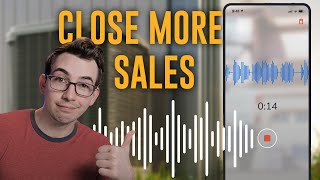
A YouTube demo by Richard Kohberger (the "blue collar nerd") explaining ServiceTitan's Sales Pro, a mobile and desktop tool that records and analyzes technician–customer conversations. The transcript covers mobile app features (automatic recording, social-media-like feed, bookmarks, comments, Ask Sales Pro AI), the office/desktop features (recordings, filters, insights dashboards for objections/process/listening/usage), and upcoming capabilities (scorecards, in-app training, pre-job briefs).
Questions this video answers
383
$10,000
$24,907
Five
$89
What's going on, everybody? It's Richard Kohberger, the blue collar nerd. And in this video, I'm going to be talking about Servicetitan Sales Pro. So Sales Pro is a tool that captures and analyzes conversations between technicians and customers. Kind of like how it's been common practice for a long time now to record phone calls between CSRs and customers. SalesPro brings that functionality to the field, but it also brings a lot of extra functionality to the table through things like AI powered tools and insights, as well as a sort of social media like feed, where technicians can hear each other's recordings and leave comments and learn from each other. So let's dive into how this works. So SalesPro is a separate app that will be installed on the technician's phones or tablets. But what really sets Sales Pro apart is its deep integration with the rest of Servicetitan. So as soon as a technician hits arrive in the technician mobile app, the SalesPro app is going to automatically open and a recording is going to automatically start as at that point the technician will see a confirmation box letting them know that the device is now recording, as well as your company's script for how they should inform the customer that this interaction is being recorded. Typically, this is something short and simple like, hey, just wanted to let you know that we record our customer conversations for quality and training purposes. And assuming the customer provides their consent, the technician would hit okay and the technician app would automatically open again. And then the technician can just go about their job. There's no need to pause the recording when they're not talking to the customer or anything like that. It doesn't really matter how long the job takes, takes. The AI knows what to do with all the silences and sounds of the iPad clinking around or whatever. So none of that really interferes with the end result. Okay, so there's two sides of Sales Pro. There's the mobile app, which is more geared towards technicians, and there's the desktop side which is more geared towards managers. So we'll start with the mobile app. So on the mobile app you will open up to the feed page and this is that social media like experience I was talking about, where technicians can listen to each other's recordings, leave comments and learn from each other. So we've got our trending leaderboard up the top. These are technicians who have recordings that are getting attention in some way, getting a lot of comments, getting a lot of listens. We have bookmarks which are very important, but I'll explain them a little later and Then we have a list of trending recordings. And if a recording stands out to you for some reason, you want to save it and be able to go back to it. You can star a recording by hitting that little banner there. So you see, I have the Davis family recording starred. So let's go ahead and tap into that one. So at the top I get an AI generated summary of what happened on this job. And then I have my transcript down here and a list of bookmarks above it. So bookmarks are like tags for key moments, and key moments throughout your transcripts are going to be automatically tagged with these bookmarks through Titan Intelligence. And that allows me to do a lot of things in this context. It allows me to jump to that specific part of the conversation. But bookmarks enable us to do a lot of other cool stuff as well that we'll get into a little later. And in addition to my little bookmark bubbles there, I also have shortcuts to jump to areas that have been commented on. So let's say I wanted to jump to that area of this transcript where the customer says that they need to talk to their spouse. So I can just tap on that. It's going to bring me to that part of the conversation. That part of the recording is also going to automatically start playing. I'll go ahead and pause that. And let's say I wanted to leave a comment on this part of the conversation. I could tap this little blue circle and from there I could leave a comment either through text or with a voice recording. You're able to tag people in these comments as well. And you'll see I also have the option to add this section of the conversation to a folder. So I can kind of create my own personal folders for key events that I think will help me in the future. Now at the top, right there, I have a little menu of options so I can search to search for a certain word or phrase within this transcript. I have a little shortcut for my bookmarks. So if I'm somewhere scroll down, I I can quickly jump to a different bookmark. I have my share sheet. So if I wanted to share this conversation out somewhere, I could. And that little icon with the three stars, that is the Ask Sales Pro feature. So this allows me to converse with the Sales Pro AI and ask it questions about this transcript. So you see, there's some example questions there. I can ask it, what did this rep do? Exceptionally well. And then it spits out a fairly detailed response for me. Okay, now jumping back to the feed page, I also have tabs where I can see all of my starred recordings. I have a tab for my team, so I can see recordings from other people who are on my specific team and my posts or these are my shared recordings in the upper right hand corner. I also have notifications for any comments that I haven't read yet. And then from this Film Room tab there, at the bottom there, I can see a list of all my recordings or recordings that are from me, the technician. So this is where I could come and review my own recordings and choose to post certain recordings to the company feed, which I should pause for a minute and explain how that works. So let me find a better example for a recording here. That'll do. So technicians have the option to post any of their recordings to that feed that we looked at, that main feed that opens up as soon as you open up the SalesPro app. So it's up to them what they want to share on that feed. And that feed is, is all of the teams. All of the teams can see the feed. However, regardless of whether a technician posts a recording or not, it will still show up under the My Team tab under Feed. So your team, let's say I'm on the service team. I can come here and see all of the recordings from other people on the service team, even ones that haven't been posted. However, the main feed that is company wide, however, there is still a way that a technician can have a particular recording not even show up under the My Team tab. So back under Film Room, where they see all of their recordings if they tap onto one. You see we have a Settings tab here and one of the settings is who can see this? So right now it's open to my company, but I can set it to private. So when it's set to private, none of my peers using the Sales Pro app will be able to see and listen to the recording. However, it will still be available on the desktop side for management. And by the way, this Film Room tab where I can see all of my recordings, this is also where I would access my folders. They're in the upper right hand corner. If I made any folders, I could access them here. All right, so that's the mobile side of Sales Pro. Now let's talk about the Office side. So this is what the Office side looks like. And our key tabs here are going to be the Recordings tab and the Insights tab. So Recordings is of course where we can access all of our recordings and we're able to filter these down. And this is Another place where those bookmarks come in really handy. So I can choose to add, include or exclude in my filters certain bookmarks, certain key moments. So, for example, I could filter down here to a list of conversations where warranty was discussed, and then I can click into any of these to review them. Because I was filtering for that warranty bookmark there. It takes me straight to that part of the conversation again, I can leave comments here as a manager. So I would click comment right here. So I could leave feedback here for this technician, or I could even tag a different technician to say, hey, check this out. Check out how this technician handled that situation. And by the way, because we are integrated with the rest of service, Titan Sales Pro knows which of these jobs ended up with sold estimates. So that's an available filter to us as well. We can filter by outcome, either one or not one. Okay. And then we have similar features to what we saw on the mobile side there. We've got the option to add things to folders. We've got access to the Ask Sales Pro AI. We've got a section over here for bookmarks. We can jump to those other key areas of the conversation, a summary of what happened on the job up here. And if we had any comments, then we would see that under Threats. We've also got this scorecard section here that's a beta feature and we'll talk a little bit more about that later. Okay. And then Comments is of course where we can see different comments that have been left. We can click into anyone and dig into exactly where that comment was left and leave our own comments and reply if you wanted to. And then we have our Insights tab. So this is a super insightful tab. This is where we can see an overview of what, what's going on out there. And you see at the top here we have different sub tabs under Insights. So right now we are on the objections page. So for example, at the top we see a chart of what objections we're facing the most. So in this example we have I need to think about it and I need to talk to my spouse at the top. So that lets me as a manager know that that's a coaching opportunity that we can help coach our technicians to better handle those objections. We also have a section for objections by rep, so we can filter by a certain technician and see what kind of objections that spec technician is facing the most. And then under that we can filter for a specific bookmark, a specific key moment, and see how often that is coming up in conversations for specific Teams or technicians. Now, in this demo account, we happen to only have one team, but you could have that broken out to be here's my service team, here's my maintenance team, here's my sales team, etc. And then finally at the bottom, we have a breakdown of how many recordings are being created by each team and representative. Okay, so that was the objections tab. Let's look at process. So this tab again is where those bookmarks really come into play. So we can see the frequency of when these different things are coming up in the conversation. So in this example, you can see that we're most frequently going over the agenda of what we're going to do and giving a price presentation. Talking about the membership program is also fairly up there. But do keep in mind of where our X axis is. So 19 and a half percent of the total recordings agenda and price presentation is coming up. So even though they're at the top, maybe we're not quite so happy with that. Maybe we need to do some more coaching. And then we see that only about 1% of the time are we getting a confirmation of Five Star Service. So if that's part of our process, maybe we need to do some more coaching on that as well. Okay, so that was our overall bookmark frequency. We can also filter by specific reps, specific technicians, and we can also go the other way and filter for a specific bookmark and then see how often that is coming up for particular teams or particular technicians. Okay, we've also got a tab for our listening usage. So this tab is going to give you insights as to how often recordings are being listened to by technicians and which technicians are doing that the most. So it gives you a good idea of how well the sales pro tool is being utilized, which is good information to know because for Salespro to have the best results, it requires the technicians participating, listening to the calls, leaving comments, learning from each other, congratulating each other. Without that happening, without the technician engagement, this kind of quickly turns into just a compliance enforcement tool, which is not really the thesis of the product. Okay, then next to that we have recording usage. So an overview of how many recordings are being created and by who. Because SalesPro does automatically start the recording once the technician arrives at the job, recording usage should be pretty high. All right, so those are all the key features that are available right now as of the time of me recording this video. But there are also a couple of features coming out in the near future that I want to go ahead and cover. One is scorecards. So scorecards will aggregate a lot of this information for a particular technician to come up with a score, as well as offer them insights for what they're doing well and what they can improve on. We'll also soon have training content for your technicians directly within Sales Pro, and that content will come from names like Keith Mercurio, Eddie McFarlane and Jerry Rollins. And the other upcoming feature that I wanted to talk about is Pre Job Briefs. So Pre Job Briefs will actually be accessible from the Technician app without having to jump into the SalesPro app, and they will give you a detailed summary of everything we know about this call and what to expect. They will eventually be available as both a text summary and audio recording, but to start they will just be audio recordings and I think the best way to get across the value of this is just to play one for you.
Hi there, this is Sam, your virtual assistant, and I'm here to prep you for your job. Today you'll be servicing an H Vac replacement for a customer named Alex Smith with a predicted job value of $10,000. Alex called us to inquire about the cost of replacing the H Vac unit in his mother's apartment. He was initially hesitant about the $89 estimate fee, but ultimately agreed to book the appointment for you to provide a proper quote in terms of customer history. Alex has been with our company for quite some time, spending a total of $24,907 across various services. He has had five completed appointments, including installations and service calls, which indicates he values our work. During your sales pitch, you might want to emphasize the quality of our service as Alex heard about us from a friend, which speaks to our reputation. Additionally, since he expressed concern about the cost, it would be beneficial to highlight how our pricing is based on the job rather than hourly rates, ensuring he gets the best value for the work done. Remember to be mindful of the dog at the property and use the gate code 383 for access. Good luck.
Anyways, that's all I got for today. If you think you might be interested in Sales Pro, you might want to see a demo or potentially sign up. Put a link in the description box down below where you can get that ball rolling. Please hit like if you liked this video and found it valuable, go ahead and subscribe to Cerberus Titan's YouTube channel. If you haven't done that already, hit that bell icon so that YouTube notifies you anytime we upload a new video. Appreciate it. Peace, Sam.
More from Bill




Capturing the 80%: How SmartAC’s Gen-2 Targets Non-Membership Homeowners | Podcast Ep. 296

Build better customer data with every booking in ServiceTitan | TAD Tune-Up Series

The Biggest Change for Roofers Coming From Other Roofing Software to #ServiceTitan?

