Auto Update PriceBook Material Costs Based On Vendor Bills!
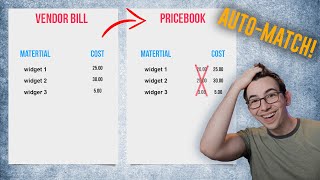
Richard Kohberger shows how to update your price book material costs directly from vendor bills in ServiceTitan. He recommends creating bills manually from receipts instead of letting them auto-generate, so your job costing stays accurate. Dynamic pricing can then pull those real costs automatically.
What's going on, everybody? It's Richard Kohberger here, the blue collar nerd. Hey, did you know that you can automatically adjust the costs of your material in your price book according to a bill that you got from a vendor? And furthermore, did you know that you will soon be able to, or can already, depending on when you're watching this video, have the prices in your price book automatically adjust to those new material costs? Well, it's real, it's true. And only that second part is new. Yeah, the ability to adjust your material costs to match a vendor bill that's been around for a while. And in this video, I'm going to show you how to do it. So here we are in Service Titan. I'm under the Purchasing tab. If you're using full inventory, then this would say inventory instead of purchasing. And if you don't have an inventory tab or a purchasing tab, then you don't have either of those modules enabled. And I would highly recommend talking to your CSM and getting at least purchasing turned on. Not everybody needs full inventory. In fact, I would argue that most don't need full inventory. But the purchasing module is very handy for pretty much everybody. Anyways, I'm here on the purchase orders tab here in my side navigation and I'm on the pending tab here, which is where I see all of my pending pos that haven't been sent yet. For this demonstration, I'm just going to create a brand new purchase order real quick. Stand in the place where you live. All right, this is a plumbing purchase order and it's got mostly H vac parts on it, but don't look too close. It's just an example. So now I have two options. I can either just click Create and then send it off to the vendor later, or I can create and send from this drop down here. Now this is just an example. So I'm not actually emailing this to a vendor. I'm just going to use Create as sent, which is just going to mark it sent without actually sending it anywhere. Okay, now I can move over here to my Sent tab. And then right here is that purchase order that we just sent. Now, from here on out, every action that we take related to this purchase order in Service Titan is is going to be mirroring a milestone that is happening in the real world. So once this order actually gets delivered to our shop or to the technician's home or wherever it is that we had it sent, well then we physically received that order. And so we're going to now receive it in Service Titan. And I'm going to do that by clicking on the PO number here. That opens up the po. And then I'm going to hit this receive button here in the upper right hand corner. Now, the main purpose of this step is to validate that we received from the vendor what we ordered in the quantity that we ordered it. And if we didn't, then we would want to change that here on the purchase order to be able to keep track of that. So my main concern for this step is this field right here. I want to make sure that the quantity received matches what I actually received. Now, yes, you are able to also adjust the unit cost on this step, but that's not the main concern here. You do not have the vendor bill yet. You might have the vendor receipt or the pick ticket that they basically just like tape on the pallet or whatever. And that document may have a cost on it, but you don't know for sure that that's what they're actually going to charge you. All you know for sure at this point is what you received and how many. And so that is the main thing that you're validating here. So once all of your quantities match what you actually got, then you're going to come up here and you're going to hit save. And when I hit save, it's going to be saved as a receipt. So you see here at the top. Now it has a receipt number. Now. Now, this is where the magic happens. So I'm going to pause the workflow here and we're going to go into our settings. So up here we're going to go to the settings cog, and we're going to go to Purchasing and Configuration, and we're going to look at this setting right here. Automatically create a bill when a PO is received. So by default, this option is checked off, it's enabled. And what that means is as soon as you do that step that we just did, you know, your shipment arrives, you validate your quantities and you hit save. That generates, yes, a receipt, but it's also going to automatically generate a perfectly matching bill. So instantly you end up with an identical receipt and bill. But if we uncheck that, then we don't automatically copy that receipt into a bill. Instead, the receipt sits there and waits until we actually receive our bill from the vendor. And then somebody in your office, typically whoever handles your accounts payable, will manually generate a bill off of that receipt and and then validate that. All of the costs on that Service Titan bill match the actual vendor bill that you received. And that is the step where you get this magical toggle switch that allows you to automatically update any costs in your price book if you change those costs on the bill. Let me show you what I mean. So I've got that option now unchecked. I'm going to go back to my purchasing tab here and now I'm going to come over here to the side navigation and click on receipts. So remember how I said every step now that we're taking in Service Titan, right. Reflects a milestone that's happening in the real world. So we're going to do this once we actually receive the vendor bill. So we've got the vendor bill in hand and now we need to create that bill in Service Titan. So I come to the receipt, click on the receipt number, then I come up here to actions and create bill. And then I do basically what I did back in the receiving step when I was creating the receipt. Except now, instead of my main concern being matching the quantities, my main concern is matching the unit costs. So I want to make sure that I'm actually paying what I was expecting to pay. Although I do still want to validate quantities again on this step as well, because I want to make sure that what my warehouse is telling me we received matches the quantities that now my vendor is billing me for. And if those don't match up, then one of two things. Either my vendor is billing me for the wrong amount of stuff, or somebody in my warehouse messed up during the receiving step. And I would want to get to the bottom of that before even creating this bill. So we do still want to validate and make sure that all of that matches up. But now we have the vendor bill, and so we have the actual cost that the vendor is actually charging us. So we want to make sure that all of that matches what we're putting into Service Titan. Now, let's say this right here, this half inch gas regulator, it's in my price book as a cost of $30, but my vendor actually charged me 35 and I validate that. They just say, yep, it went up, sorry. Okay, so then I would Change this to $35, and I have this toggle switch up here that allows me to automatically update book with that new cost. So I'm just going to toggle that. I also have the opportunity here to put in any shipping costs or tax and then I will hit save. And just like that, not only have I generated my bill, which is now ready to be pushed over into QuickBooks, but I've also updated the material cost for that vendor that I was purchasing from in my price book. And by the way, bills are found under the accounting screen under this accounts payable section. So you can see it right there. That's the bill that we just made. So by not automatically generating the bill, it is more work. I admit it, we're adding a step to the purchasing workflow, but in my opinion, it's valuable work, it's worth it, and it actually saves you work down the line because you're keeping your price book material costs up to date as you go. That also means that you're going to be getting more accurate job costing. And dynamic pricing is coming, or maybe even here, depending on when you're watching this video. And with dynamic pricing, you can have your prices in your price book. The price that you charge your customers on automatically update according to material costs. So you basically put in your formula and it just always follows that formula. And if you've got material cost as part of that formula and material cost changes, the price is going to change. And that makes this even more valuable because now your price book is just always up to date. And for that reason, my official blue collar nerd recommendation is to uncheck that box to manually create bills. Now, a quick aside for intact users, if you use intact, then you actually export receipts into intact, not bills. Which is the main reason why you're even able to adjust the unit costs on the receiving step, the step where you create a receipt. But even for you guys, even for intact users, I recommend doing this step. I recommend manually making the bill in Servicetitan because having your price book always up to date with the latest costs and prices is just really, really valuable. It's just my recommendation. You can do whatever you want. I'm just saying, just a recommendation. But you do you anyways. That's all I got for today. Be sure to subscribe to surface Titan's YouTube channel if you haven't done that already. Be sure to hit like if liked this content and found it valuable. And leave me a comment down below. Let me know what you think I should make a video on Next. Please remember that your engagement through likes, comments and subscriber numbers are the sustenance that I use to survive and I will literally die without it. Appreciate it. Peace.
More from Bill




Capturing the 80%: How SmartAC’s Gen-2 Targets Non-Membership Homeowners | Podcast Ep. 296

Build better customer data with every booking in ServiceTitan | TAD Tune-Up Series

The Biggest Change for Roofers Coming From Other Roofing Software to #ServiceTitan?

