Driving revenue with replacement opportunity tags | TAD Tune-Up
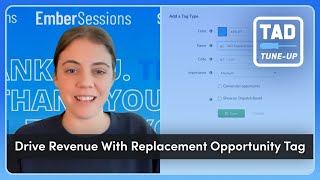
Samantha walks through setting up replacement opportunity tags in ServiceTitan to flag when equipment needs replacing. Tag at least 25% of your active equipment types in the Price Book, attach a replacement age to each, and the system will surface these opportunities on customer records to drive revenue.
Hi everyone, my name is Samantha. I am a program facilitator here at Servicetitan and today I'm bringing you another TAD tune up. And we're going to be talking about replacement opportunity tags. Don't need to go any further with an intro. Let's go ahead and jump into Servicetitan and learn more about this feature. All right, so we are here in Servicetitan. We're going to begin by going into Titan Advisor, and of course we can access that by going up to the rocketship here in the upper right hand corner. Now, in order to find this feature, there are a number of ways to do it. The way I'm going to do it today is I'm going to come over here to our business sections and under selling and performing work, we're going to come up here to optimization. And here we can see drive revenue with Replacement opportunity tags, which cherry on top of this is it's a quick win, which means that the setup is pretty low effort and pretty quick. So let's click into this and learn more about it. All right, so drive Revenue with Replacement opportunity tags. Again, underselling and performing work. Something that's really great for all customer types to use. So whether you're in service and replacement or construction or your residential or commercial, something you can definitely utilize within your business and what equipment opportunity replacement tags allow you to do is drive revenue in a number of ways. Right? It lets the dispatcher know when they're booking jobs that there's a replacement opportunity opportunity at that location. So they should assign someone who's really good with sales, or maybe this particular job should be prioritized over other jobs that maybe have less urgency and do not drive nearly as much revenue. A very quick way to kind of convey that information to whoever's booking and dispatching your jobs. And of course, the affected KPIs are going to be right here and we're looking at effective KPIs of conversion and sales opportunity tracking. Now, right below that we have a GIF here. We won't look at this for too long because I'm going to demonstrate how this works. And then right below that we have what to set up. And we only have one item here at least that Titan Advisor is tracking for setup. And that's going to be setting up replacement opportunity tags on equipment. So these are attached to equipment types and are assigned a replacement age so that when you book a job for a location that has equipment older than that replacement age, Service Titan is automatically going to tag that location. So that you know there's an opportunity for replacement there. And the success criteria this Titan Advisor is going to be looking for is at least 25% of active equipment types have a replacement opportunity tag. So we have a get started button here and if we click on that, what it's going to do is it's going to bring you here to your price book and your price book is where you're going to attach the tag. However, we do want to make sure that we are set up to make sure this particular item is set up. So I'm actually going to move away from the price book for now. There's a couple of other things I want to make sure we have set up first before we can get these attached to equipment. So I'm going to close out of the price book. We will be back. I'm going to close out of this for now. And where I actually want to start today's demonstration is in the settings. So I'm going to come up here to our settings. Gear up right here next to that rocket icon and we're going to be searching for tag types. Now as you can see, we have a lot of tag types here, but for today's demonstration we're just going to kind of start from scratch. So I'm going to come up here and hit add. But of course you can edit an existing tag if you need to. All right, so this is pretty much like setting up any other tag, right? So we're going to start with a color, something that's going to pop out, something that's going to catch your eye, let you know, hey, we have a replacement opportunity here. Just going to go with this blue. We want to give it a name for today's demonstration so I can find this easier later on. I'm just going to call this a tad replacement. Want to give this a code, something shortened so that it doesn't take up too much space on your dispatch board. And then importance, however you want to assign importance. And then right below that something we want to make sure that we are always checking is conversion opportunity. So this is going to be one of the settings we want to be sure is checked so that Servicetitan knows that hey, we are tracking an opportunity here. And then if you want to, you can have it show on the dispatch board. So once we have that saved, we have our replacement tag. All right, so that's going to be kind of step one of setup items. Now we're going to go back to the price book like I said before and then Once we're here in the price book, we're actually going to come over here and come to the equipment section of our price book. And we're going to start with equipment types. So you might already have some equipment types in here. We have some pretty basic and straightforward ones for demonstration purposes. But today, again, to make this a little bit easier and to highlight how easy it is to set these up, I'm just going to go ahead and hit add a new equipment type up here in the upper right hand corner. We're going to give this a name again to make this a little easier to track and find later. I'm going to call this a TAD Equipment type. If you want to assign a business unit, you can. If you want to assign a capacity type, you can. And of course, capacity levels as well. I'm going to keep this one pretty simple. So we're just going to give this one a name and a replacement age. And then down here, this is where that tag is going to live. So we can see here we have my tag replacement tag. But you'll notice that we don't have every single tag type that you may have saw, you may have seen in the last settings screen, which is we only have a few. And that's because these are the only tags that we have in our account right now that has that opportunity checkbox checked. So if you create a tag and you come in here to select it, and under equipment type and you don't see it, I would go back to tag and make that tag settings and make sure that opportunity checkbox is selected. So we're going to put tag replacement as our tag, and once we have that information filled out, we can go ahead and hit add. All right, so we can see we have our tag, equipment type, our replacement age. We kept it 10 years. And then we can see the tags that are attached. So that's going to be the second setup item that we want to make sure we have in place. And then the third and final setup item that we are going to have is actually going to pieces of equipment and assigning these equipment types to it. And this is how Service Titan is going to know what that equipment's replacement age is so that it knows if a customer's equipment exceeds it, it needs to tag that location with this tag. So I'm going to come over here to the equipment section, and instead of creating a new one, I'm going to go ahead and just use something that already exists. So I'm going to go ahead and edit this particular piece of equipment here. And what we want to make sure that we are updating here is the equipment type. That's going to be this third. This third option down. We're going to go ahead and select that so we can see the other types that we saw in our settings. But of course, TAD equipment type is the one that we want to assign to it. And then once we have that assigned, we can go ahead and hit save. All right, so we have created the tag, we have created the equipment type and we've made that sure that equipment type has been assigned to a piece of equipment. So how is this going to show up in our actual accounts? So what I'm going to do is I'm going to go ahead and find an example of a customer that has this particular equipment on their location that exceeds our replacement age, which we set at 10 years. So I'm going to come up here to calls and I'm going to search for actually before I search because I just made a change to my settings. I'm going to go ahead and refresh the page and then we'll search. So I'm going to go ahead and search for my customer, Stacy. All right, great. So Stacy popped up here and you can see that TAD replacement tag is already attached to her location. And you can see here that we also have an equipment tag that matches the equipment that we set up before that has been installed 13 years ago. So this is going to allow you to see that, hey, we have a replacement opportunity. If we wanted to really dig down into the equipment on that particular customer's record, we could. So we can see again, this is the equipment type that we set up previously. If you want to dig into more details on that, you can do so by clicking on it. We can see things like the model, who the customer is, et cetera. But that's going to be how our equipment, our replacement opportunities tag works. So let's go back up here to our rocket icon, selling and performing work optimization. And then of course, drive revenue replacement. So that was a run through of how this particular feature works in its setup items. Again, in order to get that success criteria, we would just go need to go into our equipment types and make sure 25% of them has a replacement opportunity tag attached. Thank you so much everyone. I appreciate you giving us some time to learn more about these replacement opportunity tags. And if you want to learn more, check out our other TAD tune up videos. I hope you guys have a great day. Thank you.
More from Bill




Capturing the 80%: How SmartAC’s Gen-2 Targets Non-Membership Homeowners | Podcast Ep. 296

Build better customer data with every booking in ServiceTitan | TAD Tune-Up Series

The Biggest Change for Roofers Coming From Other Roofing Software to #ServiceTitan?

