Following up on conversion opportunities | TAD Tune-Up
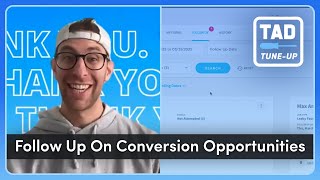
Joel from ServiceTitan shows how to use Titan Advisor's Follow up on Conversion Opportunities feature. Grant technicians the 'access follow ups' permission in Settings so they can call, email, or resend estimates to customers on mobile. The system scores you on how many open opportunities have a follow up scheduled within 7 days, with 75% hitting the 5-point threshold.
Questions this video answers
Titan Advisor → Selling and Performing Work → Acceleration (may appear on left or right under Acceleration)
Won, Dismissed, Open (Open sub-statuses: Not Attempted, Unreachable, Contacted)
The 'access follow ups' permission (set in Settings → Technicians → Permissions)
Grant 'access follow ups' to at least 80% of sales technicians
Percent of open opportunities for jobs completed in the last 30 days which have a next follow up date that is no later than 7 days ago
Hey, everyone, My name is Joel and I am super stoked to be here doing another. Yet another episode of Tad Tuneup. I'm a senior program facilitator here at Servicetitan, working on. Let me see if I get this right. Ignite Sessions, Ember Sessions and Spark Sessions, a few different programs where we look at bring small groups of customers together to talk through different areas of Servicetitan in Ember Sessions specifically, if you haven't joined it yet, definitely do. So we spend a lot of time talking about Titan Advisor and so. So I'm really stoked with your. With. I'm really stoked to be here with you today talking through Titan Advisor. So with that, today we're going to take a look at a feature called Follow up on Conversion Opportunities. Now, before we dive in, I want to call out that this feature is really going to be like one of those mobile features. So the idea here is we want our technicians to be able to follow up on conversion opportunities from the field. And so with that, we're going to first dive into Titan Advisor and we will talk through the feature itself and then we'll dive into the mobile side and see where we can actually find that feature and how our technicians can actually use it. So the first thing that we're going to do is we're going to click on that rocket ship, top right hand of your screen and it will take you to the Titan Advisor overview screen. Now, if you've been here before, that's totally awesome. That's great. You can set up your. You can customize your current plan, you can set your business goals. There's a lot of really cool things that you can do on this screen. Definitely take advantage of Amber Sessions to. To understand a little bit more about how we can utilize Titan Advisor to achieve our business goals. So where we're looking specifically is if we go down, click on that rocket ship, top right hand of your screen, it will take you over into Titan Advisor. And then we're going to go ahead, look on the left underneath the business sections. We're going to go down to Selling and Performing Work. So we're going to click on Selling and Performing Work. And for most of you, it's going to plop you into this launch feature phase and we're actually going to move over to that acceleration tab. So as we're kind of going through these different screens, you're probably seeing all these different features that you can go ahead and earn points for, and those points will get rolled into your overall Titan score today. We're going to be looking at follow up on conversion opportunities. So you might see this on the left hand side of your screen. You also might see it on the right hand side of your screen if you've completed the setup. So just a quick note that it will be somewhere underneath selling and performing work and underneath acceleration within this page. So let's dive into follow up on conversion opportunities. Now, like I said at the beginning, this is something that the value to this is, is having your technicians follow up on their own open opportunities. So we'll be diving into the follow up screen on both the office side and on also the technician side as well. So the first thing I want to call out is that this is a feature that primarily drives revenue, right? We're looking at open opportunities. There's a few different kinds of opportunities. I'm going to go over to my follow up screen over here to look at these different opportunities that we have. Generally speaking, we have opportunities that are won, we have opportunities that are dismissed, and we have opportunities that are open. So there's three different statuses. If an opportunity is one, that generally means that we've sold an estimate from that opportunity. Right? An opportunity can be one estimate or multiple estimates kind of bundled together. And if you sell an estimate from that opportunity, you can say that that opportunity is one. Dismissed means that the customer said, hey, for whatever reason, we don't want to move forward with that opportunity or they're ghosting you and you can go ahead and say, hey, we're done. We followed up with you ten times on this. We're not following up anymore and go ahead and dismiss that out. So you're not bugging a customer that doesn't really want your services or the customer explicitly told you, hey, by the way, we don't really want your services. And you can go in and dismiss the entire opportunity. The other status is open. Now. An open opportunity is an opportunity that hasn't yet been won, AKA we have not yet sold an estimate from that opportunity or that opportunity has not yet been dismissed. Meaning that we have not yet decided that we're not going to sell any estimates from this opportunity. And so we're still trying to reach out to that specific customer. And you'll see there's a few different sub statuses underneath here. So not attempted means we haven't tried to reach out. Unreachable means, hey, we've tried to reach out, but we haven't been able to talk to our customer yet. And contacted means hey, we've actually contacted our customer and we're working through that sales process with the customer themselves. So a quick note. All you need to know right now is that there's different opportunity statuses, but we're looking at the open opportunities, AKA the ones that you haven't won and that haven't been dismissed. So let's go back over to Titan Advisor and what I want you to do is I want you to put a pin in that like open opportunity thing, right? Just so just remember what that is. So what we're looking at over here is the more that you follow up with your customers on open estimates, the more likely you are to convert them into sold estimates, right? Pretty simple. More we follow up on those estimates, the more likelihood that we'll actually sell one of those estimates. Opportunity follow ups allow you to take advantage of open estimates by following following up with customers so you can convert them and increase your sales. So the next thing that we're going to look at is what we actually have to set up and how we actually use this feature. So if you remembered I talked that I talked a little bit earlier, that this is primarily a mobile feature, right? There's a lot of value in this as the value in this is being able to have technicians follow up on their own open opportunities. So the first thing that we've got to do is we have to enable follow ups permission to sales technicians. And our success criteria is at least 80% of our sales technicians are granted the access follow ups permission. So what we're going to do is I'm going to go back over to a different screen, we're going to open up, go over into our settings, we're going to go over into our technicians. So you'll have to have permissions to be able to view the, you know, and change your technicians. We're going to go ahead and click on a technician. So I just opened up a random technician. But you'll want to make sure that you do this for technicians that actually you want to have the specific feature for and then click on that permissions and we're looking for the access follow ups permission. So making sure that the technician has that access follow ups permission. Now what that specific permission does is I'm going to go ahead and share the mobile side of Service Titan is it gives you, it gives your technician this follow ups button on their on the mobile side dashboard. So on their dashboard that they can see in the field on either a tablet or on their phone. But on the mobile side of Service Titan and that follow ups button, this kind of looks pretty similar to our follow up screen, right? A little bit of a different format but generally speaking has all the same kinds of things that we're looking at. The only difference with this is that this is looking at the follow ups for that technician themselves. So it's really all the jobs that they ran and all the follow ups that they have to do. Which is why if we go back over to the office side of ServiceTitan, we are looking at back over into the office side, go back over into Titan Advisor. We are asking at least 80% of your sales technicians are granted that access follow ups permission. The technicians that are actually presenting estimates and actually doing sales and following up on like actually presenting estimates and trying to sell estimates in the field. So the next thing that we've got that we actually have to do is we're going to look at how to use this. So once you've set this up, this will change from incomplete to complete. And there's a little clock over here saying hey, by the way, this shouldn't take that long to. This should take about five minutes to set up. Right? Just going into each of those technicians and giving them the access follow ups permission. So the next thing that we'll talk about is how to use and what Titan Advisor is asking you to do is it's asking you and your technicians, really your technicians to follow up on open opportunities. So the follow ups tab in Service Titan Mobile lets your technicians find upcoming follow ups that can be converted into sold estimates as follow up opportunities are created. Make sure that your technicians follow up on them sooner rather than later to help ensure the opportunity is won. So if you remember a few minutes ago, I said, hey, put a pin in your head in that open opportunity. Hey, we want to make sure, we want to. Our goal is really to convert all of those open opportunities to one opportunities, right? That means we're selling a lot. And so the idea here is to have your technicians help you and your company actually go through and follow up on those open opportunities. So what we're measuring over Here is the percent of open opportunities for jobs completed in the last 30 days which have a next follow up date that is no later than 7 days ago. All right, that's kind of a big jumble of words. Let's actually break down and talk about what this means. So what we're looking at is the jobs completed in the last 30 days. Generally speaking, if you present an estimate on one of those jobs, that estimate, the customer doesn't sign that estimate, right? That means they have an unsold estimate, which means that they likely have an open opportunity on that specific job. So it's looking at the percent of open opportunities that has a next follow up date that is no later than seven days ago for jobs completed in the last 30 days. It's probably a better way to like visualize it. That's kind of how my brain works. And if over 75% of those jobs completed in the last 30 days. Days with the. An opportunity date. Sorry, with the next follow up date that is no later than seven days ago. If all those are within those last seven days, that means that you'll receive five points for this specific feature. So let's actually talk about what, how this would all work. Let's go into back into Service Titan Mobile. Let's go back into our follow up screen. So I've got a bunch of different jobs over here that have different follow up dates, right? And I can kind of set these manually. I can say, hey, when do I want to follow up on them next? So we've got a bunch of ones in the past over here. This one for Jackie Chan, that was our next follow up date is March 28th. So that was, it's now March 31st. So that means that that was three days ago. I've got one for Max which was Thursday, March 27, which means it was a few days ago. But then I've got some down here which March 13, March 6, March 2, those are obviously over seven days ago. So these would kind of hurt me in these wouldn't. These would like go against my getting 75% on that Titan Advisor feature. What we want to make sure is we want to make sure that we're following up on these different opportunities and changing that opportunity date so that it shows up sooner. So what we want to do is if I go ahead and click on this specific, this specific follow up over here, right? I've got. Looks like I've got one estimate, just a test estimate over here. This was a job that was completed on looks like it was completed on 3, 4. And there's a few different things that you can do within this feature itself. So you can call the customer by clicking this button, you can email the customer by clicking this button. And it will take you over to like all the different estimates. You can actually go ahead and resend that estimate to the customer. You can click on log a follow up over here or you can actually just go ahead and manually log a follow up over here. So I say I want to log a follow up for tomorrow on this specific one, say, hey, like I want to go and call this customer tomorrow. And I could just select okay, and this would move over to tomorrow. Now I can also log a follow up over here, which means that I'm actually saying, hey, when do I actually, you know, when I try and call that customer, what happened? So I can choose either I successfully reach the customer and then anything that I type over here I could either copy to the location, the customer or the job. So I might say, tried calling customer, left voicemail, will try again tomorrow and then save this out. So it's going to move that opportunity date to tomorrow because I logged that follow up. So set that next follow update for tomorrow. And now this will again help my metrics again. And this is basically what your technicians will do in the field to really help you follow up on those conversion opportunities. So with that, thank you so much. Hopefully we'll see you in a group pretty soon and have a great rest of your day. Thanks, everyone.
More from Bill




Capturing the 80%: How SmartAC’s Gen-2 Targets Non-Membership Homeowners | Podcast Ep. 296

Build better customer data with every booking in ServiceTitan | TAD Tune-Up Series

The Biggest Change for Roofers Coming From Other Roofing Software to #ServiceTitan?

