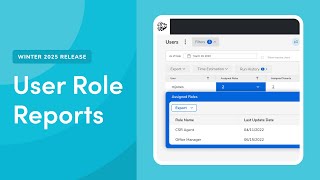
Learn to create Enterprise Hub User Role Reports to view permissions and access without contacting support. You need view or edit permissions on EH Users and EH User Roles templates, then build a report by selecting your template, choosing columns like Role ID and Assigned Users, and running it to see role metadata and user counts.
You let's take a look at an overview of the new Enterprise Hub User Role Reports the Enterprise Hub User Role Reports provide a comprehensive, centralized view of permissions across all employees, user roles, and tenants in Enterprise Hub. This eliminates the need to manually request this data from Enterprise Hub representatives whenever you need a fresh view. To use the Enterprise Hub User Role Reports, make sure you have the view or View and Edit reporting permissions for EH Users and EH User Roles templates in Enterprise Hub. Let's take a look at how to create an Enterprise Hub report in Enterprise Hub. Click on Roll Up Reporting, then click Create Report. On the new Report screen that opens, choose a report type. For this lesson, we'll select all, then select either the EH Users or EH Roles report template. For this lesson, we'll select EH Roles, select the columns you want displayed in the report. Role ID, Role Name and Assigned Users are selected by default, but you can add additional columns such as the Role Creation Date to see when the role was created, or Last Update Date to see the last time the role was updated. For this lesson, we'll just keep the default columns. After you select your columns, click Next, give your report a name, select the category, and enter an optional description for the report. You can also select if you want to share the report to other users with the same permissions. At this step, click Next to continue. On the Members and Access screen, you can select the users you want to have access to the report. We'll just use the default access settings for this report. When you're finished, click Save the Report, then opens. Here you can again edit the columns you want visible on the report or use the filter to select the networks and tenants you want to display on the report. When you're ready to view the report, click Run Report. When the report loads, you can see data from the columns you selected before running the report. The EH Roles report by default will show the Role ID role name and the number of users assigned that role. To see a list of the users assigned to the role, click on the number in the Assigned Users column, then click Expand. You'll be able to review the users assigned to that role in the Assigned Users. Drill down now that you've taken a look at an overview of the new EH Users and EH Roles reports in Enterprise Hub. See our Knowledge base for more information.