Generate invoices for service agreements in bulk | TAD Tune-Up Series
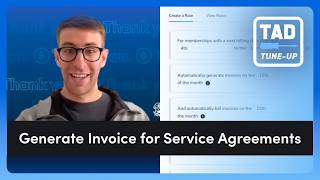
Joel from ServiceTitan shows how to generate invoices for service agreements in bulk using Titan Advisor. You can run billing manually or set up automatic rules, select date ranges, and handle common errors like missing credit cards. The feature tracks success by counting recurring billing runs in the past 30 days.
Chapters
Hey, what's up everyone? Welcome. My name is Joel and I'm a senior program facilitator here at ServiceTitan. And welcome to yet another Tattoo Note. This is the video series where we take a look at specific Titan Advisor features and how you can get some more points going into your Titan score. So today we're going to take a look at a feature called Generate Invoices for Service Agreements in Bulk. What this feature allows us to do is it allows us to take all the different service agreements that we have and generate invoices for them for any of the recurring billing cycles. So monthly, every other month, quarterly, every 6 months, or once a year billing. And we're able to do that in bulk. And so we'll take a look at that feature today. I'm going to go ahead and share my screen so we can dive right in. So sharing my screen, uh, the first thing that we're going to do is we're actually going to go over to that rocket ship on the top right-hand of your screen. That will still be there no matter if you have that top navigation or the left-hand side navigation. We'll be in a few different places today, so I'll kind of keep us organized as we go through. And the beauty of this video is that it's recorded, and so you can just rewind and watch whatever you missed. So I'm gonna go ahead and click on that rocket ship top right-hand of our screen, and that's going to take us to Titan Advisor. If you do not see that rocket ship or or your screen doesn't really look, generally speaking, like this, it means you either don't have the permission or haven't completed the training. But you want your screen to kind of look like this. If you don't have the permission to view Titan Advisor, talk to an admin at your company. The next place that we're going to go down to is down to accounting. We're going to move over into acceleration. And I'm looking for this one down here, generate invoices for service agreements in bulk. Now, if you don't see it on your screen, there could be a few different reasons for that. Uh, the first one is that you might not be looking hard enough. So if it's truly not on your screen, if you take another look, it might be on the left-hand side of your screen. It might not be on the right. Uh, we'll talk a little bit more about what that is in a second. If you are also not seeing it on your screen, I'm going to click into this really quickly, just for a quick second. This is for companies that are specifically tagged as commercial service and replacement. Now, the way that you get that tag— go over to a different screen— is if you go to your settings, go down to your account, go down to company profile, and you want to make sure that you've got that commercial service and replacement customer type checked off. So if you have none of them checked off, you're going to want to go ahead and make sure that you've got this one checked off, and then you should be able to refresh and see that within your ServiceTitan or within your Titan Advisor. So going back over to the feature, um, what we're talking through is we're talking through generating invoices for service agreements in bulk. Now I want to call out one thing quickly. We talked that this is specifically for commercial service and replacement because we're talking through service agreements, and generally speaking, most of the customers that use service agreements in ServiceTitan are for commercial service and replacement. The one thing I want to talk about before we dive in is these two items over here. So right next to this about, you'll see that there's two— there's a money bag and a little, you know, kind of chart going up. The money bag is the primary business goal, right? This is something— this is a feature that drives revenue. So primarily what we're talking through is driving revenue. With this specific feature. The secondary business goal on this one is increasing efficiency. We're going to talk about how we can do this much easier. So what we're more specifically talking about is using recurring billing within our accounting, within our accounting. It automatically calculates the invoice amount based on each agreement's total price and billing schedule and allows you to build rules to automate this process each month. So we've got one item to set up. And the first thing we've got to do in order to use this is we have to activate a service agreement. And that's going to be as simple as going into a specific customer. I've created this one over here, this Jimmy John's customer, but going into a customer and actually creating out an agreement. So I've got this agreement that we've basically, I just created just for this specific demo. But if you're looking on how to do this, obviously you're gonna want to talk to your customer, but you'll go ahead and click on the three dots on the customer page, create agreement, and it's going to take you through the whole workflow of building out a service agreement, which we're not going to do now. There's plenty of other videos that talk through how to build out a service agreement in ServiceTitan. But we have to activate an agreement and that agreement needs to be activated, right? It can't be in another status like draft or hold or whatever the other statuses are. It has to be in that activated status. So we have to activate a service agreement, and our success criteria here is you have at least one active service agreement with a recurring billing schedule. So I'm not talking about taking billing upfront or at time of service. I'm talking about any kind of regular recurring billing. So that would be every single month, every other month, I think we call it bimonthly. But every month, every other month, every quarter, every 6 months, biannually, or once a year, right? Annually, not upfront. Annual and upfront, two different things. Quickly on that note, because I like tangents, annual is, hey, you have a multi-year agreement, we're gonna— we're going to charge you every single year for that agreement. Upfront is just that one lump sum at the beginning. So that is the difference. Okay, thanks for joining me down that little rabbit hole. Um, all right, let's talk about how we actually use these. So what we're going to be talking through is the behavior of this, right? So how to use— we are going to generate service agreement invoices. And the way that we're going to do that is we're going to use the recurring billing to generate invoices for all of your service agreements. Create a recurring billing run by clicking Generate and Charge Invoices and review the generated invoices. So our success criteria here, or what Titan Advisor is measuring, is the number of recurring billing runs in the last 30 days, whether manual or through an automatic billing rule. So you could do this either way, you could do this manually, or you could do it automatically. And we'll talk a little bit more about kind of the difference in how that all works. So if you do at least one, you'll receive your 2 full points for this specific feature. Now, what I want to do next is we're going to move into a different screen in ServiceTitan. So we're going to go over into our accounting screen. So you can go to your top navigation bar or your side navigation bar. You're going to look for accounting and specifically where we want to be is in the batch/export transactions area. The next thing we're going to do is we're going to go over and find this little button called recurring billing. We'll zoom in a little bit over here called recurring billing. I'm going to go ahead, click on that button, and it's going to take me into this kind of recurring billing workflow. So there's two ways to do this, right? Titan Advisor told us that there was two ways to do this. Either we can create a manual run. Or we can create an automatic run or an automatic billing rule that will automatically run those charges for the customer. So we're going to look— I'm going to do a manual first and then we'll talk about automatic in a second. So the first thing that we have to do is we have to search for customers to bill by date range. Now, this is going to be relatively unique based off of how you set up your service agreement. I think the agreement that I have over here is, um, we've got a few different visits, right? So we've got a visit every— looks like about every 2 weeks, and there's that visit window of when those visits can happen. Um, this has 24 visits, but I think for this one we are actually billing this one monthly. So I can see that billing schedule is monthly. And this one started on 3/1, which means that the agreement date that we're going to start with, it's going to bill out at the first of the month every single month. So whenever your start date is, if you go monthly, every other month, etc., whatever it is, that day of the month, whether it's the first, the second, third, 10th, 15th, whatever, is going to be the day of your billing schedule. Or I should say that's going to be the day— losing my screen here— where you are going to bill. And that's the day that's going to hit. So I'm just going to look at the last month. So we'll look like 3/1 to 3/31, search for all customers, and we can see that we've got one over here right now. A quick callout, if I did 3/2, let's see, to 3/31, I don't think this would be in here. Yeah, so like we're not seeing that because it's not in that date range. So we're have got to look at, we got to look at the full date range for this customer. So we'll do 3/1 to 3/31 and we'll see that this customer is over here. So what this is asking me to do, it's showing me, okay, here's their service agreement type, here's our billing cadence, the business unit's going to hit, um, payment. Um, this is the Is the credit card expired? The payment type, I've got none. I'm in a demo account. Don't worry about my account. You should have a real live payment on your account. This is going to be the customer balance. And here's going to be the billing schedule, right? Or the billing template total. So I've got $1,400 plus tax for Jimmy John's on 200 East Alameda Avenue. Now, the way that you do this in bulk is you're going to go ahead, like you'll probably have a whole list of people here. Is you're going to go ahead, click on that top button and it's going to select all the bills. And all we got to do is click on this Generate and Charge Invoices. And what it's going to do is it's going to charge all those different invoices. Now I'm expecting an error message on mine because I don't have an item complete. It might still work. Again, I'm in a demo account, but that's basically how— yeah, zero customers charged successfully for a total of $0. Customer cannot be charged. There was no credit card on that file or on that customer. So that's basically how this would work manually. Now, if we want to create an automated billing rule, all we have to do, all we have to do is go down to this automatic billing rules. Now you can create different rules based off of when you want to actually bill your customers. If you're going to do what I just did, this manual run that we just built out and tried to run, you're going to have to come in here every single month and do this manually. And that's totally fine if that's what you want to do. Like you want to check, make sure everything looks good. Totally fine. Come in here and search for your customers to bill by date range, search for all the customers, and then manually go ahead and generate and charge invoice. If you want to do this automatically, you can create a billing rule that will basically search for customers with a billing date range and then invoice them and bill them on those different, on those specific dates. So I've got this going for like every single day of the month. In the previous video I recorded, which wasn't so good, I started with the first 2 days. So we're just going to keep on going. Um, on for memberships with the next billing date range from with the 3rd of the month to the 3rd of the month. I want to automatically generate invoices on the 3rd of the month. I want to bill those invoices on the 3rd of the month. I'm going to apply this rule to all these membership types, and I'm going to also apply this rule to service agreement invoices. Now, as of now, there's not a way— it's 3/31/2026, March 31st, 2026— as, as of now, there's no way to like choose the specific service agreements you want to charge. So if you want to, like, this applies to every single service agreement invoice, if you like, that you have. So just a quick note on this, that's how it works as of now. You can choose which memberships you want this to bill to, um, or you can just choose all memberships. Now what this is saying, what this rule, this automatic billing rule means, is that If the next billing date range is on the 3rd of the month to the 3rd of the month, it will create that, that billing invoice, that invoice that shows what that bill is on, on the 3rd of the month. And it's going to bill the customer on the 3rd of the month. So this is only good if the start date, going back over to my service agreement, if that start date is on the 3rd of the month, this one little rule that we're creating over here is only for the third. So what I would do is I would probably go through here and build out each one of these rules for every single day of the month, because I want them to get— like, I'm a perfectionist, but like, you do you. I want them to— I want the customer to get billed out the day that their, that their agreement started. You can also do like buckets if you wanted to. So I could do a rule from like the 4th to the 15th of the month. We'll generate invoices on the 15th, Bill on the 15th, right? So I can kind of capture like a much larger swath of customers by creating one rule. Now, and I'll apply this rule to service agreement invoices. The only thing to note, if you're doing a larger date range, for these billing dates is that if you sell a membership on the 4th of the month, it may also bill out— or on like the 3rd of the month, um, sorry, on the 4th of the month, it may also bill out later on. So just a quick note, like, I would just double-check and make sure your rules are okay, um, before you start doing this. Now you'll start seeing this where people have one individual rule. I'm just going to delete all these quickly where I was going to do the 1st to the 31st, you know, something like this where they will invoice like it. They have one rule that covers the entire month. So if I sell a service agreement or a membership on the 31st of the month, they're going to get charged that first day and then they're going to get billed out the next day as well for like the following month. So just a quick note of something to think about, like sometimes more billing rules are better. But again, this is totally up to you and completely customizable based off of how you want it to, to work and show up in your account. So with that, let's take a quick look back at our feature, make sure we covered everything. We talked a little bit about, we talked a little bit about service agreements in general. If you don't see this, where you could find it. We talked about activating a service agreement, right? This is only for activated service agreements. And then we talked through generating service agreement invoices. You can do this both manually and automatically, totally up to you on how you want to do it. But the specific Titan Advisor feature is making sure that you're just going through and creating those billing runs, whether they're manual or, manual or automatic. With that, I think we covered everything we need to. Uh, would love to hear your comments in the— or your thoughts in the comments of this video. And otherwise, we'll see at the next one. Thanks, y'all.
More from Bill




Capturing the 80%: How SmartAC’s Gen-2 Targets Non-Membership Homeowners | Podcast Ep. 296

Build better customer data with every booking in ServiceTitan | TAD Tune-Up Series

The Biggest Change for Roofers Coming From Other Roofing Software to #ServiceTitan?

