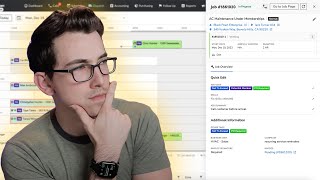
A new dispatch board flyout lets you call customers, edit job details, and reassign technicians without leaving the board. You can disable it in Board Appearance settings if your workflow needs the full job page instead.
Release notes, highlights. So when you click on an appointment on the dispatch board now instead of being navigated to that job page, you will get this flyout. And from this flyout you can do all of the most common dispatcher tasks. So right here at the top of the fly out we have the button to call the customer. Then under there we have some details about this job and we can click this edit pencil to edit those details. So we can change the job type, the priority, the bill to, and the service location. Then we have some quick edit options. We can quickly edit the tags associated with this job, the skills necessary for this job, and we can edit the job summary again. You can do that right here, right from this fly out. We have an overview here of all of the appointments associated with this job and we can make changes to that if we need to. We can reschedule the appointments or assign an unassigned dispatch the technician. All of those appointment options are available right from here. And then here at the bottom of the fly out we have some additional information about this job. I think this is really great for dispatchers because it allows them to stay where they're supposed to be, which is on the dispatch board. Now, for most dispatchers most of the time, I think this flyout is going to be more efficient than the old way of going straight to the job page. However, I can think of a few circumstances where it would not be more efficient. For example, obviously not everybody in a company is a dispatcher, so maybe you're in a different role and you're checking something on a regular basis that's not available from the fly out. Or, or maybe you are a dispatcher but you have a company specific job closeout process that involves checking something that's not currently available from the fly out. Well, in those circumstances you do have a couple of options. Option number one, the most obvious one is you can just turn the fly out off. To do that from the dispatch board you're gonna hit this little settings cog here and then we're going to go to board appearance. And then right here we have the option for the jobs details flyout. You would just change that from yes to no, then hit apply changes down here at the bottom and that will completely turn off the flyout and give you the old behavior back. And now option number two, if you want to keep the fly out because you like it, but you just don't want to use it all of the time, then instead of clicking directly on the job bubble on the dispatch board, if you click that little blue line that shows the working time of the technician. Clicking that line still will take you to the job page in your current tab.
Hey, thanks so much for watching. Mighty kind of ya. If you want to check out the full release Notes video, here's a link to it right around here. Or if not, here's another video I think you might enjoy. I'm just going to sit here and stare at you until you pick one. That's right. Go on. Okay. Interesting choice.