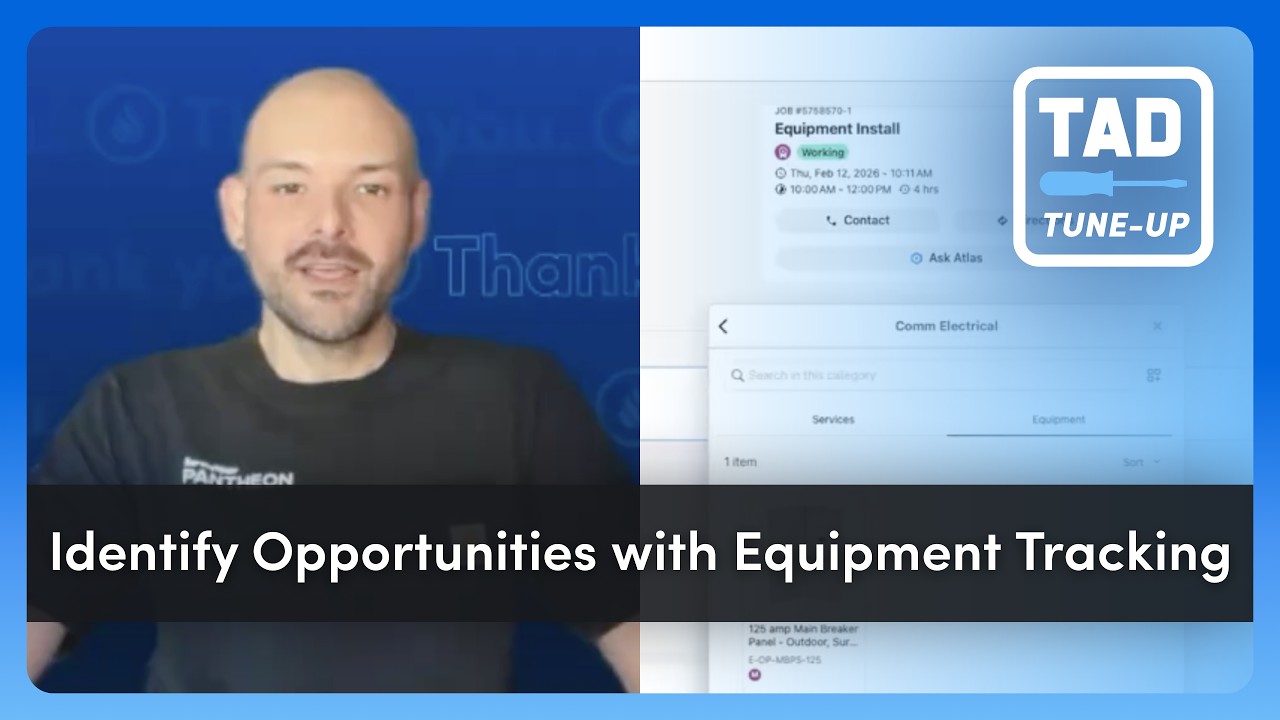
Brandon shows how to set up Equipment Tracking in ServiceTitan to turn repair calls into replacement sales. The feature scores 4 points in TAD, with bonuses when most locations have multiple pieces of equipment tracked and recent service history.
Chapters
Hey everyone, this is Brandon with ServiceTitan, and welcome to another edition of TAD Tune-Up. Titan Advisor, or TAD, is your automated coach inside of ServiceTitan. It's built to analyze your data and point out exactly where you're leaving money on the table based on industry best practices. The best practice we're talking about today is equipment tracking. Think about it. If your tech is on a call and doesn't know a unit is 12 years old or out of warranty, they're just there for a repair. But if you know it's an aging system, that repair turns into a replacement lead. Today, I'm going to show you how to set up the plumbing in your settings so ServiceTitan can start tracking these opportunities for you. Let's jump in. To get started, let's navigate to the rocket ship in the top right-hand corner. And on the left-hand side, under the Business section, we're going to click into Selling and Performing Work. And then click into Optimization. Here you will see Identify Opportunities with Equipment Tracking. This feature is currently valued at 4 points. It is available to all customer types and affects your conversion and sales opportunity tracking KPIs. There are two setup components to this feature. The first is setting up your equipment types. We'll head to Price Book in just a bit to get those added. The next is setting up your business unit divisions for installs. We need to make sure that one or more of your business units has an installation division recorded. Under the How to Use, We are measuring the percent of locations with more than one piece of equipment for which you've completed an installation job in an installation division. Anything over 80% is gonna earn one point. So we really do want to hit that 80% threshold here. The next one is going to be adding equipment records to locations. What we are measuring here is the percent of locations with one or more pieces of equipment for which you have completed a job in the last 30 days. Anything over 45% is going to earn that additional point here for a total of 4 points. So let's check our settings first. We're going to navigate to Pricebook by clicking Get Started. We will need to click into the equipment section And notice up top here you've got your equipment and your equipment types. Clicking into equipment types is going to show you the active equipment types you currently have in your system, and you can go ahead and add as many as you would like to up top with the add equipment type option. Here you will enter the equipment name. And then what we need to update here is going to be the replacement age. This is what's going to trigger that replacement opportunity once that system reaches the replacement age threshold. You can also assign business units to the equipment type as well as adjust the capacity type, but we definitely need at least the name and the replacement age. Before we add. Our next feature was related to business unit settings and assigning a division to the business units. So for that, let's go to our settings gear icon. We're going to start searching for business, and we'll see business units here under operations. Now a part of this setup is that our install business units need to have the install division recorded in the settings. We'll see here trade is an option as well as division, and what we are looking for here is that we do have the install division recorded. Be sure and save your changes to the business unit once you have made your updates. And now let's head back to Titan Advisor to see what we're measuring. Okay, we're back in the feature. We have set up our equipment types. We have added our install divisions to our business units. Let's take a look at how we can earn some additional points here. The first is going to be adding equipment records on install jobs. So again, what we're measuring is the percent of locations with more than one piece of equipment for which you've completed an installation job in an installation division. The next piece that we're measuring is the percent of locations with one or more pieces of equipment for which you have completed a job in the last 30 days. So first, let's add an equipment record to our invoice on an install job. And first we're going to click into our invoice tab. Okay, now part of our what we're measuring is are we adding pieces of equipment to the invoice? So we'll need to click in to add invoice items. I'm going to select my equipment here, click through my categories and my subcategories., and we'll get that piece of equipment added. We do have some recommendations, which we'll leave for now and go ahead and select Done. Okay, and then Add to Invoice. The other— what we're measuring is adding equipment to the location record. This can be accomplished by navigating to the Equipment tab, and then down below you're going to see an Add option. And here we will select equipment. Even if you're not the one who installed this piece of equipment, it's a great idea to record what you're seeing on site so that you have record of that equipment and so you can proactively reach out for replacement when that piece of equipment reaches its age opportunity. So to add a piece of equipment from the mobile side, we will give our piece of equipment a name. We will also be assigning that equipment type, and then we'll go ahead and add. So now we've accomplished both what we're measuring. We have added equipment to our install jobs invoice, and we've added a piece of equipment to the location record. Get those equipment tracking habits started today. You'll stop guessing where your next big lead is coming from. And your data will tell you exactly whose door to knock on. Thanks for watching, and I'll see you in the next one.