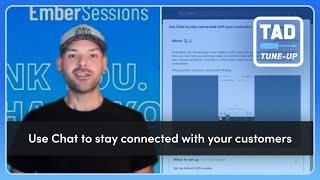
Brandon walks through setting up ServiceTitan's Chat feature in five steps: configure SMS numbers, accept terms, grant permissions, and enable chat. Track two metrics: percent of threads handled and average agent response time.
Hey everyone, it's Brandon. And welcome back to another TAD Tune Up Video. In today's fast paced world, customers expect fast, clear and convenient communication. That is why Servicetitan's Chat feature is designed to help your team stay connected, informed and responsive. No phone call required. Let's take a closer look at how chat can transform your customer experience and help you hit your goals in Titan Advisor. To get started here, we're going to head up to our Rocketship. In the top right hand corner on the left hand side we're going to be selecting the Customer Communications Business section and then clicking into the acceleration. We will find Use Chat to stay connected with your customers. You'll see here on the right hand side. This is valued at five points. Let's go ahead and click in. So today's customers are mobile busy and expect quick, convenient communication. That's why Servicetitan's Chat feature is your secret weapon for delivering next level customer service. With chat, your team can send and reply to customer text messages directly from Servicetitan, managing jobs, answering questions and resolving issues faster than ever. It's more than just messaging, it's a smarter way to connect. Customers can even send images or videos of their issues, so your texts show up informed and ready. Here on the screen you'll see that this feature is available to all customer types. We'll see the business goals that are impacted by this feature, so provide exceptional service as well as increase efficiency. We'll see our brief description of the feature as well as our GIF and then scrolling down we're going to see five pieces that we need to set up. The first two are going to be setting up a default SMS number and a default MMS number. An outbound SMS number lets you send text messages to customers from the call booking screen and an outbound MMS number lets you receive image and video files from customers. Through the chat. Customers can send you photos and videos to make it easier to diagnose problems and to help prepare your technicians for the job. You'll see here there is a Learn More option if you'd like more information about setting up the SMS or the MMS numbers. Clicking Get Started will take you right to the settings page for the phones. Or you can navigate to your settings gear icon and then start typing phones in the search field. And what we're looking for is this last one here called Phone numbers. Okay. Right towards the very top you're going to see your outbound SMS and your outbound MMs. Okay, so this is where we will be populating our phone numbers to again be receiving text messages and our images and videos. The third piece to our setup is accepting the chat terms of use. You can click the get started button here, or you can navigate directly to your settings gear icon, search for chat review and accept the legal agreement. And that will bring you to the chat settings page. As a note, you're only going to need to agree to those terms one time. So if you've already done so, you will be brought to this page anytime you search for chat within your settings. The next step is to give chat permissions to your users. If some of your employees are better at communicating in chat than others, you can grant specific employees permission to use chat. Go to your Settings People and employees page and enable the read only access to customer chats and full access to customer chats for at least one employee. The success criteria here is the number of employees who have both chat permissions enabled. So for this, let's go back to our settings gear and we're going to type in employees. We'll go ahead and edit one of our users here and under the permissions tab, this is where we're going to find all of our chat permissions. We scroll down the page just a bit, you're going to see chat and messaging. Okay, so we'll want to at least allow our employees to view customer chats. We can allow full access to customer chats, and we can also even allow access to chat settings. Okay, once these are updated, be sure to save changes at the bottom. All right, so now that we have accepted our terms, recorded both our SMS and MMS numbers, and updated our chat permissions, the final setup piece here is to enable chat for this. You can click the get started link, or you can search for chat back on the settings page. And that's going to bring us to this page here where you'll see a toggle switch that needs to be switched to enable the chat functionality. Be sure to save here as well. And now chats are active. All right, great job. We've got all five setup pieces completed. Now we're going to scroll down just a bit to see how we're going to use this feature. So first is going to be respond to customer chat messages. Of course, you can use chat to answer customer questions, see those images or those videos that they have sent over, and communicate with hearing impaired or deaf customers. Using chat instead of directly calling customers can be highly efficient as your CSRs can read and respond to multiple customer chats at once. So what we're measuring here is the percent of chat threads is excluding those that are marked as spam, which are either closed or where the last message is outbound by an office user the last seven days. Anything over 75% is going to earn you the full three points in this section. Anything over 30% is going to give you one point. And of course you'll see your current percentage as of today listed in this box here. The second piece of this is Reducing agent response time Faster response times to incoming customer messages help improve customer satisfaction as customer sends you chats, make sure to respond to them promptly. So what we're measuring here is going to be your average response time of those incoming messages that were replied to over the last week in minutes. So anything under two minutes is going to earn you two points and anything under five minutes is going to earn you just one point here on this feature. Okay, just like the one above, you're going to see where you're currently sitting today. Let's go ahead and take a look at the chat page and explore some of these options. Now that we have this enabled, we can use our chat feature by navigating to the Calls tab and on the left hand side you should now see Chat available under Calls and under Bookings. Okay. Here within chat you'll see any open threads as well as any threads that you may have previously closed. Clicking into a thread is going to show you either a option to book a job if the customer is texting in with a request, or if there is an already booked job. We will see those job details so that you can make any edits or add any notes to the job as needed. All right, so if you're ready to boost customer satisfaction and streamline your team's communication, be sure to enable chat and Servicetitan today and start seeing the difference it makes for your team and for your customers.