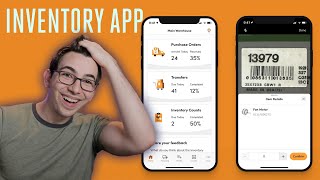
A YouTube walkthrough by Richard Coburger (Blue Claw) demonstrating the new ServiceTitan Inventory mobile app. The video explains that the app supports receiving purchase orders, pulling pick tickets, performing inventory counts, and barcode scanning from iOS/Android devices; it also outlines prerequisites (must be using full inventory) and permission requirements for users.
What's going on, everybody? It's Richard Coburger here, the Blue Claw nerd. And in this video, I'm going to be going over the brand new Service Titan Inventory app. This app allows inventory users to receive purchase orders, pull pick tickets and perform inventory counts, all from a mobile device. Plus, it supports barcode scanning, which has been a hugely requested feature. Now, before I jump into the app, something important to know is that you need to be using full inventory in order to use this app. So at least as of the time of me recording this video, if you're only using the purchasing module and not full inventory, then this app will be of no use to you. But even if that's you and you're not using the full inventory app, if you're interested in inventory at all, I would still watch this video because this just might be the thing that pushes you over the edge. However, do keep in mind that setting up inventory from zero is a pretty major project. So if you're not ready for a pretty major project right now, then you might want to hold off. But if you're already using inventory, you don't need to worry about any of that. You're good to go. You're ready to use the app. So access to the inventory app is controlled by permission. So make sure that any users that you want to have access to the Inventory mobile app have the permission access inventory mobile app enabled. This permission is available for both office employees and technicians. But do keep in mind, the Inventory app is mainly intended to be used by a warehouse person, so technicians are not the main audience of this app, although they can access it. And we'll get into why you might want to do that a little bit later. Okay, so once we've got our permissions all set, the first thing we need to do is download the ServiceTitan inventory app from your respective app store. It's available for both iOS and Android. This is what you're looking for. It looks like this. Once you've got that downloaded, you're gonna log in using the same credentials that you always use to log into ServiceTitan. And once you're signed in, you'll be presented with looks a little like this. So you see, we start off on this homepage here, kind of a dashboard that shows you some basic data about the purchase orders, transfers and inventory counts that are relevant to you today. So we can dig into any of these either by tapping on the tile right here from the home screen, or you can also navigate to the different sections from the bar there at the bottom, the navigation bar. So if I tapped on purchase orders, that would take me into the receive tab. If I tapped on transfers, that would take me into the pick list tab. And if I tapped on inventory counts, that would take me into the counts tab. Now, you see here at the top, it tells me I'm currently looking at.