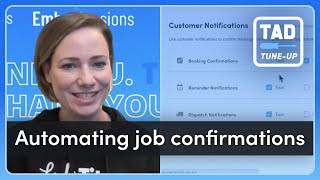
Megan walks through setting up automatic job confirmations in ServiceTitan to cut no-shows. Enable the feature in Dispatch Board settings, customize the confirmation message and reply keyword, and the system sends reminders 24 hours before each job.
Hello everyone, my name is Megan. I am a senior program facilitator here at Service Titan. Welcome to another installment of our TAD Tune up series where we look up, look at setting up and utilizing some of the features within Titan Advisor. This is going to help you streamline your process and generally just help you maximize how you're using Service Titan. So today specifically, we're going to look at a feature that's intended to streamline some processes and improve some efficiencies for you. The feature is called Improve Efficiency by Automating Job Confirmations. So let's go ahead and take a look. I'm going to share my Titan Advisor. In order to get here within your own accounts, up at the top right hand corner of your screen you're just going to click on the little rocket ship and that's going to bring you to your Titan Advisor dashboard. Now the feature we're specifically looking at today is going to be under the Customer Communications Business section. So let's click on that. Now where you land in this business section is going to be determined by the current stage that your account is in. For this, for example, this one is still in launch. So I've landed under the Launch tab. Wherever you have landed in here, I am going to have you go ahead and move over to the Acceleration tab because that's where honestly predominantly most of the features in this business section live here anyways. But this one specifically is here and it is called Improve Efficiency by Automating Job Confirmations. This is also a quick win feature. If you ever see these little purple clocks, definitely pay attention to those. Those are the ones that we don't have a whole lot of lift to set up necessarily. But setting them up can have a big impact. All of these features are tied to different KPIs, so this is going to have a big impact on those KPIs. And I'll go ahead and open this one up and we can take a look at what those are for this specific feature. So for this one we're looking at automating the way that we're confirming our jobs. And ultimately what that's going to help us with are things like cancellations, our no show percentages, and also time that's spent confirming appointments because now we can automate and streamline this process. I will also give a quick shout out for this little like GIF that's in here. It's really helpful. So if this is one that I would recommend actually slowing down and taking a look at because it does show you what this looks like from your perspective when jobs are being confirmed. But also if you're sending those messages out to your customers, it's giving you a kind of a bird's eye view of what that looks like for them as well. So just a little shout out for the gif. But now let's kind of look at what we need to set up to receive credit for this specific feature. Now, the first part is really just enabling job confirmations as a whole. We'll talk about how they can confirm jobs. Your customers can confirm the jobs by texting and replying here in just a minute. But we first want to make sure that we're able to confirm these jobs as a whole, because you can also do this from our dispatch board. And part of being able to make those job confirmations is setting this up in your settings. So to get there, you're just going to go to settings dispatch board and then we're going to look for Enable job confirmations and make sure that that is toggled on, because having that on is going to be what determines whether or not we receive credit for this. You can see for mine, I am receiving credit for this one because it shows as completed, and then I'm earning one point for this specific part. If you are still confused on how to get to this specific section, there is a nice button here for get started. You can actually, if it says get started here, it will take you to that specific area of the software that you need to look at, because that's what's determining whether or not you receive credit here. So I'm going to actually just click there for get started. But just know that you can also search this through your settings by the instructions that were in there. So settings, dispatch board, job confirmations, and this one is the one that we're looking at. So we want to make sure that this is toggled on, because this will grant users the ability to mark jobs as confirmed. And then these confirmed jobs will show up as a darker shade of blue on your dispatch board. So you do have a visual that this job has been confirmed. Now that that's set up, it's all good to go. Let's take a look back at our feature again. The other part is enabling the automated job confirmations. So this is looking at sending those confirmations as messages 24 hours before the scheduled job so that the customers can rep back and confirm that that still works for them. So if we have our automated job confirmations enabled, that will give us credit for this specific piece. If you need to know how to get here or how to set this up. This one actually has a Learn More button. Now the Learn More buttons are taking you to Knowledge Base articles that are going to tell you a little bit more about this feature. And for this one specifically as well. I think this is a great add on here. I'm actually going to click on this because this Knowledge Base article will actually address maybe some of the questions that you may have going into this. For example, what happens if my job has multiple appointments? Each one gets their own confirmation. What are the confirmation keywords or letters? So all that's listed within here as well as how to set this up. But I'll also look at this with you too. So let's go ahead and look at enabling those automated job confirmations the way that you're going to get here. For this one, you'll go to your settings wheel. We're going to look at customer notifications and that's under our communication section. You already see it from right here, but I'm actually going to click into this as well. You can just check this on or go in here into this tab and there is a way to toggle it on from within here just to enable this and having that on the on position. Now the text. This is another part that I do want to give a moment to. Once you have this set up, also take a moment to ensure that you have your message that will indicate that the customer can reply to confirm that message. Because as you can see from here in this specific content that I have, it doesn't say that you can. So if I've turned on the the ability to automatically confirm those, those jobs, what I also want to do is customize this and then down here at the bottom you'll see that option. So I'll just click into the message here wherever I want it to go. And then I can add this. I'll preview the edits. And now I can see that the message says reply C to confirm. So that's going to be already saved in there so that they can respond back with those messages. I do want to make sure I'm also saving this so that my changes will take effect and then I should be good to go from there. Another note to keep in mind, because both of these can be turned on fairly quickly. You won't see these reflected as complete right away. Any changes that we make generally take about 24 hours to reflect in Titan Advisor. So if I go in and I turn these on right now, I want to check back on this feature again tomorrow and make sure that all of my changes have been applied and applied correctly. So that's what I've got for today's Tad Tune up feature. For more information on this feature on other features in Titan Advisor, go ahead and take a look at some other videos that we have in this series. You can also sign up for a free ember session@servicetitan.com training ember sessions. So thank you so much for watching and I'll see you again in a future Tattoo Notes series.