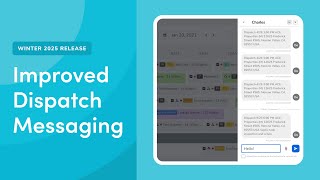
Short narrated overview of ServiceTitan’s Dispatch messaging feature (Daily Dispatch Board). Describes how to access the dedicated Messages area, viewing All vs Unread tabs, sending messages to single or multiple technicians, and permission requirements (Send Message). Notes the feature is automatically available for all ServiceTitan accounts and references related documentation for more details.
You.
Let's take a look at an overview.
Of the Dispatch messaging feature in Servicetitan.
The Dispatch Board now includes an improved messaging experience. This improved messaging experience is currently only available on the Daily Dispatch Board. The new Dispatch messaging has its own dedicated space with a streamlined process for starting conversations, reviewing past messages, and managing multiple conversations. This feature is automatically available for all Service Titan accounts.
With the winter 2024 release, dispatch messaging.
Requires the Send Message permission. To have this permission enabled, please contact the account administrator on your team. To access Dispatch Messaging, click Dispatch in.
The navigation bar, then click the Messages.
Icon at the top of the Dispatch board. On the all tab, you can view all your messages both read and unread. Click the Unread tab to see only your unread messages. To send a message to a technician.
Click the New Message icon, search for, and select a technician, then send your message.
You can also send messages to multiple technicians at once. To do this, click the announcement icon, enter your message, choose which technicians you.
Want to send the message to, then click Send Message.
Now that you've taken a look at Dispatch messaging, see our related documentation to dive deeper into Dispatch Messaging.