Track Calls and Campaigns for Marketing Success
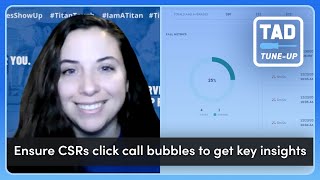
Brittany Burgess walks through setting up tracking phone numbers and marketing campaigns in ServiceTitan. You'll learn how to port numbers, link them to campaigns like postcards, and get CSRs to click the Titan Advisor call bubble so calls actually connect to jobs and you can track which marketing brings in work.
You. Hi, I'm Brittany Burgess. I'm a senior Customer Advocacy Specialist here at Servicetitan and I'm excited to be here for your next TAD tune up. If you're not sure what TAD is, it's just the short form of Titan Advisor. And Titan Advisor is a virtual assistant built right into Servicetitan that takes your company goals and gives you suggestions on ways to utilize Servicetitan better to support those goals. And today, the feature we're going to be talking about is ensuring that your CSRs are clicking that pesky green bubble. So let's jump into Servicetitan to see how to set it up and how to use it. If you haven't been into Titan Advisor before, in the top right hand corner of your screen is a rocketship. You're going to click on that and you'll notice that it's giving you suggestions right here on the homepage. Now, before you start poking around in Titan Advisor, just make sure that your business goals are set up. It is asking you to prioritize, prioritize these four goals and these suggestions will change based on what those priorities are. You'll notice that ensuring csrs click the Call Bubbles is so important that it's right here on the homepage. But if it's not on your homepage, you can also access it by going to Job Booking and Dispatching and clicking ensure CSRs. Click call bubbles right under the Launch tab. As with most Titan Advisor features, you can get points for setting up the feature. You can. And also for utilization of the feature. It is important to note that if you're utilizing the feature, even just a tiny bit, but you don't have the setup completely done, you're not going to get any points for it. So it's important to go through and make sure all of your boxes are checked for setup. It's asking that we set up tracking numbers and that we have at least two or more and that we're setting up marketing campaigns and we have at least five of those active. So let's go into our settings to get those set up. Now, one, we're going to go click the little gear icon for phone numbers. I'm going to type in phone numbers and if you've never accessed this page before and there's a lot of nothing going on up here, make sure you reach out to support or your CSM and make sure that your phones are ported in. All that means is that your phone calls are being routed through Service Titan and you can set up all of these Tracking numbers that tie to different campaigns and they forward to your main line that has so many different benefits to include. But not limited to tracking those recordings down to the customer name and location, allowing your CSRs to see exactly who's calling in so they can quickly pull up their information. And also probably the most important is seeing how they found out that they needed to call you. Did they find you on a postcard on a billboard? Linking all of these phone numbers to campaigns is one of the most valuable features in Service Titan hands down. So if you don't see this, make sure those phones are ported in. But if they are ported in, then if we want to go through and add a new number, we can hit this add new number in the top right hand corner. Let's just walk through that real quick. So you can either choose a local number if you want it to match or if you want a toll free number, you have that too. You can add an area code if you prefer or maybe do it by a zip code or if you have contains, maybe you really like having lots of twos, I don't know, it's up to you. You can go through and you can pick the number that you like the best. Choose number. When it says set forwarding number, typically we just want to hit the toggle for use default number. If you want to use a different one, that's up to you. But using that default number is probably your best bet to make sure that it works correctly for allow incoming sms. I can't see why you wouldn't want it to come through, especially given how many millennials out there don't like to phone make phone calls. I'm included in that bucket. And then you can also, if the campaign is already set up, you can just choose it from the dropdown here. For this one, we haven't actually set it up yet, so I'm going to leave it blank. And then under default call type you just want to think is this a phone number that's being used for marketing purposes? And if are they calling in, are they most likely to be a lead or not a lead? I would say if it's not a lead, this is probably a phone number that you're using for dispatch purposes, maybe an employee line, but typically for marketing it's going to be lead. So we're going to add number. I'm going to remember this 6359 number is the one that we just added. And then I'm going to go in and I'm going to set up a Marketing campaign. So I'm going to type in campaigns and let's pretend that we are setting up a postcard. I'm going to say postcard. Let's do February 2025 because we want to get specific in case we send out another postcard later down the line. We want to make sure we're looking at the right one. I'm also going to choose my direct mail category. If you don't have your category set up. Campaign categories is right here. That's just a nice to have for right now. And then you can go through and you can add the other fields if you like. They are all optional for advertise number, I'm going to put in the number that we just set up. I'm going to hit save. And now if we go back to phone numbers, we're going to see that that phone number that we just set up, we can also add that postcard in there now to save. Awesome. Okay, so remember, the success criteria was having two or more tracked phone numbers. We have plenty of those. And having at least five marketing campaigns. We have plenty of those and they're active. Now about utilization. So we're going to actually go back into Titan Advisor to see what Titan Advisor is looking for as far as utilization goes. Okay. It is saying click call bubbles. It's measuring the percentage of calls more than two minutes long over the last seven days where a CSR clicked the call bubble. Now, if a CSR does not click the call bubble, it's not the end of the world. You can go back and you can tie those calls and jobs together, but it's a process and it takes a long time. So best practice is to just get your CSRs in a really good habit of just clicking that green bubble as soon as they take a call. So I'm going to show you how to do that, where to find this green bubble we keep talking about. So I'm going to go onto the call booking screen and I'm actually going to call the number that we just made. Bear with me, folks. Here we go. Okay, so the green bubble popped up really fast because this is a fake account. Usually it stays up as long as that call is active. So they don't typically go away that fast. But you click on it now, you have control of it. You can see that my name popped up again. This is a demo account, but if a CSR clicks it, that would be their name. And then since this is a new customer, no results came up, but they can start building a new customer. They can search for an existing one. Whatever they need to do to link this call to the right customer, once they book the job, this call is going to get linked to it. If they don't, it's just going to get linked to that customer profile or the lead. But the important part is that they clicked on it and they followed through with whatever action they needed to take. Now if they don't end up clicking on it again, that's okay. It's still fixable. We can find all of the unclicked calls on the dispatch or on the dashboard. And if we scroll down next to call metrics, we can see all of our missed calls here. You can go through and classify these and this is covered in a different video. But it's important for that utilization metric to just make sure that your CSRs are clicking that green bubble whenever they are taking calls. All right, so to summarize, make sure that you have your marketing campaigns set up. Make sure that you are tying a tracking number to each of those so that your CSR doesn't have to ask, how did you hear about us today? You can just see how they called in and make sure that the CSRs are clicking on the green bubble. Not only is this going to help you get your call booking rate up, but you're going to be able to see how your marketing dollars are being spent if there's marketing campaigns you need to turn off or turn up the heat on. There's just a lot of different benefits to this. There's a reason why it shows up on the homepage of Titan Advisor. If you have any questions, drop your comments below. Or if you're utilizing this feature and you're seeing that it's bringing you great success in your shop, put that in the comments below too. Can't wait to see you next time. And Happy Titan Advisoring.
More from Bill




Capturing the 80%: How SmartAC’s Gen-2 Targets Non-Membership Homeowners | Podcast Ep. 296

Build better customer data with every booking in ServiceTitan | TAD Tune-Up Series

The Biggest Change for Roofers Coming From Other Roofing Software to #ServiceTitan?

