Transform Customer Communications with ServiceTitan Job Notifications | TAD Tune-Up Series
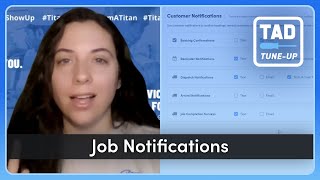
Brittany walks through setting up automated job notifications in ServiceTitan: booking confirmations, reminders, dispatch alerts, arrival notifications, and completion surveys. You'll learn how to customize templates with merge tags, set timing, require technician photos, and enable arrival tracking to keep customers in the loop.
Hi there, my name is Brittany and I'm a senior customer advocacy specialist at ServiceTitan and I'm really excited to be here with your next TAD tune up. If you're not sure what TAD stands for. It is the abbreviated way of saying Titan Advisor. And Titan Advisor is the little rocket ship icon in your Service Titan account and it kind of serves as like a little mini consultant. It can show you different ways of using the software to support your business goals and it walks you through them and gives you points to gamify it. So today I'm going to be talking about multiple TAD features and they are going to be ways to help you to be more efficient in your shop. So we're going to be talking about the different notifications that can automatically be sent to your customers through Service Titan. So let's jump in. So to start, in case you are not aware of where TAD is, we're going to look in the top right hand corner and it's the little rocket ship icon. When you click on it, it's going to bring you to this scre and you can customize this. So what I mean by customize is we have different business goals listed here and you can actually reorder them. So drive revenue, increase efficiency, provide exceptional service, gain business insights. If you want to prioritize these, all you have to do is click and drag. They'll reorder and then the recommendations that it makes will be different for you. So you can go ahead and adjust those and click Save. But while you're here, you can also note the other fun features that we have. We have an event calendar with our webinars and in person events, different training modules. And in the top right hand corner you can see your score and click into it to see the different changes that it's made. We really hope that this is a tool for you to see what's going on in your business and track what's going well, what's not going well, and make some changes to improve. So the ones we're going to talk about today actually are housed in customer Communications under acceleration. And honestly all of these that are listed are involved, but we're only going to go over the notifications. So using chat to stay connected to your customers is definitely something that's going to be used. If you don't already have it set up, I recommend doing that first and then we can go into all of these other ones after. So I want to show you what TAD looks like when you click into a feature. So we're Going to click on this top one and you'll see that it gives you a description of the feature, it tells you which KPIs are affected, and it also gives you a little glimpse of what it looks like in Service Titan. And when you go down, it's going to tell you in most cases what to set up and how to track that it's working well. In this case it just has what to set up. So I'm going to click into a different one and see. Here we go. So here's one that says what to set up, how to use. Now, something to note. You usually get points for each little bubble here. So we would get points for this, for this and for this. Now, if you have not done the setup, even if you are partially using it, you're not going to get any points. So it's important to make sure that you do all of the setup pieces first and then start tracking how you're using it and then you will start to get the full point range for it. Now, as you're building these out, you're able to click in and sometimes these will link out to Knowledge Base articles, sometimes they will link out to videos. But the, the goal here is to help you learn how use the feature well. But I'm going to walk you through them here too. So I'm going to show you first how to make sure that you're fully set up for chat. We're not going to actually go into the setup, but we're going to click into Settings, type in Chat, and if you have these green checkboxes here and chat is on, you're good to go. If you don't, I recommend going through the Enable Chat, TAD Tune up feature or TAD feature so that you can make sure you're ready for this. Now I'm going to go into Settings again and I'm going to type in customer notifications and you'll see I have five different kinds here. I can send them out via text or email. And on the reminder and dispatch notifications, I have some other fun features that I can play with too. Now, booking confirmation. Just as it sounds, when a job is booked, you have the option of sending a confirmation message to your customer, letting them know that that they are officially on the schedule or officially in the queue. And you can adjust what the text says that goes to them. Reminder notification is going to be going out the morning of, or sorry, the morning, the day prior, or 24 hours in advance, just reminding the customer that they have a visit. And optionally you can have them reply with C to confirm and it will turn the job a slightly darker color on the dispatch board so that everybody knows that that customer is ready for you. Dispatch notifications are going to go out once your technician hits dispatch in the mobile app and it lets the customer know that they're on their way. And optionally you can add a technician bio so that they can see what the technician looks like or sorry so they can learn a little bit more about the technician, but they also can see a badge photo so that they know what the technician looks like. And optionally you can add arrival tracking so that they can track the technician to based on the location of his device. Using Service Titan, we also this is new, we have arrival notifications. So this is great if you have customers that let you come by when they're not home and it lets them know that your technician is at their home or at place of business, depending on your customer base. Just lets them know, hey, they're there, they're working on it. And then lastly, we have job completion surveys. This is great. If you don't have Marketing Pro Reputation management turned on, this will send out a survey, post job completion and ask for your customer to return a number rating either out of five or out of ten up to you. And then that will adjust your technician's customer satisfaction rating. So I'm just going to go through a couple of these and we're going to see how to set one up and then I'm going to talk about the little differences between all of them. So for booking confirmations, this is probably the simplest one. When you go in, it will have that little green checkbox for you again. And then to turn it on, you're simply going to toggle the slider over and hit save. Now if you want to customize, it's super easy to do. We just click this customize button and we have all of these merge tags over here so you can type in whatever you'd like. This says, dear Noreen, your appointment with plumbing has been scheduled for one o' clock and so on and so forth. So adjust this however you see fit. We can drag in the customer name. So instead of this actually having that customer's name there, I'm going to drag this so that it auto defaults to the customer's actual need. And then you can also, I think it's helpful to have the service location address in there if you have a lot of people with multiple locations. So this is great for commercial or maybe a property management company up to you and then you can also drop in arrival, start time and end time and job date if you wish. I don't recommend doing that though. If you move your jobs around a lot, I would just let them know, hey, you're booked, we'll let you know when we'll be there. This looks pretty similar for email, but it's going to show you the email template instead. The same thing you can go in and customize and you can add in those different merge tags. Now the cool thing that you'll see on all of these is that you can also drop some exclusions in. So I know some of you are like, well I don't really want these to go out for recalls, warranties, little follow up appointments, or maybe it's something you for some reason you have a job booked and no one's actually going. It's just a placeholder. So you can exclude business units or you can exclude job types. You can do both actually if you want. So let's see if there's a recall one in here. I don't see one, but recall would probably be a good one. Or a little follow up visit and then you can ask do you want the send booking confirmation checkbox selected by default? So what that means is and each customer, do we want to just assume that they want these booking confirmations or do we want to do it backwards where we ought we enable it manually on the job level. So it's up to you, whatever is best for your business. So this looks pretty similar for all of the other ones. So we're not going to set up each one, but I do want to show some of the differences. So Reminder Notifications has a really cool feature reply C to confirm. Now in order to use that, you need to make sure automated job confirmations are on over here just by toggling that on. And then you want to make sure in your message content that you have the merge tag reply to confirm. Without that in there, your customers can reply C all day long. It's not going to work. It has to be this specific merge tag. So then once that is on and working, then the cool thing is when you go to your dispatch board you'll see most of the jobs are the ones that have not been visited yet are this light blue color. But if I go in and toggle the confirmed on, where did it go? Oh, is it here? There it is with job confirmed on. Then when I go back to the dispatch board, that job is going to be darker. Oh, that's the same job. So here's one that's lighter. Here are the darker ones. So that is just a really quick visual way of your dispatchers seeing, okay, these, these folks have been notified. They know we're coming, they're ready for us. And I do recommend when you have this on, if as the day goes on, you notice that some of these are lingering light blue and they've already gotten their text, have somebody call and then manually adjust that confirmation like I just showed. Another thing to note when you are using these is that when you're in the settings you have, you have different settings compared to the booking confirmations that we just had. So you can choose to do 24 hours before. So what that's going to do is 24 hours before the assigned appointment time or you can choose an actual time and it will be the day before. So I recommend thinking about when your customers are going to be looking at their phones. So we did 8am at my last shop. But think about it. Maybe you have a lot of moms, maybe they're going to be in the car when they're, when it's eight looking. They're trying to get their kids to school. So I don't know, maybe noon is better because they're all at lunch. But up to you. You know your customer base best and also just try it out and see what works best for your customers. You can start to adjust it as time goes on. Now back to the regular notifications list. We're also going to look at dispatch notifications. So the merge tags I to show off here our technician bio. And then you also have the. Maybe it's automatic. Yeah, the technician badge photo looks like it comes in automatically. The important thing to know is that these all come from the technician employee settings. So we're going to go into technicians here in settings real quick and I'm just going to click into one person and you're going to see bio and photo. You want to make sure that both of those are filled in so that they show up in the message. Now if they're not filled in, it's fine, it's just not going to show up. But definitely take advantage of that feature. This is one that will get you some positive reviews. It's just a wow factor for your customers. And especially if you have a lot of stay at home moms that are there by themselves or with their kids, it helps them to feel safer with your technicians. Okay, arrival notifications, that's pretty basic. So we're not going to dive deep into that one. And then job Completion surveys in the settings. You just want to make sure you pick your star rating. Is it 1 to 5 or is it an NPS 0 to 10? So again, this is a really big one where you want to maybe exclude some business units or job types especially for those recalls because we're going out for a not fun reason for that customer. So maybe we don't want to ask them and have them give us a poor rating that drags down the rest of the the rest of the rating. All right, and then one more thing before I go. I did forget on dispatch notifications we have the arrival tracking. So this is only if you're using native gps. What native GPS is it's just tracking your technician's device that they're using Service Titan on. So if you are not using that and you're using a different type of NP or gps, this is not going to work. And then something to also consider before you enable it. It is a great feature for your customers, but sometimes it can cause problems too. So just again know your customer base if this is something that they will use to their advantage and love and not nitpick at like why is my technician at a gas station instead of coming to my home? So just, just, just kind of think about that before you enable it. Okay, so that was a lot of information. So again, don't forget that when you're back in your Titan Advisor you have access to all of these Knowledge Base articles for each one. So we have the job confirmations. These are the automated ones. Reply C to confirm your dispatch notifications that can show those technician photos and bios and then allowing the customers to track technicians in real time. If you have any struggles with those, with any backend setup, just click into those features and go to the Knowledge Base articles. Or definitely reach out to your CSM to ask for help. In my opinion, this is one of the easiest features to set up and it's also very low lift. So definitely give it a try and let me know in the comments how you're using these features and how your customers like them. Thanks for watching and I can't wait to see you on the next TAD tuneup.
More from Bill




Capturing the 80%: How SmartAC’s Gen-2 Targets Non-Membership Homeowners | Podcast Ep. 296

Build better customer data with every booking in ServiceTitan | TAD Tune-Up Series

The Biggest Change for Roofers Coming From Other Roofing Software to #ServiceTitan?

