Turn Unbooked Calls into Leads | TAD Tune-Up Series
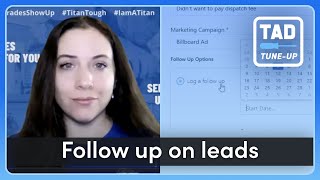
Brittany Burgess shows how to use Titan Advisor to turn unbooked calls into leads for your CSR team. Enable the feature, mark call reasons as leads, log unbooked calls as follow-ups, and track which ones convert to jobs or get dismissed.
You. Hi, I'm Brittany Burgess and I'm using your Customer Advocacy specialist here at ServiceTitan and I'm excited to be back with another TAD tune up if you're not sure what TAD is. TAD stands for Titan Advisor and that's the little rocket ship in the top right hand corner of your Service Titan account. Titan Advisor is a virtual assistant that can give you suggestions for ways to utilize Service Titan better to support your business goals. I highly recommend giving it a look, but today we're going to focus specifically on booking unbooked calls into leads that your CSRs can follow up on. So let's jump in. As I mentioned, in the top right hand corner of your screen you'll see a little rocket ship. Once you click on that, it will take you to Titan Advisor. Titan Advisor is going to give you all of these suggestions based on your business goals and don't forget to set those here on the right hand side before you start playing around. We have four different types of business goals and you can prioritize them based on your company's needs. Today we're going to focus on those unbooked leads. So I'm going to navigate to job booking and dispatching optimization and then turn unbooked calls into leads to follow up on. Now you'll notice in a lot of Titan Advisor features we have a section for what you need to set up to use the feature and also how to utilize it. It's important to know that you will not get any points for utilization if your setup features are not yet complete. So it's important to make sure that those are done so that you're getting all of points that you deserve. So for this case we need to set up a couple of things. One is making sure that we have this enabled Enable leads from unbooked calls. This is a feature configuration. I will show you how to check if you have the leads feature and I'll also show you how to turn it on if you don't. We also need to make sure that we have call reasons enabled that can generate leads and we have at least one active call reason that is set to is lead. So let's go and check those things out. So one we need to make sure the feature is enabled. A really quick, easy way to check is to go to your follow up tab and look on the left hand side. If you see leads here, then you have the feature on and you should be getting a point for that. If you don't see this, it's very easy to turn on we'll navigate to settings and we'll type in feature configurations and you can start typing in leads and you'll see this one on top. Create leads from unbooked calls and bookings. You'll want to toggle this to enable and then it will turn on for you. If you don't see it right away, you can hit Control Shift R on your keyboard and that will clear the cache in your tab and that will usually push the feature through. If it still doesn't come through, you may just need to give it some time. The next thing we need to make sure we're setting up is call reasons. So I'm going to type in call. Call reasons comes up and these are all of the different reasons that anybody would call your company. So it may be somebody that is legitimately trying to book a call, it may be somebody that is not, maybe it's marketing or spam. So it's important to go through and make sure that all of these are set up so that your CSRs are clicking the right things when a call comes in and it's not booked. So a good example of one that is a lead is if a customer said they wanted a price over the phone, that customer still has work that needs to be done. And if we weren't able to get the call booked, that's an objection that we should probably work on overcoming. If you want to set one of these up, if you don't already have these in there, you just click add, you type in what that call reason is, and if it is considered a lead, we'll check this checkbox here. If it's not, you can just leave the checkbox empty. I highly recommend going through all of these and making sure that each one is configured properly so that your call booking rate is accurate. Once we have those two things set up, we're going to go back into Titan Advisor and see what we need to be doing to make sure we're getting utilization points in how to use it's. It's really just using the feature, following up on leads. I'm going to first show you how to actually log one and then I'm going to show you how we should be following up on them. In order to get points for this, we're measuring the percent of dismissed, converted and open leads created in the last 14 days that have a current or upcoming follow up date. So to start, let's figure out how to log one of these. I'm going to go into calls and I'm going to start booking a Manual call, of course. Don't forget to click the green bubble if a real one is coming in. And I'm going to just put some fake data in here. Okay, now that we're here, we're going to say that we got through all of that information. And then the customer said, hey, you know what, I changed my mind, I really don't want to pay the service fee. So instead of hitting book job, we're going to hit close and classify up pops this form and this is basically just asking what happened with this call. If we say customer didn't want to pay dispatch fee then we can log a follow up so that we can try to call him back later because odds are he called another company and they had a dispatch fee too. You never know if you don't try. So we're going to hit log a follow up and then we're going to determine when we're going to call this person back. So I'm going to say tomorrow. I'm going to set the date for tomorrow and I'm going to say Jack did not want to pay the dispatch fee and he is going to call other companies. This is quite an urgent clog. We should call him back and make sure he was taken care of. Tomorrow you have the option of copying to the customer and or location notes if you like. Personally, I'm going to leave those unchecked and I'm going to submit and close. Now from here when it's time to follow up, I'm going to go to the follow up tab and click into leads and you want to make sure that you are adjusting the dates properly. So we're now going to pretend that it's February 6th instead of February 5th and I'm going to change both dates to February 6th. And now this call shows up for me to follow up on. Best practice is that you are making sure that nothing exists prior to today's date because if it does, then that means that we missed that window of opportunity. So even if I call this person and he doesn't answer and I decide I need to call him tomorrow, I want to change my follow up date instead of today to tomorrow. Now we're going to keep push that forward until the call is completely dismissed. So when we are ready we're going to click into it. I'm going to go ahead and make my call to him and if he decides to book I can go ahead and convert the lead right now and when I click this button it's going to take me back to the job Booking screen right where I left off. Now if he doesn't want to book or if he didn't answer, I can schedule follow up. This is where I'm going to change that date. Maybe he wants me to call back in a week, in one month and six months. Or I can set a custom date if I just want to call him tomorrow. You also have the opportunity to leave some follow up notes. So for instance, if he didn't answer, you can leave a note or if he says something specific, maybe we want to put exactly what he said in here. And I'm going to pin this to the top so that it's easy to see. Or maybe we don't want to pin it. Maybe it's just a voicemail note and we'll hit save. Now I'm going to schedule the follow up for tomorrow and save. Okay, now we're going to pretend that it is February 7th and I'm going in to February 7th. I may have forgotten to change the date to the right one, but it's okay. We're pretending it's February 7th. We're calling back in and Jack says, okay, I was able to find another company. I no longer want this job. I'm going to dismiss the lead and it will now fall out of my follow up tab completely. I'm going to put back customer wanted price or customer didn't want to pay the dispatch fee, dismiss. If I change my mind, I can restore it. And then just to show you, if he did decide he wanted to book with us, when I hit that convert lead takes me right back to the call booking screen and I can complete the job. All right, so let's go back into Titan Advisor. I just want to remind you that we do need to hit these setup features first before we can get any points on utilization. And then just remember that we are measuring percent of dismissed, converted and open leads created in the last 14 days that have a current or upcoming follow up date. So remember, that's why we don't want those follow up dates in the past or else we're going to lose them and we don't want that to happen. This is a really great way to make sure that you are taking advantage of every dollar that you possibly can when that phone rings. Because just think about how much it costs for you to get a lead. How much does it cost for your phone to ring? And if you are letting these opportunities pass you by, that's money right out of your wallet. So make sure that you're utilizing this to increase that call booking rate and get that. Make sure you're maximizing all of your marketing dollars. I hope this was helpful. I can't wait to see you for our next TAD tune up. And if you have any questions or comments on this feature, just leave them in the comments below. I hope you have a great day.
More from Bill




Capturing the 80%: How SmartAC’s Gen-2 Targets Non-Membership Homeowners | Podcast Ep. 296

Build better customer data with every booking in ServiceTitan | TAD Tune-Up Series

The Biggest Change for Roofers Coming From Other Roofing Software to #ServiceTitan?

