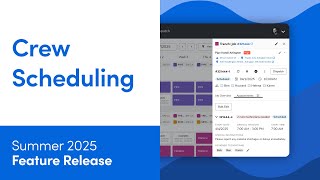
A short tutorial overview demonstrating ServiceTitan’s Crew Scheduling feature (early access) for commercial and construction businesses. It explains purpose (reduce double-booking, enable efficient dispatcher assignments, assign crew leads), basic navigation to the Dispatch → Crew Scheduling board, seven-day range controls, layout preferences, and core actions for creating/managing crews and crew members.
You. Let's take a look at an overview of the crew scheduling feature in Servicetitan. Crew scheduling helps commercial and construction businesses manage their workforce on a weekly scale. This feature is now in early access and requires account configuration to use. If you're interested in joining the early access, please reach out to your Customer Success Manager. With crew scheduling, you can reduce double booking and conflicts with real time availability tracking. You can enable dispatchers to efficiently assign the right crews to the right job appointments, minimizing idle time. And you can assign crew leads to ensure accountability and streamlined communication. Let's take a look at how to use the crew scheduling feature. Go to the navigation bar and click Dispatch. From the daily dropdown, click Cruise now you're on the Cruise scheduling Board. At the top of the cruise scheduling board, click the date range and select the starting day for the seven day period you want to view. Then click Apply. Click Back to view the previous seven day period. Click Forward to view the next seven day period. Click Today to jump to today's date. Click Share Feedback to send future feedback to our team. Click Dispatch Preferences to switch between a large and medium panel layout, depending on what best fits your screen. Click Create Crew to add a new crew to the board. To add more crew members later, click the crew name, then Add Crew Member to rename a crew, click Rename Crew to delete a crew, click Delete Crew to promote a technician to crew lead, locate the crew they belong to. Click the name of the technician. Then click Promote to Crew Lead. To remove the technician, click Remove from this Crew to change a crew member to floating, click Unlink from this Crew to make a floating member permanent, click their name and select Link to this crew. Collapse or Expand each crew to adjust your view, use the top row to see how many crew members are assigned versus needed for each job. Click an appointment in the top row to change the number of crew members needed for it. Click the job bubble to see job details or edit job assignments. If more technicians are needed, you'll see a warning. You've learned how to use the Crew Scheduling Board to create crews, assign leads, and manage your team's schedule more efficiently.