Facebook's New Appointment Calendar Set Up
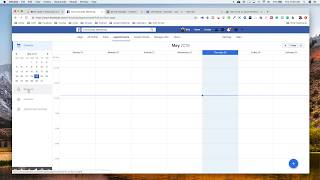
Billy Sticker from Chiral Candy shows how to set up Facebook's new Appointments feature so patients can book directly from your page or ads. You'll configure business hours separately for new and existing patients, choose automatic or manual approval, sync with Google Calendar, and create service listings with pricing and duration. The feature integrates with Facebook ads and website widgets.
Chapters
Hey guys. Billy here with Chiral Candy and there is a new feature that Facebook just rolled out and we're looking for a couple of offices to test this with. And it is what they call the appointments, you know, allowing people to book appointments with you straight from Facebook. And so how you will do that is what we need you to do is go to your Facebook page. Now if you're one of the casualties, you, you need to make sure you have admin rights to be able to do this. So you should see this white line, you know, up across the top. And the appointments probably will not be there. But what you'll do is you'll come down here to the button. You may have no telling what you may have here. Like it may say learn more or something now, but if you click edit button, it gives you different options. And so we want to do the book. Book now or appointments. Click next. Appointments on Facebook. This is new. And then it's going to walk you through setting everything up. So we're going to set everything up. Now. The best way to look at this is think about this. Okay, what are the days and times that you want Reg, you want to regularly offer appointments on your calendar. Now this is new to us too. So a new patient appointment is obviously going to be different from an existing patient wanting an appointment. But our thought is the majority of the people who are going to be booking from Facebook, because we're going to be running ads to this, are going to be new people. So if, you know, you only take new patients, new patient appointments between, you know, nine and you know, let's say that you do them between nine and ten and then you do them between. I'm just kind of throwing this out there. 2:30 and 3:30 for new patients. So those are the only times that you're available for new patient appointments. You would do that for each day that you're open. Okay. So if that's Mondays and Wednesdays, however. So don't do this for what your regular business hours are unless you're willing to take a new patient appointment anytime throughout the day. Alright, so I'm just gonna leave that like that for now. I'm gonna hit next. Now you have some different options here. The first one is appointment approval, which means that the customer will pick a time, but then you will actually manually go in and approve that before it's confirmed with the customer. So that is a valid option. You know, they'll pick everything and then you can go in and make sure that that's a good, good fit. Which is probably maybe one of the easier things to do. Or you can turn this off and it would just automatically when they pick that time, that's whenever they're going to be there. But it would be probably be good for your staff and you guys to reach out, you know, to confirm everything with him anyway. Advanced booking. What this is, is control how soon and how far in advance people can schedule. So you may not want somebody to get on at 8 o' clock in the morning and schedule for 9 o'. Clock. Like you may need some more, you know, some more time. So let's just set this, let's just say eight hours. Whatever reason, we're just going to put eight hours. So if it's, you know, 10 o' clock one night, they can schedule the next morning or if it's that afternoon, whatever. So we're just going to put eight hours. What's the soonest they can book? You can sync to calendar if you wanted to connect a Google Calendar, maybe you have one for your office, which I would recommend doing. But appointments booked on your page will show in your Google Calendar automatically. Events on your Google Calendar won't be available to book on Facebook. So in other words, if you have this connected with a Google Calendar, let's say that you have something blocked off on Tuesday, Tuesday morning, then what would happen? Since this is syncing with your Google Calendar, it's not going to show those available on there. So let's see, we'll turn that back on. Gonna hit next. Now review your services. Now this is actually for hours but you can go on here and you would just add a service. You could put service name. Let's say that you are doing, you know, a $27 location exam. You can do that there. Kind of describe what all that's going to include which would be consort. You may do, you know, let's see nerve scan. Some people might be doing X rays. And then X rays if needed and, And report okay your appointment duration, however long you think it's going to take. Extra time after. You can do a picture here. If you want to do a picture. I'm just looking for some kind of photo to put here. I'm just going to put there, use that photo and save. So now we have a new, a new service right here. All right, and then click done. Then you come up here to appointments. Because now what that's going to do is you're going to have the option for appointments and actually probably took me here. Almost done. We can add an appointment so you can Manually add appointments in here, whatever service it is. So, but this, that's where you would see who requested an appointment, any contacts who requested appointments. If you want to go in and actually change the settings for the times and stuff that you said you're available, you just do that right here. And I do want to go in and change something here. Advanced booking. I want to change this. So we didn't have this option when we were setting it up. This is how far in advance can people book? Six months. We're going to change this and we're going to say no more than two weeks. So it's only going to show availability for the next two weeks and then we're going to save that. We have those on there if we want to do Instagram appointment messaging. So they get reminders, they message via messenger or sms. Looks like this is set up automatically. Follow up messages automatically send customers a message after their appointment to book you again, that's an option. And the notifications how you were getting these to add or change a phone number text. So choose where you'll receive the notification whenever somebody makes an appointment from Facebook. So that is that, that's how you do all this. And then actually when you come back to your page, If anyone was ever directly on your page, they could do it just from, you know, clicking the book now right there. But what we're gonna do is we're actually gonna create an ad and show this. Oh, and it looks like they even have this appointment time and availability. So people can even do this from your website or from your Facebook page. So that's it. But the main thing we need you to do is go in and set this up with your available hours, however you want it customized for your office and then let your account rep know so we can go in and actually turn this into an ad for you guys. Appreciate your business. Let us know if there's anything we can do.