A short instructional walkthrough demonstrating how to use the 1Password app to store and access passwords. The speaker shows creating a new login entry (username, password, exact login URL), saving it to a vault, and using the browser extension to auto-fill and log into websites.
Chapters
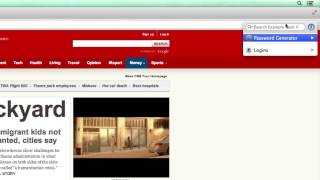
All right, let's take a look at 1Password. This is an awesome app and I'd like to do a little introduction so you have an idea of how to use it. And Click on the 1Password icon in the bottom left here, and you're going to see the reason why it's called 1Password. Because you have to right away enter in your one super secretive password. So I'm going to press Enter. It's going to open it up. This is going to be my primary vault with the 500 over 550 passwords that I have. But what I'm going to do is I'm going to switch to another one to show you exactly what it will look like when you start. When you start, there won't be any type of logins or any secure notes or any information saved at all. So you're going to have to enter that information in. So what I'm going to do is do that right now to show you exactly how you would do it and then how One Password would work once you get it up and running. So I'm going to click on the plus sign, I'm going to add a login. So I'm going to click on that, and this is going to be the Gmail login, and it's going to be for Food Blogger Pro. And the username is bjorkoodbloggerpro.com and I have the password saved here. So I'm going to paste it in, I'm going to blur it out so you can't see it, log in and see all my Food Blogger Pro emails. I'm going to click off there and that will save the password and then the website. Now, usually you could just enter in gmail.com or something like that, but what I like to do is I like to actually get the exact, exact login URL. And in this case, it's a long, kind of complicated URL. So I'm going to copy that and paste it in and then I'm going to click Save. So essentially the three things that I've done is entered in the username, the password, and then the specific URL for logging in to Gmail. Now watch this. All that I need to do when I'm in the 1Password app is to double click on the login that I want to use, and that will automatically open up the browser. It'll enter the information in and it will log me in to my Food Blogger Pro account. Pretty slick. Now, I want to show you something else that's really cool. I'm going to sign out of this and I'm going to remove that saved information so we don't have any Gmail information saved. And I'm going to say let's pretend that we are on CNN.com we're reading the news and we say, hey, done reading the news. Now I want to check my email. So all I have to do is go up to the top right here and I've installed, it's called a browser extension. And if I, let's say I'm going to quit out a 1Password here. If I didn't have 1Password open, what would happen is I would click on this, I would enter in my 1Password password, and then I would search for Gmail. Now, this is the primary vault, so I actually want to switch to the example so you can see what it looks like for our example vault. And then I'm going to click on Gmail, I'm going to click out of this and it will automatically log us in. Really, really slick. So that's an example of how 1Password works. And if I switch back to 1Password here, you can see that this will be the area where all of your login and username information is going to be stored. So over time, you'll slowly start to build this up. It'll have all of those unique passwords, all of that information saved here, so you don't have to worry about storing it on an insecure document on your computer or worse yet, in your head or written down on a piece of paper. That's the overview for 1Password.