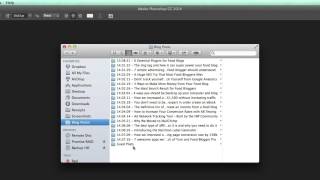
A short YouTube tutorial by ChatFBP introducing Alfred, a macOS launcher/search utility that improves on Spotlight. The presenter demonstrates launching apps (e.g., Chrome, Photoshop), opening folders and specific files by name, performing quick web searches from Alfred, and highlights key settings (hotkey, start at login, default results).
Chapters
Let's talk a little bit about Alfred. What a cool app. Alfred is. This little window that I have open right now is the Alfred screen. And basically what Alfred does is it does everything that Spotlight would, which is this little search feature, the magnifying glass in the top right that you have if you use an Apple computer, does all of the things that Spotlight can, but in my opinion, it does them all a little bit better, and it does some things that Spotlight can't do. So what I like about Alfred is how quick it is, how easy it is to access, and all the different things it can do. In this quick tutorial, I'm just going to show you a few different things that I use it for most. The first is really quickly launching apps. So let's say that I wanted to open Chrome. I have a shortcut on my keyboard, and for me, it's pressing the command key and the space bar key, and that brings up this little window here. And when I bring that up, all I have to do is type in Chrome and that will bring up Google Chrome. When I press Enter, it'll launch into Google Chrome. I could also do that with an app like Photoshop. So I type that in, it'll bring up Photoshop, and in this case, it also brought up the Photos folder. But I want to go down. I want to press Enter on Photoshop, and that will launch Photoshop for me. Now, as you saw in that previous example, it can also pull up things like folders. So if I wanted to search for the blog posts folder, all I'd have to type in is blog posts. And I can see the path down here where it's located in Bjork Ostrom Documents. Food Blogger Pro blog posts. So if I press Enter on that, it'll pull up the folder with all the different blog posts we've had. For Food Blogger Pro, you can also pull up specific files. So let's say I wanted to pull up an image from a previous blog post. All I have to start doing is typing the name of the image. And the one that I want to pull up is how to increase your conversion rates. If I click on that, it's going to bring up the image I created for that blog post. So it's a really easy way to pull up a file name if you can't remember where it is, but you remember what the name of the file is. Lastly, something that's kind of cool is that Alfred will allow you to really quickly search a search term. So let's say you wanted to use Google and instead of going down and clicking on your browser and then going to google.com and then typing in your search, you can just pull up Alfred. Then you can type in your search. So let's say I wanted to know how fast is a squirrel? I can just type that in, how fast is a squirrel? And you can see me. It gives these options down below. I can search Google, search Wikipedia or search Amazon. I just want to search Google. So I type that in and there I can see it. A squirrel runs 12 miles per hour pretty fast. So that's a quick overview of Alfred. What I want to show you last is when you first launch Alfred, you're going to want to adjust some of the settings. And you can do that by clicking on the little gear in the top right. Or you will probably have an Alfred hat in the menu bar. And once you get in here, you can check that you want Alfred to start at login. You can set the hotkey, you can set some advanced preferences as well. The most important thing is probably setting these default results. Now I have quite a few results showing up, so I can see all these different things. You don't have to have all of these extras, but I like to have all of those available except Apple scripts. So I select all of those. That's just a quick tip for you on using Alfred, and it's a great program. So I'd suggest if you have an Apple computer, it's one that you install. Sam.