BetterSnapTool lets you snap windows to different parts of your screen using keyboard shortcuts. Set up hotkeys to organize multiple windows fast instead of dragging them around manually.
Chapters
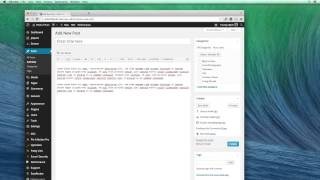
Let's take a look at bettersnaptool and do a little investigation into how exactly this works and how you can use it. Here's how I use bettersnap tool. A lot of times I will be working on a project and I'll need to access two windows and I don't want to do the old like click here and then move this one and then click on this window. It just doesn't work very well. It's not a very good flow. So I can use Better Snap Tool to snap that window into a portion of the screen. And. And I'll show you what it looks like here. So I have a keyboard shortcut. I'm going to hold option on the keyboard and press the right arrow and that snaps this window to the right side. I'm going to do the opposite. For this window, I'm going to hold the option key and press left and that snaps it to the left side. Now, I could also do that by bringing the window over and putting it in the side and you can see that it kind of expands and it shows me where it's going to put it. So if I bring it over there and let go, it expands it into the side and. And the same, if I bring it over here, it'll expand it onto the left side. Now this is great. For example, if you were writing a post and you had written it out here and you wanted to copy it over. So let's say I'm writing a new Pinch of Yum post, I'm going to say add new. All I would have to do is have this window open over here and then have my post over here and I could just copy and paste. It would be really slick. I could go back and forth between these two windows. Now, another way that I use the Better Snap tool quite a bit is if I close out of here. It's a really easy way to go full screen with a window. So if I hit the green plus button here, that's gonna take it partially full screen, but it's not gonna do the entire full screen. But with Better Snap Tool, I have it set up so I can bring this window to the top. If I go all the way to the top and then I go a little bit beyond that, it's going to expand. It's going to show me it's going to expand this window to the full screen. I really like that a lot. So if I go up, it expands it up and it takes over the whole screen. I'm going to open up the application here so you can see what the preferences look like. And you can set all of these different options here for the way that you want to snap different windows. The other thing that you'll probably want to change is the keyboard shortcuts. You see, I've only added those for maximize left half and right half, because those are the ones that I primarily use. But you can do all of these different options here, so that's better. Snap Tool It's a great way to make your workflow more efficient and to make it a lot easier if you're working with multiple windows.