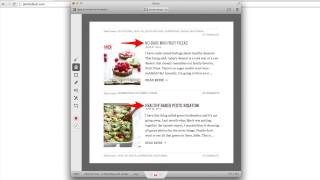
Learn how to use Skitch to capture screenshots and mark them up with arrows and text. The tutorial shows annotating a web page header font issue and exporting it as a PNG to send to developers, making bug reports and feedback clearer.
Chapters
I am a huge fan of screenshots and therefore I am a huge fan of Skitch. I think it's an awesome way to communicate over the web. When you want a problem solved or if you're trying to help somebody out, it's always nice to include a screenshot. And it's even better if you can use some type of markup on that screenshot. So what I'm going to do is show you how to do that. I'm going to click on skitch here and it will open up the app and you can see all of these different options right away are presented to you. So what I want to do is I want to click on this one right here, screen snap. But before I do that, I'm going to pull up a real life example of a way that I might use skitch. So here we have pinch of yum dot com. If I scroll down here, an issue that we've been having is that sometimes the header font looks a little bit different. So you can see this font here is different than this font here. And I want to communicate that to our developer. So what I'm going to do is I'm going to switch back to Skitch and I say that I'm going to want to take a screen snap and I have these nice little crosshairs that it gives me. And what I can do is I can cross hair from one point to another point and that will give me a screenshot. So I'm going to grab in the top left corner here. I'm going to keep holding down on my mouse and I'm going to go to the bottom right corner here. And then when I let go, it'll take a screenshot and I'll look at the info here. It'll give me the width and height. That all looks good. I don't want to adjust this at all. So I'm just going to say capture and you can hear the little click and that has captured the screenshot. Now, once in Skitch, we can go ahead and we can add some information to this to clarify our point. So first I'm going to click on the arrow and I'm going to want to make this a little bit bigger. So what I did there is I clicked on the line tool down here or the line icon, and that's for the different sizes. You can also change the color if you want, but I like to stick with the regular red. And I'm going to go ahead and create an arrow here as well as an arrow here. And after doing that, I'm going to click on the font icon or the text icon and I want this to be a little bit smaller and I'm going to say how it should be. That's for this header here. I'm going to say the incorrect font because that's not the type of font we want to use for the title or the header here for the post. It's too bold. And after that, this is just going to be a basic example. So I'm done. If you wanted to, there are some other options here. Like you can add these type of little pins, or you can do kind of freehand drawing like this, which I don't want. I'm going to say undo. Or you could do like a box, like if you wanted to box around something. But I don't want those either. I just want this basic how it should be and then the incorrect font after doing that. If we want to send this to somebody, all that we need to do is go down here, grab that little PNG tab, and then drag it to our desktop and that will put it right where we want it to be. And now we have a really easy to understand screenshot with some additional markup on it. So whoever we are sending this to will have a better idea of what we're talking about. So that's it. Skitch. It's a free application. It's really powerful and will help you communicate better. When you're trying to communicate over the web with developers or people, you're trying to help troubleshoot different issues. Sam.