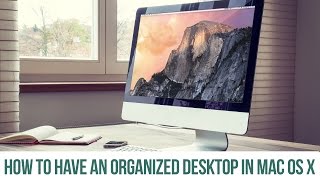
Three ways to clean up your Mac desktop: use Bartender to hide menu bar clutter, hide the Dock and launch apps with Alfred or Spotlight instead, and move files into folders like Documents and Pictures. The video walks through each method.
Chapters
Ladies and gentlemen, how are you doing? Today we're going to be talking about ways to keep a clean desktop. There's going to be a few tips that I want to share with you. But before we do, I want to say thanks for checking in, really appreciate it, and please don't judge me. Number one, by the bare office that we haven't decorated yet, and number two, by these terrible ceiling panels that are still missing. Because the show must go on, right? We have to learn all these things. Uh, there's only enough time in the day and I wanted to spend my time talking to you about keeping a clean desktop. So let's take a look. There are three things that I want to show you. The first is keeping a clean menu bar. The menu bar is this area up here. There's the left side. And that's going to show you the options for the program that you are running. Right now. I'm in Finder, but let's say that I open Spotify. If I pull that up and bring that over, you can see number one, that I was listening to Black Widow by Iggy. And then number, you can see that the menu bar has changed. But then there's also this right side. And this is the side that I wanted to talk about right now because there's this application called Bartender. And what Bartender does is it allows you to organize this area here. So, for example, when I'm going to record a video for Food Blogger Pro, one of the things that I will do is I'll go in and I usually, if I remember, will turn the clock off in Bartender. So I'm going to click on this and then it says menu bar item. I'm going to say completely hide. And you see, it gets rid of that. So it's a really nice way to keep your desktop and your menu bar neat or clean or organized, because it allows you to turn off any of these options here. And then when you're done, you can just pull it back up and switch it back on. So that's the first thing I wanted to show you. Second thing, this is going to be in System Preferences. And for those of you that haven't figured it out yet, this is all Mac specific stuff. So I apologize to anybody that's Windows based. It's not because I don't like Windows, it's just because, hey, you gotta pick one. And I enjoy Mac computers. So let's talk about the dock. One thing that I love to do is have the dock minimized. And the reason that or it's not minimized. It's hidden. And one of the reasons that I like to have the dock hidden is because I use a tool called Alfred. Maybe you've seen me use it a couple times before. I can just click this here and pull up a program so I could say like, oops, I could say that, but it wouldn't do anything. I could say P H O. That would pull up Photoshop if I wanted to do that. Or I could say like, iphoto, and it would pull up iphoto. It's a really slick program. The other thing that you can do if you are on the version of Mac called Yosemite, is you could do Spotlight Search. It's very, very similar. So that's the doc. So we've talked about the menu bar, we've talked about the dock down below, how to keep that neat and hidden. And last I wanted to talk the desktop itself. Now, raise your hand if you have ever had a desktop that's full of files and folders and random downloads and all of the above. I know, I've been there. But I always do my best to keep a desktop that is neat, that is clean, and that doesn't have any files on it. Now, the one thing that I will say is a disclaimer here is that I have lots of files and folders, or mostly files during the day, but at the end of the day, I always try and clean that up. So let's say that I had a picture on here and I was working in Photoshop. What I would do at the end of the day, after I'm done using the desktop, is kind of my canvas. The area that I'm working, I want to clean up that canvas, I want to clean up that area that I've been working in. So I'm going to use a keyboard shortcut, shift, command and O, and that will open up the desktop folder. Now, what I want to do with the desktop folder is I want to take these files that I have and put them in their rightful place. So maybe it's Food Blogger Pro that I'm working on, and maybe it was a course, let's say, on essential plugins, and it had to do with caching. So I'm going to go into here and then I'm going to create a folder called Images, and I'm going to drop that in. Now, my point here in showing you this is that I'm doing my best to take everything on the desktop and put it in a place that it belongs. And if it's a document, or if it's some type of project, I'm gonna probably put that in the Documents folder. But it might also be that it's something else, like a photo, like maybe it's from a trip that we went on. In that case, I'd look to put it in the pictures area. Probably be iPhoto, in which case I would just open up iphoto and import that in here. Here I am wearing a monkey hat. This was from mailchimp. So nice of them to send me that. Look at that. What a beautiful thing. All right, so you could also, if you had music, you'd put that in the music folder. Movies in the movies folder. I know it sounds really obvious, but the point here is that a lot of times we will use the desktop as a holding place instead of the actual folders where it belongs to. The one that I use the most is Documents. But then obviously there's also pictures, music, and movies. So three quick tips for keeping a neat desktop. Using Bartender to keep your menu bar really nice and neat, keeping your dock hidden, and then using Alfred to open programs and files. And then lastly using the folders that you have, like Documents, Music, Pictures, movies to store your files, and not using your desktop as the storage location. So hopefully that was helpful. I really hope that you guys took something away from it. And if you have any questions, head on over to the Food Blogger Pro forum. If you're a Food Blogger Pro member. And if you're not a member, we'd love it if you join. Thanks a lot for checking this video out.