Christina Haftman (product creation consultant, founder of creatingdigitalassets.com) demonstrates how to create an online course in Kajabi. The walkthrough covers creating a product, editing details (title, thumbnail), structuring the course with categories and posts (modules/lessons), uploading lesson videos and downloadable assets, adding quizzes/assessments, previewing the student experience, and design/customization options (themes, hero image, colors, sidebar, instructor bio). The presenter notes practical constraints and best practices (title length, video file limits, device mockups, cloning courses for reuse).
Questions this video answers
Five products.
50 characters.
MP4, 2 gigabytes or less.
About 18 to 20 minutes per video.
Wistia.
Chapters
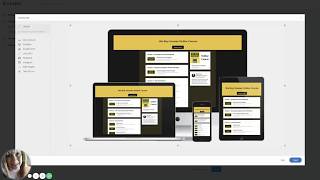
Hey there, it's Christina, President and founder of creatingdigitalassets.com I am a product creation consultant and a digital marketing strategist for Internet entrepreneurs. I help experts digitize and monetize their expertise using Kajabi exclusively. Because this is like the best software ever. And tonight I want to do a quick video to show you how you can create an online course in Kajabi. And that is usually the first thing that people create. So if you purchase Kajabi at the lowest level of the basic plan package, it comes with five different products. You can create five different things, and several of those could be online courses. So I'm logged into Kajabi and I'm over here in the back and I'm going to go to products. And I already have one here. Just the template, the structure I'm going to show you. Okay. So it's always good to look at a template versus a blank piece of paper. And all of these aspects are highly configurable, highly customizable to your brand, to your content. So the first thing that you would do is edit your details. You want to give your online course a title. We are restricted to 50 characters in the title, but you can expand and elaborate more here in the description. And then you want a product thumbnail. And this is an image that will represent your product. And one of the best ways that you can visually convey on a website that your product is a digital product in an online course is to take a snapshot of your course and have it framed in five. Is it five or four digital devices? A desktop computer, a laptop computer, an iPad, and an iPhone. And I'll show you an example of one that we did for my client. You've probably seen these, but you can get these made on Fiverr. Here's a good example. Okay. Yeah. Four devices. So you see how it has your online course framed within these. So people know that this is an online course. It's mobile optimized. They can access it anytime, anywhere, any device, which is a huge benefit. So we're just going to leave this picture? Well, we're gonna go back. It's just an example. So then you have your course. These are like your categories, your course introduction, fundamentals, the what, the why, the how, advanced tips and wrapping up and like what you want them to do next, and some resources or maybe the next course in your escalation path that would benefit them to go deeper after they've completed this one. So here's the welcome to the course. So this would be A lesson. It can be. Typically, they're video trainings, okay, so you would upload your MP4 video here, 2 gigabytes or less. But if you want to go over 2 gigabytes, you can compress the file in handbrake, which is some free software you can get online or Adobe Premiere if you want to go longer. But one of the reasons there's that limitation is it comes out to be about 18 to 20 minutes per video. And it's just that people don't have that long of attention span. So you want them to kind of have a sense of completion. It's kind of psychological, that they're feeling progress and that they could complete one video before they go to the next. So anyway, you would upload your video here. They are stored on the back end at Wistia and very safe, very secure. They stream very well. No buffering, no latency or anything. Very high quality. The other thing I wanted to say is you could. This is usually at an end, usually at the end of a course or end of a lesson. You can also create an assessment, like a little quiz to test their retention of what you're trying to teach them. So we have the capability to create assessments in Kajabi as well. So for this lesson, you have a title, you have a category in which it goes under, and a description or the body. Okay, it too. The actual lesson will have a thumbnail image as you're creating it. You can leave it in draft. Once it's ready, you can publish it. And right here, if you have any accompanying PDF downloads, you can upload the things that you want your students to download here. And it could be something other than a PDF. Typically it's supporting documentation. That's PDF, but it could also be like a PowerPoint presentation. It could be a transcript. It could be something that, like a checklist or a mind map, something that they can print and reference, or laminate, something like that, like that. And then here, you always want to keep your comments visible because you want to solicit features, feedback from your. From your students. So comments will appear below every lesson. And if we go back here, you just kind of build it out and you can always add additional posts or, you know, different posts or different. Let me go up here at the top of the product outline of the product syllabus, you can add categories. Okay. And then within categories, like, these are your top level categories. This is the terminology in Kajabi. This is your top level categories. These 1, 2, 3, 4, 5 that are kind of highlighted in Gray, and then beneath that are called your posts. Now, those are like categories. And posts are like the default terminology of how we call these things. But these can be lessons at this level, and these can be modules. These can be weeks, like week number one, week number two, lesson number one, lesson number two, anything you want. And then you can also add additional posts underneath each category. Okay. It would appear. You give it a title, And it'll appear right there. And they're sequenced as you know, chronologically as you add them. But don't worry about that because you can just grab them and drag them and drop them if you want to rearrange the order or the sequence. Okay. And same thing with your categories. See how I just move that? So don't be too perfectionistic about anything because they're easily dragged and dropped and rearranged. And then also by default, you see how that was like draft. I added a post and it was draft. When you want to publish it, you just make it green. So there's a color. It's color coded. So visually you can see the categories and the posts that are published. And then you can. Let's see, there's a lot of customization that you can do with the customize tab. And you can put your. This is some previous client's logo, but you can put your client logo up here. All of these colors are customizable. And you have your instructor bio, name, title, photo, and a little description. The completion bar is here. And this is kind of what it looks like, at least in the Premier theme. Okay. There's a lot of different themes that you can use for your online courses. They're styled differently, but we have the most versatility within Premiere. And let's do a preview. When you preview your course, it will give you. It'll give you the presentation of it. Let's just zoom in a little bit exactly like your students are going to see it. So you get to preview the user experience on the front end. And let's go back. There's a whole bunch of different things that are customizable. You can also clone the course after you get it to a certain level of stability or like finalization, like final state. Like, you've got your colors, your structure, like all your images. Everything is kind of stabilized. You're really liking it. You're really liking it. You can clone it and then make modifications so that you don't have rework. The benefit is it saves so much time. So really try to get it dialed in and then you can clone it. Yeah. So like I said, there's a whole bunch of customizations behind this tab that are both functional and design oriented. But I'm not going to go into them all right now. But what I want to show you is I'm going to move my image up a little bit. Is right down here is something people forget because it's kind of hidden. But you have this like arrows for these different things. So you can customize your announcements, you can customize your categories. You can customize a category, you can, you can customize your comments, post the product, the overall product and the search capability. So once you go into each of these and each of these are a whole lot different level of customization. And if you want me to do another video going deeper into that granularity, I can. This was just meant to be sort of a high level video to show you the capabilities and high level view for newbies. But over here are some additional things. Like this is where you would customize your header. Like I said, we used an image from a previous client. It tells you exactly the dimensions that you'll need right here. So you can size it appropriately. In Canva or Adobe Premiere or Photoshop or whatever. You have the colors of these buttons. The call to action button, as you can see, the button is over here. The buttons can be any of these colors or a customized. I'm in the way. Let me move over here. The button colors can be customized. We can do green with yellow text or just white, anything you want. And it can be larger medium. It can be an outline. The background of your, of your header can be changed. And of course it can be customized too. You can, you know, do whatever you want. Okay, let's go back over here. Just want you to be able to see it. Okay, so what else? So that is called the Hero image. This is the header up here. This is called the Hero image. Kind of spans the width of the, of the website and it's kind of big. It's like first thing they see. It's the most prominent thing. And this is the welcome. This is how you customize your video. This gives you the player color. You want to probably color match that to your brand. So many things really not going into that much detail here. You can customize how the syllabus appears. Most people like the post because of its categories like that it's kind of hidden how much content is there and people don't realize how much is there. So you can do what you want. But most people do post. So you see, you can see all of it. And what else? Sidebar. You can have a product sidebar. We already have the instructor profile, instructor bio on the sidebar. That is this real estate over here. That's what the product sidebar is to the right of the product syllabus. This is called the product syllabus. You have some real estate, and a lot of times you can add any kind of content you want. And you can what's really nice is you can cross sell. You can cross sell an offer there and pick an offer, and right inside your product, you can sell something else. So I hope this video is beneficial to you. And if you have any questions, feel free to email me at christina.hafftmanmail.com.