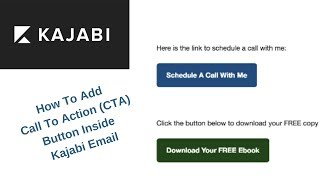
A short screen-recorded YouTube tutorial by Christina Haftman showing how to add call-to-action (CTA) buttons inside a Kajabi email broadcast. It walks through navigating the Kajabi backend (Marketing → Email Campaigns → add a broadcast), composing the email, inserting and configuring CTA buttons (target URL, display text, color selection, open in new window), previewing the email, and sending a preview to yourself. The video also includes quick email-marketing tips: avoid using the word "free" in subject lines (can send messages to Gmail Promotions tab) and set the sender to a recognizable company or personal support address to improve deliverability and trust.
Chapters
Hey there, it's Christina. I saw a question in our Kajabi Facebook group asking how to put a call to action button inside of an email. So I thought I'd do a short video tutorial to show you how. So I'm in the back end of Kajabi obviously here. So you want to go over to the left in the menu on the left under marketing, click Marketing. And then under there click Email campaigns and then go over here to the top right corner, click the blue button to add a new email campaign. And we're going to do an email broadcast. And this right here is just an internal title and I'm going to do test. This is how you keep track of things internally. Back here when things, after you get a lot of emails you're going to want to be able to identify them and then the next step is for you to specify the recipients. So since this is a broadcast, it's going to go out to everybody. If you, if you did want to filter, you would do that here. Since this is a demo, I'm just going to hit the save and continue button right here to go to the next step. So here is your email again, this is the internal title right here that nobody else sees. This is just for you. And then here is the subject line which the recipient will see and this will impact your open rate too. So this is like the first part of copywriting is like analogous to a headline. So you know, you put your subject line there and then here is the body and this is where you wanted to add a call to action. Like you have some text and then you have a call to action. You can put it as a text link but it looks prettier to do a button. So let's do that. And I'm just going to maybe right here, here is the link to schedule call with me. Alright, so there's some icons right here. You want to hit the one that has a plus sign to insert a button and then this pop up will pop up and you want to configure the button. So this is the target URL when they click the button, the CTA button where they're going to go. I'm just going to put. Well actually I don't know what that is. Oh, that was another one of my loom videos. Let's use Kajabi. Let's just use this kajabi URL. Okay. And the text to display. This is the text that will display on the button and you really want to use like called camel case, the first letter of each word is capitalized so it really looks nice. You always want these to open up in a new window. It's just really good practice so that you know it'll open up in a new tab. And then you want to select the background color for the button. You don't want to leave it black and you don't want it really red either because red means stop subliminally. So you don't want them to stop, you want them to go. So this has this rainbow slider is vertical and you can just pick a color. You can slide this up and down. And then when you get into a color that you want, like maybe here, then you can move your cursor into here and you can move around in here to pick the exact shade. The button, the text on the button is going to be white. So for a nice contrast you probably want to go with a darker shade of. I want to go with a darker shade of blue. That's pretty nice. And that's all. Then you hit OK to save that and there's your button. Okay. And you could do the same thing like. Let's do another one just for a little repetition. Here is the link or click the link. When we give them a call to action, click the button below to download. And then whatever the title of your PDF is. Okay. Click the button, add a button. Okay, the URL, we're going to just have it go to Kajabi website and this one download. Whoops. Download. Open it up in a new window. Let's make this one green. And hit ok. All right, so that's what it looks like. And in subject line. Okay, so then hit continue. I mean save and continue and it'll take you to this next page where you can preview it here. But this is just a preview. These buttons are not clickable. So in order to actually see it how the recipient is going to see it, you have to send yourself a preview. Sometimes people don't see this up here, but right up here just send a preview and Kajabi will send a preview of this email to whatever your email is as the account holder, as the software owner here of Kajabi. So whatever email you have configured, this is going to go to my Gmail account should be right here, right now. All right, where is it? Maybe it's under social. No, it's taking a little bit of time. Where is it? Make sure it didn't go here. Ah, look at that guys. I went into my promotions tab. Oh, you know why? Oh, this is actually good. This is Incidental, but it's good. It went into my promotions tab under gmail. And the reason why is because it has free in the subject line. You don't want to do that. Okay, you see what just happened? You want this to end up in People's primary tab and you don't want it to go in the promotional tab because it'll be hidden and you don't want it to go in the spam folder either. So since it had free in the subject line, don't do that. But anyway, we want to preview it. So here's what it looks like. Here's a link to schedule a call with me. And we just made it go to the Kajabi site. It opened up in a new tab, a new window. Okay, test it out before you send these to your entire list. And here's the other one. Okay, so everything's working. Just want to make sure you do not use free in your subject line. And you'll also see here. I know sometimes people have questions. I haven't changed mine yet. So unless you change the marketing email, the sender is going to have this really interesting Kajabi email. So you definitely want this to be like support at your company or your name. So like for me it's creating digitalassets.com so it would be christinacreatingdigitalassets.com or. Or supportreatingdigitalassets.com or something like that. Alright, so that's how you do it and hope this video helped and I'll see you in the group.