How To Setup A Live Webinar Registration Page in Kajabi With Multiple Webinar Date Time Options
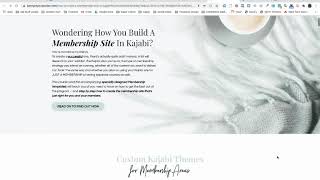
A step-by-step Kajabi tutorial (YouTube video by Christina Haftman, Jul 17, 2019) showing how to offer multiple live webinar date/time options natively in Kajabi using Zoom for hosting. Key steps: create three Zoom webinars and copy their unique links into a Google Doc; build a Kajabi registration page whose CTA opens a two-step opt-in popup; create a custom form with a required radio-button field for selecting one of the three webinar dates/times; create three matching Kajabi Events and attach immediate "at time of registration" emails containing the corresponding Zoom links; add automations with conditional logic (if form field contains exact date/time string → register contact to that Event) and behavior tags; optimize the thank-you page and set reminder/follow-up emails. The tutorial emphasizes exact text matching for conditional logic and QA of first-name personalization in emails.
Chapters
Hey, everybody, this is Christina, president and founder of creatingdigitalassets.com and tonight I am making a step by step comprehensive tutorial on how you can set up a webinar registration page in Kajabi with multiple registration dates and times. This is a question and has been asked quite frequently in our group, in our Kajabi group, in the community, as well as some of my private clients. It's something that they want to do and it can be done with other webinar software that's dedicated to hosting webinars. It has more features and like Webinar Jam and Ever Webinar and some other, some other things like that. But some people don't want to have another expense and an integration and setup. And a lot of people aren't tech savvy and they really would like to know how to do it out of the box with Kajabi. And it's absolutely possible. It's just a, it's multiple steps, but through the beauty of automation and tags, we can accomplish it. So it is a little bit more complicated. But if you want to get a piece of paper and pencil, pen, whatever, close Facebook, turn off the phone or come back when it's a quiet time because there's a lot of details here and I just want to make sure that you actually get this. All right, so let's get started. So the very first thing we want to do is you want to go into Zoom and you want to set up what your three choices are going to be for your webinars, the three dates and times. So I'm just going to show you real quickly. In my Zoom, I haven't set them up, but this is where you would, you would go ahead and set them up. Okay, but I'll show you my document where I did it because I don't want to take time in this video to do it again. But you set up your three webinars, date and time in Zoom. So that's the first thing that you're going to do. Then what you're. All right, let me just show you here with my accompanying document and I'll give you a copy of this. This is what they're going to look like. Okay, the perfect webinar. And in this example, maybe I should increase this a little bit. So in this example, we're going to have three webinars. So the person arriving on a webinar registration page is going to have three choices. They can attend Friday, August 2, 2009 at 2:00pm or Thursday, August 8 at 8:00pm Saturday, August 10 at 10:00am These are all Eastern standard Time, by the way. All right, so we set these up in zoom. And when you do that, zoom is going to generate a unique link, a unique URL, which is going to be the webinar room where the people will join when they minimize this when they register. Okay? So they'll have this unique link. And you know, you've been to a webinar, you just click the link and you go into the webinar room when it's time. All right, so there's going to be three unique URLs. And what you want to do to stay organized is to get a Google document just like this one and copy and paste those webinar dates and times with corresponding zoom links. Okay, so webinar one will have its own URL. Webinar two and three, these states will have all their unique URLs. So put that in a Google document. Okay, now these are going to be the three options that we are going to display our webinar registration page in Kajabi. And we're going to do this by creating a form with a custom field that's going to ask this page visitor to select what webinar date and time they want to attend. Okay, I'm just giving you a little bit of summary of what we're going to do. And these are going to appear as three radio buttons with each date and time. We're going to make all of these fields required. And then we're going to add an automation rule with some conditional logic. So here's what we're going to be doing. The first thing we want to do is we want to create a webinar registration page in Kajabi. I'm going to go into my Kajabi and show you this. Okay, so this is the webinar registration page right here. Let's preview it. Okay, this is just demo. Don't. It's not a real webinar. It's not really good copy or anything. But this is what it's going to look like. And then the CTA button. The importance of the CTA button is when they click it to register, this is going to open up into a two step opt in. Okay, let's go back to the customization and I'll show you. The CTA button is going to be. The action on it is going to be a two step opt in. The reason when you click it right here and if you go into the menu on the left, you're going to See that the CTA action is to open a two step opt in pop up. When they click this button, a pop up is going to come up and that's where they're actually going to register their name and email. I'll show you in a minute. And the date that they want to attend the webinar. We have it like this because they are saying these are like micro commitments. They're proven to convert higher. So it's like, it's like a series of yeses and it's just a little bit of consumer psychology. So you want to go back over here to the left menu. All the way at the bottom is where this two step opt in is and how you want to do it. This is a toggle here to show it or hide it so that we can edit it. Okay, Edit this page element. So you want to show the pop up so that we can edit the pop up. Now what we did, you can, you know, add some copy here. This color is customizable, the words on the button. But most importantly, what this tutorial is about is this section here, okay. And it's not really a section if you hover over it. It is a form. So we want to associate a form because this is a webinar registration form. So you want to associate one with it. And this is the one we want, okay, the webinar date selection form. And it's available in this drop down because I already created it. So that's something we have to do. And I'm going to show you how to do it right now. So you're going to go back out. Oh, let's hide this. Make that go away. Because we don't need to edit it right now and go back out out further all the way to the. Why isn't it going back? We want to go to marketing and we want to go to forms. And if you haven't done this already, what you're going to do is go up here to the top, right click new form and you'll basically this will pop up and you'll give it a name. The webinar. Brighten this up a little bit. The webinar date selection form. Okay. And what I do is I, it'll be this, this field right here will be name. I usually X that out and I, instead of name, I put first name. The reason is because in future outbound emails and correspondence I want to personalize, you know, I want to personalize it and say hi and pull in their first name so that, you know, it feels like we're communicating with them. You know, in a digital world, you want to do as much as you can to make things personal. So that's one thing that I do. These, the first name and email are required fields. Okay, over here, I'm going to send them to a customized thank you page. We will get to that towards the end of this tutorial. But you want to. You don't want to send them to the, you know, to default one because it just doesn't look good, it's not branded. You want to optimize your thank you page in this scenario. Since this is a webinar, we want to increase the ratio of attendance. So what I like to do is to give them a free download, a PDF or an agenda or something that's like fill in the blanks, something that invokes their curiosity or something that's going to help them follow along to kind of incentivize them to join us. All right, so we'll get back. We'll get to that later. But here's what you want to do on this form that makes this happen. What we want to do is. I've already done it. But what you want to do is you want to add a form field. So you click this button here, and when you do that, you want to, you know, customize it. And what I did is go into here, it'll give you this. Instead of edit the form field, I mean, edit the field. It'll just say, you know, new. And this is what you'll put in here. You'll put the name, the field. Now, this is what they're going to see. This is like the label before the data entry that prompts them what to do. So what you want to say is select a webinar date and time colon, all right? And then their responses, or I should say the options are going to be represented, characterized by radio buttons. Now, radio. Radio buttons. What that means is, I'm sure you've seen them, they're like little circles. And when people select it, you put a dot. But the importance of selecting radio buttons as the format here, of all the things that are available for selection, is that when you select a radio button, they can only select one. It's not like it's kind of like multiple choice. There's only one one that they can select. They cannot select more than one. And here are the options. And these options are the webinar dates and times that you did in Zoom. So you want to put them all here. And, you know, we have a global audience People will, you know, you're selling on the Internet. So people will be registering for your webinar potentially in all different countries and time zones. So it's important that you put your time zone where you're hosting it. And I am on the east coast, so in the United States, so I have Eastern standard Time. Alright. And make sure this is so important it seems obvious. But just don't forget to check this box to make this field required because this is like the whole purpose of it all. Okay. And save it. So now we have a custom forms custom field on a form. So let's preview what we have, which is the same thing I just showed you over on the page. Now don't worry about this or this. In this preview mode, Kajabi just sort of puts that frame around it to show you what it's going to look like in context of a page. But this will not show up. This right here and this button will not show up. We're just taking this segment right here and putting it on our page. So don't worry about that. A lot of people get confused. So I want to say that. So this is what it's going to look like. You're going to put a first name and my email address and then we're going to select one of these. So you see, you can only select one. All right, so that looks good. We're going to go back out and. Okay, so before we can do this, we also have to let me find my thing here. All right, So I just want to follow along. We create the webinar registration page. We're going to configure the CTA button to be a two step opt in. And this is a conversion mechanisms where we're collecting a series of micro commitments which are a series of yeses. They click the CTA button, that's the first yes. They complete the webinar registration form, that's the second yes. And they click the submit button like register me now, which is the third yes. So this is just some instructions on how to do what I just showed you to do. And this is what I just showed you. I'm going to give you this handout as well. I have screenshots so you can follow along now. All right, so okay, so now what we want to do is for every the three webinars that we created in Zoom, we have to create three corresponding events in Kajabi. Okay, so we need to create an event for August 2, 2009 at 2:00pm, the 8th and the 10th, and this is how you do it. Those are the screenshots, and this is what they look like when you're done. And I'll stop right here and go back over to here. So the events are under marketing. So just go up here to events already done them. So this is what it looks like here when they're complete. And I'll go into one of them. So this is the one for the webinar on August 2nd. And the thing is, with each of these events, you want to associate an action with it. And as you know, when somebody registers for a webinar, immediately they get a confirmation with the webinar link. So what we want to do is right here at the time of registration, we have an event action right here to send them an email. Okay. When at the time of registration. So that can be whenever they register. So it's not like date driven, it's like action. It's triggered by a button being clicked. So when they register, we're going to send them this email and you fill in the body of the email. And I did. Hi. And then I pull in the first name, which we use this right here to do that. Okay. The squigglies on both sides, double squigglies, means it is pulling that field from the database. And how does it get there? It's from the data entry when people fill in that data field on that form. All right, so thank you for registering for the perfect webinar date and time. Please use this URL link to join. Now, this is the unique zoom link that Zoom generated for this date and time. Remember, you want to reference your Google Doc where you have all three of these maps. You want to map it correctly so that it corresponds to the exact date and time in zoom, because that's what they're going to click to join. Okay, so you do this for all three webinars. I mean, all three events in Kajabi. Do it for all three. Okay, let me go back over here to the document. So inside each event, you want to add an email, select at time of registration, fill in the subject line, personalize the greeting with their first name. I think it's first team. Write the body of your email. Keep this short. There's not a lot to say in here. And include the zoom link that corresponds to this webinar date and time. All right. Add your closing, your signature, make sure you save it and do it for the other two events. When you're done, it should look like this. Here's what it'll look like for the second August 2nd, here's what it's going to look like for August 8th, a unique link. And August 10th, same thing, a unique link. Okay. And after you do this, you can build out additional emails to send them reminders before the event, maybe the day before, an hour before, 10 minutes before, and then at the time of the event when you're starting it's like, hey, we're starting because people are busy, you know, and it's good to give them reminders to increase the probability of attendance and having a lot of people on there. And then of course your follow up sequences you can have after the event as well to send them the replay link and things like that because a lot of people won't be able to join but they will catch the replay. So you can add more emails. This is not what this tutorial is about, but I just want to remind you to fill that out because it's important. Okay, so now we want to go back to the forms and select our webinar date selection form and we're going to add three automations with conditional logic. Okay. And forms are over here and go back to that webinar date selection form and here's where we add our automations. Now the very first thing, let me make this a little bigger. So the very first thing we want to do is want to add a tag to this contact record that says that they have registered for the perfect webinar. Because later we're going to, you know, we probably want to filter for that and you know, just know who is interested in this. Okay. So I always want to tag people based on what they're, you know, these are behavior based tags. So what they expressed an interest in, it'll be useful later in our analytics. So do that, that's first. And then here are the three automations that we're going to do and I'll show you here. But I've created them already. And basically what we want to do is say, remember this is all this conditional logic is all driven off of this custom field where we're asking them to select a webinar date and time. Okay, so the first automation actually here is when this form is submitted, when the webinar date selection form is submitted, what we want the system to do, when the user does that, the system responds. It's always a dance between the system, I mean, sorry, the user's action and the system's response. So when this form is submitted, this specific form, what we want the system to do is to register that person for this event. Okay, but only register them for this event under this condition. If they selected, if they answered this question, select a webinar date and time if that contains August 2, 2019 at 2:00pm EST. Okay, the same thing here. The user takes an action and the system responds. And we're configuring that automation and that conditional logic driven off a custom data field and what they select. So when this form is selected, submitted the webinar date selection form. Please register this person for the perfect webinar hosted on August 8, 2019 at 8:00pm Eastern Standard Time. If this condition is met. Now, you don't have to go into the automation detail. You can just hover over this condition and you can see it. So you'll do this when select a webinar date and time contains August 8, 2019 at 8:00pm Eastern Standard Time. And I'm just going to go through all of them because repetition is what's going to make you remember this. You have a user action that triggers this and then a system response. So when the webinar date selection form is submitted by somebody, they get registered to this event. The perfect webinar is going to be hosted on August 10, 2019 at 10:00am Eastern Standard Time. But only do that if this condition is met only when select a webinar date and time contains that exact date and time that matches that. August 10, 2019 at 10:00am Eastern Standard Time. Okay, how you set this up is you do an automation. It says when this form submitted the webinar date selection form, which is the one we're on, then what we want to do is we want to register them to an event. And here's where we select the events from the drop down. There are three events, okay? So we want to register them to any one of these based on what they selected. So let's just take one of them. So you want to select this one. So register them to the August 2nd event only when this condition is met. So select the filter. You want to go all the way to the bottom where that custom field is when select a webinar date and time contains. And then you're going to say, actually it's not in there, so I have to do it here. August 2, 2019 at 2:00pm EST. Okay? And then you apply it and then you save. And I'm not going to do it because I already did, but I just wanted to show you this pop up and how you would configure it step by step. Exactly. Okay, so that's what creates these. So let's go back to our document. So we're going to add a total of three automations with conditional logic. So that's what we did for the August 2nd webinar, the August 8th webinar, and the August 10th webinar. All right, so now I think this is just, this is just what I was explaining what we're instructing Kajabi to do. It's if, then conditional logic. It's very important to copy and paste the text that you had for each radio button because it's going to look for the exact match. So you don't want any leading spaces or trailing spaces. And what I mean by that is. Let me show you. So when we have this form, I guess I was already in it. And when we do this custom field, when we, when we do the automation and we say only if the answer this, that's what has to be this exact match. You want to copy this exactly, you know, control C and then control V. In the condition where I just was, which I typed in, you just saw me type in. You can copy and paste it. You have to do it exactly because this is the choice associated with the radio button and the system is a computer and it is looking for an exact match. Don't just say August, don't just say the date. Like, just like part of this. You want to grab the whole thing. Make sure you have no spaces in front of it, no spaces behind it over here, just the whole thing from here to here. Okay? And that's what I'm talking about when you do the automation. Let's just go into one of them. You see here where it says when you set it up and it says if the answer to that custom field is this, it puts it in quotations, what we copy and paste right in there. And you see how it's exactly the same as this. It has to be, else you have errors and this will not work. I can't emphasize how important that is. And also make sure that this, this custom date, all the data fields are. There's just three, but make sure they're all required. Which means they can't submit the form at all unless they complete the data and make a selection. Okay, so this is what I was just saying. Okay, this is what I was just doing. So I'm giving you the video and this document with the screenshot so you can follow it. I know some people are like, like it printed and some people like to follow a video. Okay, we did this. This is the addition of the tag and that's what that looks like, okay, the addition of the tag. And then just in summary, how we do this, it takes several steps. Now, this is again, how to set up a webinar registration page natively in Kajabi, giving the person the option to choose three webinar dates, multiple webinar dates, sometimes where they can select something. Okay, so the very first thing we're going to do is to create these webinars in Zoom, because that is really great webinar software. That's where we're going to host it. That's where they're going to come and attend and everything. But we create them in advance. So these are three webinars that are going to happen in August, August 2, August 8 and August 10 of this year. And when we do do this in Zoom, which is over here, and there's webinars that's going to create three unique Zoom links. You've all been on webinars. You click, you know, that's the link that goes to the webinar room. It's a unique URL. So when you do this, since we have three, I would highly recommend opening up a Google Doc or even Notepad or something and mapping these, mapping each webinar date and time to the unique Zoom link that's generated. Keep them straight, all in, like, three rows. Okay, because we're going to copy and paste now to correspond with what you set up in Zoom, we're going to create as many events in Kajabi as you created in Zoom. And this example is 3, which is usually. That's all the more we just want to give. We don't give any more choices than three webinars. Two is too few and any more than three is too much. Okay. Because that's just the way it is. So do three. All right, so they correspond to one another. And then we're going to create and customize a webinar registration page in Kajabi and its thank you page and a corresponding thank you page. You can use any of the themes you want. There's some really nice ones out there. You can use Premiere. Okay, so do that. And on this webinar registration page, obviously there's going to be a CTA button to register for the webinar. I didn't mean to say join. I'm not going to edit that out. There's going to be a CTA Call to action button prominently placed on the webinar registration page. And this is to register for the webinar the action that you want that CTA button to Be is a two step opt in. That's going to be a pop up. Okay. And I showed you how in Kajabi to show or hide that to kind of toggle it so that we can customize it. Okay, let me show you again just in case you forgot. So I'm going to go to website. I'm going to go to page builder. I'm going to go to the webinar registration page. I'm going to go to customize. Okay, this is the CTA button. If we click on it right here, you see that the CTA action is to open the two step opt in pop up. Where do we configure that? It seems like it would be on this, this menu, but it's not. Okay, you want to go back and go to the very bottom of this webinar registration page menu. It's down here actually. So you cl and then you're like okay, well I still don't see it. This is where this toggle button comes into play. You can show the pop up or hide the pop up. Now this does not mean show and hide the pop up on the public facing webinar registration page. This means show or hide the pop up in the editor in the back end of Kajabi enabling you to configure it. Because there's just, there's just so many things going on on this page that it's just not. This is the way we do it. So we show it in order to have it here and now we can configure it. Okay. We can even have an image above it. Okay. Which I would probably do like your brand logo or some kind of logo related to the topic of the seminar. Okay, I'm just gonna not gonna use that. Alright, so you can customize this with some copy color register now as the label on there. But what you really want to do is you want to pull in that form. Okay. The webinar date selection form is the form that's associated with this, with this, with this registration. This is what they're going to fill out. So there it is. Okay. All right. So we added a custom field to give the person three options of a date and time and radio buttons so they can select them and they correspond with those zoom webinar dates sometimes and the person can only select one and okay, so this is the flow and I'm going to actually go through it with you so you can see. So we set up the automations and this is what's going to happen when the webinar Date selection form, when the webinar registration page, when somebody registers, the person is going to automatically get registered for the event in Kajabi. Okay, now remember, when we created that event, we also created an email that goes out immediately upon registration. So it's like a. It's very similar to like a Day zero email. It's invoked immediately. So that's the email that sends them the corresponding zoom link. And that's why it's important to keep that Google document open in another tab. So you copy and paste and you map these three precisely. And when you're doing this, also, no distractions. Do it late at night or when your pets and children are sleeping, because there's just a lot of detail and you don't want to. You don't want to get anything wrong on this. So that email will go out. They'll immediately get that, and they'll have. Have that. They can save it, and then you know that link. And of course, they'll get their reminder emails as well, and the email that you set when you're starting the webinar, so they'll always have the link. Those links will be in all those emails. That's why you have to keep that document and make sure that you do this for all three of them. Okay, so, okay, so it's going to look like this. And I can do it. I tested it myself because I always QA everything, but this is what it's going to look like when it comes to your Gmail. This is what it looks. The body of the email looks like. Okay, and then the thank you page will be displayed. And as I was saying here, you want to optimize that thank you page. You just don't want to say thank you. This is prime real estate. So I would. I would give them a download button for a PDF of a checklist or an outline or something here, like I said, fill in blanks. Something that incentivizes them to join, invokes some curiosity about what you're going to talk about, and stuff like that. Okay, but you can also have them follow you on social media or subscribe to your podcast if you're a podcaster, but definitely have some calls to action on that page so that they're more engaged. And then they'll also be tagged, like I said before, that they registered for this. All right, so if you want to see this flow, Let's take a look at it in real time. Okay, so I'm going to hide that. You go back out here to the page. It thinks I made an edit so it's asking me if I'm sure. All right, so let's preview this webinar registration page public facing. All right, so again I don't, you know, I didn't do build out this page. This is just a demo. So don't mind the copy and the images. Okay. So I want to say, okay, I want to register for this. So I'm going to put my last name. I don't know why I did that. So I'm going to put Christina and there's my email and I want to register for the August 8th because that's a good time for me. And I'm going to hit register now and see this is the, this is the thank you page that you will also customize. Here is like the download. I don't have it. I don't have a document associated with it. But here's like, you know, whatever you want to do. You can have remind them what they're going to learn and you can also testimonials. Really not appropriate. You can delete this page block. But what you might want to do on here also is have social media links. Okay. All right, so that's that. So let's go here. That, that's the email. It came to the Gmail account. So let's just see what that looks like. There it is right here. You're registered for the perfect webinar. We're going to go into it. I'm not sure why it didn't pull my first name here. I'll have to check that. But there it is. This is however you customize that email that was associated with that event that is triggered to go out immediately upon registration. Okay, so let me check it to see why I didn't pull my first name. Christina, just do a little qa. Alright, so that's the whole thing. But let's go look at that really quick. Oops. I. So that was on Marketing events. That was the eighth that I registered for, which I think. Let's see. And it was the. At the time of registration email. Hmm. I said hi first name and it didn't pull it. I wonder why. I don't know, I'll have to troubleshoot that. But that's just a minor issue or maybe it's even a bug. Let me see that form again. Really quick. I do have first name and we do have it required. It's a text field. Which is all correct. It's correct. This is how you troubleshoot stuff. Actually, I don't want to be There. I'm going to be over once you stepped locked in. All right, I'm going to show that first name. Everything's there. I don't know why it didn't pull it in through the email. Okay, well, anyway, this is how you do it. And you have this video. You can re watch it, pause it, go through it step by step. I will also give you the PDF document to accompany it. This has every single step that I did. It has screenshots and everything so that you can set this up for yourself. If you're still overwhelmed and you don't want to do it yourself, you can hire me to do it. Just get in touch with me, send me a message on facebook or christina.haftmanmail.com I guess I can put that at the bottom of this whole thing. Or you can also go to my website creatingdigitalassets.com there's a contact form there. Or christina. And I will be happy to help you. Okay. And this is, I guess, Okay. So there's all my information, all the instruction that you need. And thank you so much for watching the video. If you need any help with automations, integrations, optimizations, any B2B use cases. I have been using Kajabi for over 8 years actually ever since they started their company in October 2010 as a student with clients on the first version and the second version and then the most recent version. Watched the whole evolution of this company, founders, the software features and capabilities, the community growth, everything. And I tend to do some of the more complex things if you need that. So again, thank you for watching and I will see you on my next video.
More from Christina


Duke Ferguson at Unleashed Potential - Video Testimonial For Christina Haftman