A short YouTube tutorial (Feb 3, 2020) by Christina Haftman showing how to update a Kajabi website theme for clients who haven’t updated in years. Main steps: consult the Kajabi help center (learn.kajabi.com), open the admin → Website → locate the live theme → Edit code → open config and copy the settingsdata.json, install a fresh theme, paste the old settingsdata.json into the new theme’s settings_data.json (delete placeholder content first if you get a JSON error), save, and activate the new theme. The video emphasizes slow, non-technical instructions and demonstrates a common error and its fix.
Chapters
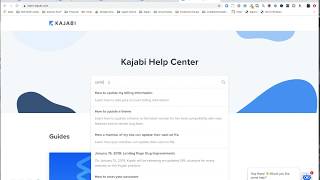
Hey there, it's Christina, president and founder of creatingdigitalassets.com and tonight I am doing a video to show you how you can update your theme in Kajabi. I'm working with a client and he's actually a founding member and believe it or not, he has not updated his theme since April 2016 and now it's February 2020. So I was actually working on his project and realized I was unable to do a couple of things. And then I, then it became very. I became very aware that the reason for that constraint was that he hadn't updated his theme. So there's a lot of founding members that have been with Kajabi for a while. Sometimes they haven't used the software for a while and this is one of those circumstances. But I'm going to show you how you can update your theme really easily. So step by step, really slow, because I know a lot of people are not technical. So the first thing you want to do is go to this website right here. Learn.kajabi.com this is the help center. It has all the help documentation that you want. Go to the search bar and type in like update theme. Okay. How to update a theme right there. And these are the directions that we're going to follow. So the first thing we want to do is edit the code for your current website theme. So I'm going to go into his back end here of the admin section. So you want to go to this menu here to the website. That's where I'm at. Okay, so right here you want to do customize and actually, I'm sorry, let's go back. We don't want to, we don't want to customize it yet. Right here below, it's going to tell you the theme name, when it was created and when it was updated and you know the very top one. Sometimes there's multiple themes in here, but the one that is live will have the blue button. It'll be bold. It'll be. It will ascend to the top of the list if there were several different themes. So this is the one that we want to do. So. And then we want to edit the code. So you want to go over to the far right and click this button, these three dots, and edit the code. Okay, let's go back to our instructions. So copy the entire contents of the settingsdata JSON file. And that is under config. Okay, so we're going to go look for the config and then settingsdata JSON alright, so here is the config file. We want to click on this to expand it because there's things below it. Here is the settings_data JSON file. Okay, so this is everything in here. So what we want to do is put your cursor in here. Or we could actually, I think we can do a control a Command A. Yes, I'm going to do a command A. I'm on a Mac. But you want to highlight everything in this file. Okay. And then do a command C to copy it. That's going to put it on the clipboard and make it available to paste wherever we take it. All right, so the entire contents of there. Install a fresh theme and then edit. All right, let's just do the. Install the fresh. Install another theme. Okay, Just go out of here. Okay, you want to pick a theme. The blue button on the top right corner. And we're just gonna do. We're just gonna pick this one. We're going to install this theme. Actually, let me see. These are. You see the names of the themes are up here and they vary slightly. I just want to see all of our options. Capital. You can preview them before you commit to them. I think we're gonna do capital. Okay, so let me see what the legacy themes are. Premiere. Actually, let's do Premiere. Let's do Premiere. Okay, we're gonna install Premiere. Okay. And now we're going to go to edit the code for the freshly installed theme. So that's the premier site that I just did right here on February 3rd when I edit the code. And we are going to probably go right back to where we were and paste it in here, I think. All right, Edit the code of the freshly installed theme, paste the entire contents of the previous theme settings, underscore data JSON into the new one. Okay. And then save. So right here I'm going to paste it right there. Okay. Save. Is erroring. It says it's not a valid JSON fil. Hmm. That's not supposed to happen during a tutorial. I copied and paste all of that. Let me see here. Well, let's try it again. I think we have to delete this first. And then paste it and save it. And then preview it. That worked. So it was just a case that that very first line, I didn't delete it. I thought it was needed as a header, but it was not needed. You need to delete everything in the new settingsdata JSON file and paste from the old one. So that's exactly how you do it. I'm glad. I'm kind of glad that we had that. Ran into that error during the video so you could see what to do. All right. If you have any questions. Well, actually, before we leave the video, let's go back and make this one the active one. Activate this one. And now this one will go away. And. And we have this. So now we can customize the new premier site. And we can probably delete this, but I'm just going to leave it for historical purposes. But now we have a fresh new theme, and we're no longer working from April 2016, which is like four years ago. Okay. If you have any questions, just leave them in the comments below this video and I will get back in touch with you.