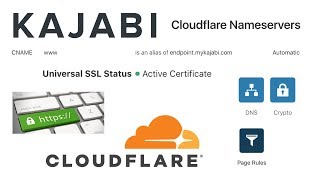
Christina Haftman (product-creation consultant specializing in Kajabi) records a step-by-step tutorial showing how she set up Cloudflare for a client's Kajabi site (alaskatracy.com). Steps demonstrated: creating a Cloudflare account, scanning the domain (registered at GoDaddy), changing GoDaddy name servers to Cloudflare's, verifying DNS in Cloudflare, waiting for/confirming a Full SSL certificate in Cloudflare Crypto, creating three Cloudflare Page Rules to normalize www/HTTP/HTTPS to https://alaskatracy.com, and adding a CNAME (www -> endpoint.mykajabi.com) for Kajabi. She verifies the setup in Kajabi and confirms SSL becomes active and DNS setup shows green.
Chapters
Hey there, it's Christina, President and founder of creatingdigitalassets.com. i am a product creation consultant and digital marketing strategist and I work exclusively with Kajabi. And in this video I am setting up cloudflare for a client of mine and I've already done a few steps and then I got the idea to probably do a recording because people ask how to do this all the time. So I will just back up and say that I've already changed the name servers. So what I did is I create. I went to Cloudflare and created an account for my client. This is for Tracy, she goes by Alaska Tracy. She is a life coach. And so I created an account for her in Cloudflare and then we scanned her domain name and she purchased this domain name@godaddy. So godaddy was the domain name registrar. So in Cloudflare I put her domain name, which was alaskatracy.com and it scanned the DNS records and found that the domain was registered@godaddy and it prompted us to change the name servers to Cloudflare. So that's what I did on the GoDaddy site. I want to preserve her privacy over there and actually I'm out of that window anyway. But I went into her domain name portfolio, found alaskatracy.com went into DNS management over there and. And there are default pair of name servers that are GoDaddy name servers. And I said that I wanted to do custom name servers and I entered the ones that Cloudflare gave me and I'm in Cloudflare now in the DNS tab and these are the para name servers it told me to give and I did that. And now, now her domain is over here being managed over here on cloudflare. So that step has been done. So we are in Cloudflare and the DNS step has been done. The next step right now is Crypto. The Crypto tab, and this is for the SSL certificate Secure Sockets Layer is what it stands for. And it just adds security to your site and it takes, you know, it takes a while for these changes to propagate between these servers. So right now it's not active yet, but it will be within 24 hours. And usually it doesn't take that long, but to manage your expectations, give it at least 24 hours, it will be green and then we want to make sure we have a full SSL certificate. And what this means is when we go to her website and you see it up here in the browser, I'M actually in the Chrome browser on the far, far left you will see an icon of a lock and you'll also see HTTPs and that will, you know, sort of verify visually to yourself that you are on a secure site and that it's that the SSL is working. So we're waiting for that. But while we're waiting for that, we also have one other thing to do, actually. Three things to do under the Page Rules tab. Okay, so we're going to go under Page Rules and we are going to create three page rules and then go into Kajabi. You can find this instructional, this tutorial in Kajabi help and just look under how to set up custom domain names. And this is towards the bottom about Page rules. Now what this really means is that, you know, in the browser we can type in, you know, www and then the domain name. And sometimes we just type in the domain name without the www. And sometimes we just type in HTTP and the domain name. And sometimes we type in HTTP in the domain name. What we want to happen is no matter how the person, website, visitor, person online is typing in this domain name, it will always resolve to HTTPs and her domain name, which is alaskatracy.com. all right, so this is the reason for this if you didn't really understand it. But there's several different things you have to do. So I'm going to show you here. The very first page rule means that we're going to copy this, go into Cloudflare. Okay? We're going to add a setting and we want to do the forwarding URL 301 for permanent redirect. So this is going to be a forwarding URL and a permanent redirect in the destination URL. You want to follow these precisely as they are here in our destination URL. What I do is I copy and paste it and then I edit it in Cloudflare for her, her website. Just go into here. Laska, Tracy. Okay, you want to focus. Don't have any distractions, any children, pets, text going off, any of that. You have to kind of concentrate here. Alright, so that's the first page roll. We want to create the second one. Okay, so we're going to do this again. And this is our second page rule right here. So whenever anybody uses HTTP, we want to change it to HTTP, We're going to add a setting and we're going to always use a secure prefix there. All right, this is our third one and our last one. Okay. Lastly we're going to do this one. So we put this here, and this is for when people enter it without the www. And we add the setting. And this is going to be a forwarding URL and it's going to be a permanent redirect into where to here, the destination URL. Copy that, enter it here, and then edit it for the person's domain name, Save and deploy. Okay, now I think the order of these matter, so let's make it look just like this. So that's without. And then, okay, So this one has to go up here. That's without anything. And then the HTTP and the H. Yikes. Do it like this. Without. Without anything in an HTTP and HTTPs. See that? Okay, I think the order matters, so it's not arbitrary. So we'll put it like that. And okay, I already did all these steps, but these. The tutorial about the page rules can be found at the very bottom of this. Of this tutorial in Kajabi. Okay. And those are some of the steps I did before I started my video. Okay. All right, so we're done with this, and we're done with this, and we are just waiting on this page. By the way, Just want to make sure this is another step that I did. The C name. Let me come over here a second. Okay, right here you have to do this as well. And you want to make sure the CNAME is www and that the endpoint is exactly this. Endpoint mykajabi.com they have like a little GIF tutorial here that types it out for you. You can see exactly the steps. It's not narrated. It's like a little gif. It's not a screencast video, but it's still instructional. You can understand what to do. So here we did CNAME. Www is an alias of endpoint.kajabi mykajabi.com and you want to make sure that these are on automatic and that these clouds are orange. That means they're active, they're activated. If they are inactive, they will appear gray and you have a problem. Okay, and there's our name servers and let me refresh this page and see if anything's happened. Oh, all right. You see, that changed right while we were doing the video. It doesn't usually take 24 hours. See, we have a SSL certificate. The status is active, it's full, which is exactly what we want. We did our three page rules. There they are for AlaskaTracy.com and everything I showed you in DNS is good. And our overview is good. See here. Great news. Cloudflare is now protecting your site. Yes. All right. So now in Kajabi this is her Kajabi account. I went through these steps and we were waiting for the changes to propagate and if I save it now it should turn green. Yes. See that DNS setup is good. Full SSL certificate is good. And now if I go up here in this tab and I type in Alaska, well that was the old one. That was what we were doing in the sandbox of kajabi alaskatracy.com. It goes right to her Kajabi site that we're working on right here. And that concludes this tutorial. If you have any questions on how to do a custom domain in Kajabi, how to change your name servers, how to, you know, use Cloudflare, just leave me a comment below here or get in touch with me and I could do it for you or walk you through it. Hopefully this video is helpful and I will see you on the next one. Thanks for watching.