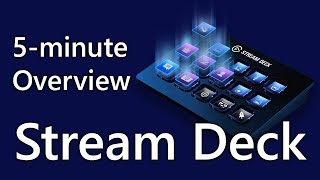
David walks through the Elgato Stream Deck 15-key model and shows how to set up buttons for streaming tasks. Multi-action lets one key trigger a chain of commands like audio, scene switches, and chat messages. Folders and profiles expand what you can do beyond the 15 physical keys.
Chapters
Hello everyone, this is David, and today we'll be talking about Elgato's Stream Deck. This will be a brief overview of the device itself, as well as some quick configuration tips I recommend for the included software. So let's begin by taking a look at the device itself. I'm using the 15-key variant. More than enough buttons for your use, and I'll actually explain a bit why later. But it's a very useful tool. I really recommend it for any streamers. It actually has a lot of other uses as well, and, uh, yeah, I'm very happy with it. So let's get into the software. So one example of a button's use would be toggling your microphone. So in other words, muting and unmuting your mic. That's just an option right over under the options here where it says Mixer Audio, and you can actually just pick which audio source you're toggling from an audio perspective. So I have one that just toggles the microphone on and off. So I set— assign that to the first button here, and you can actually completely customize how it's labeled when it's on or off. So when I have it muted, it looks like this, and I've labeled it "Unmute Mic." But when I press the button, it now changes to this. A— it says "Mute Mic," so the action that is not currently active is the title that I gave it. And you can actually set an, uh, from file, so you can set your own icon, which is really cool. And I'll actually include a template for the buttons that I use, the template that I use, in the description. It will be a Photoshop template, PSD, so enjoy that if you'd like. Another thing I want to show you is a multi-action. The multi-action feature is actually incredible. So you can take one button and essentially have it do multiple macros at once, multiple steps at once. So if you open this up, you can see it's comprised of many different actions. So it plays this audio clip, it activates certain sources in different scenes, and then it actually posts a message in Twitch chat, has a bit of a delay, and then turns itself off. So it's sort of a, sort of a self-contained set of actions and macros. Really, really awesome. This basically means I press one button, a series of events occurs, and then they kind of disable themselves at the end so it's ready for another go later on. This is another example of a monitor toggle. So if I press this button, it basically just toggles my monitor on and off when I stream, so I can quickly hide my screen if I need to, if I'm opening a browser tab and doing something, or whatever the case may be. So those are a few other examples. So that's— this is a multi-action one, and these are both single actions. The other one I wanna tell you about is the folders. So here you'll notice one option is to create a folder, and I've actually used a folder icon to make it easier to identify what it is. But a folder essentially opens you up to a whole 'nother set of buttons, with the exception of one to go back up to the previous level. What's so cool about this is even though you only have 15 keys, this essentially means you can have unlimited because you can just create more folders. And if that's not enough, you can actually create multiple profiles to switch between entirely different sets of keys. Really, really, really cool. So really, there's not really a limit to the number of actions you can do. So for my routine, I actually have a start section. So whenever I start my stream, I open this start area. These are all the things I need to open before I start my stream. These are like sound effects and playlists and things that I might— maybe I want to queue up a playlist or something. Before I go live, and I might want to open Nightbot or Streamlabs or whatever it is, my Twitch dashboard, and they're all right here. So if I tap this key, it opens the Twitch dashboard. If I tap this, it opens the timer that I use, the countdown timer. You can see it's pulling from this Snaz program here. And then this Quick Start button is actually a set of multi-actions wherein it activates an intro sequence, it mutes my, my microphone, and then it displays the proper scene and plays a little jingle. So that's what that does. And then when I'm finally ready to start, I actually use this multi-action which hides the, the initial scenes, does a countdown, plays a little sequence, and then goes to my main scene. And you don't have to worry about the minutiae and the nuance of all these scenes, but you get the basic idea. Then once I hit that, I go back to the top level And I resume my stream as normal. Remember, I only have a few of these shown, but there are so many things you can do. You can have any program open, you can have— you can skip a song if you're listening to something, you can display text. There are just so many things you can do, including a bunch of things you can do on Twitch. You can play an ad if you're a partner or an affiliate, you can create a clip instantly. That's what I have here. It actually saves a clip and does a little sequence on my stream. Uh, but remember, you can customize what options you have. Maybe you don't use Streamlabs OBS and you use OBS Studio or use XSplit or something. And there's also options for YouTube and so many other things. So feel free to customize what you have here and do a lot of thorough testing. And I think you'll find the Stream Deck is a very useful tool for you as a streamer. Thank you so much for watching. If you got value out of this video, I'd appreciate a like. And if you haven't already, subscribe and leave a comment if you have something to say. I'll see you guys next time.