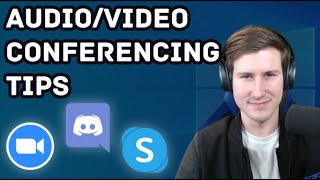
David shows how to set up Zoom and Discord for video calls, including selecting microphones and speakers, checking camera status with visual indicators, and configuring audio devices in Windows 10. He stresses muting when you're not talking to cut background noise.
Chapters
Hello everybody, this is David, and today I thought it would be good to go over audio and video conferencing joining best practices because I know with all this outbreak going on because of COVID-19, uh, folks are using other means to communicate. And so I thought it would be good to review some best practices, some things to look out for, and that is what this video is for. So first of all, let's take Zoom as an example. So you can create meetings, you can join meetings with Zoom with a free account. So I'll use this as the example since it seems to be the most common one in my experience. When you're joining an audio video conference like this, I would always look for a test speaker and microphone option. It'll do something like this, and if you don't hear whatever the sound is, make sure you select the correct one. So in this case, I picked the right one. Now also, my voice is coming back to me. Do you hear that? My voice is coming back to me. Do you hear that? You'll want to make sure you're selecting the right device, and multiple devices will come up for you if you have a microphone plugged into your computer, if you're wearing a headset, or there's, there's a bunch of other things that could influence that. So just make doubly sure with these testing features that are built into these things that you're using the correct one. And then at that point you can click join. So I am now in this meeting. All right. So, uh, as you can see, there's little— look out for little indicators about your activity. So here you can see my voice is— as I talk, this little green is moving up and down. And then also you can see my camera is not active. And if I were to click that, it would turn on. But I know there's apprehension sometimes and concern over video cameras. So if you have a webcam, most of you don't, but if you have like a webcam, you can take it off and put it to the side. Or if you have a built-in webcam in your laptop or something like that, you can put something over it if you're concerned, because some of these audio video conferencing applications just turn on your camera and they don't— they do not warn you in any way, which I think is a terrible practice. But nevertheless, it's actually something that happens. So, um, the next thing I want to show you is another example with Discord. Discord is a great video, um, it's a great chat app but has video capabilities also. So we're gonna go to the settings of Discord and you'll see I have a list of input devices. If you click default, it's going to use your Windows settings, and we'll go over that in the very last step. So if I just pick default here and default here it's going to use whatever my Windows system is using. But generally speaking, that can be an okay setting sometimes, but sometimes it will default to the wrong thing or what have you. So I like to specify what the input and output devices are. So let's say you use a lot of different audio conferencing platforms. You use Zoom and Discord and Skype and a bunch of other ones. Well, you're going to want to set your Windows settings. So an easy way to do that in Windows 10 is click this little— the speakers icon. And then on the very top, you can click this and it will show you a playback device. So right now I have it at speakers. So my computer speakers are active, but I also have headphones in. So in this particular instance, maybe I'll switch to like— in this case, I'll switch it to system. And for me, that means my headphones, but you will have a different set of options. And so now I'm hearing sounds on my headphones and not on the computer speakers. So hopefully that helped you out. It's a pretty basic tutorial, but with a lot of new people using tech that they're not used to, I think this was hopefully helpful and hopefully showed you how, how you can get over some frustrations when joining. The last thing I'll throw in too, just as something I just thought of, is while you're not talking, it's a best practice to click mute. And the reason for that is because if you have background noise or stuff going on, it can be really annoying during conferences to hear this background noise. And if you— you can't always— it's not always in your power to silence it, but what you can do is mute yourself while you're not talking so that the meeting is not filled with noise and distractions and things like that. So be courteous, And always remember you are muted so that when you unmute, so you remember to unmute and so you don't think people are ignoring you. So there you go. Some tips on how to make sure your correct devices are set in Windows and whatever application you're using. And then a quick reminder about what you can do during the conference itself. So I hope that was helpful to you guys, and I wish you well in this, uh, this season that we're in. And I hope to talk to you again real soon. Thanks.