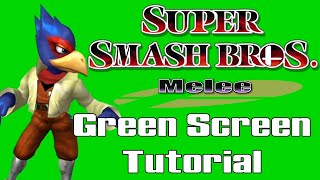
David shows how to set up Dolphin emulator to capture Melee characters against a green screen background in 1080p 60fps. Enable specific Gecko codes like UnclePunch's True Widescreen and Additional Debug Background Colors, then use debug mode to cycle the background through white, black, green, purple, and blue. Avoid Slippi builds, which interfere with the cheats.
Chapters
How's it going everybody, this is David, and today I'll be showing you how to set a green screen background for the purposes of keying out in Super Smash Bros. Melee. The first thing you should know is that this requires the Dolphin emulator, and no, you cannot do this on console, so don't try. And hopefully anyone watching this will have a decent understanding of Dolphin and what it is and how to set it up, because I will not be going over the basic steps on how to do that. You'll need to figure that part out on your own. But assuming you do know about Dolphin and you do have a Melee ISO 1.02 already, I can just kind of jump in and show you what options and settings you need to have enabled in order to get this to work. I absolutely do not recommend using Slippi or a netplay build because messing with Gecko codes and some of these settings can mess up your netplay experience and cause desyncs and issues. So I would recommend going to the Dolphin emulator website and downloading one from there. A portable one will do. Just do not mess with your netplay version of Dolphin. So assuming you have a newer version of Dolphin, I'll show you kind of how this works and I can kind of show you a few things for older versions of Dolphin. First of all, under Config, you want to make sure Enable Cheats is checked. This is very vital as we'll be relying on a lot of Gecko codes, which are basically the cheats that you're enabling here. And then after that, you'll go to Graphics under the General tab. You want to make sure Stretch to Window is selected from the aspect ratio list here. Here. Under enhancements, you'll want to make sure 1080p 3x Native is selected if you want true 1080p footage anyway. And then you want to make sure Widescreen Hack is unchecked. You do not want Widescreen Hack on, and I'll show you why in just a little bit. So once you have that settled, right-click the Melee ISO and hit properties and go to GeckoCodes. You'll want to make sure Netplay Community Settings is checked because this is going to have a lot of the codes that we'll be relying on. During this to get the green screen to work. And then you want at least 3 more codes as well. Turn on the True Widescreen Advanced hack by UnclePunch, which actually gives Melee a true widescreen, which is awesome. Nothing stretched out or anything, and it's, it's marvelous. You'll notice the difference. And if you do Additional Debug Background Colors, this will basically enable us to get that green background. And then down here, make sure you have Start Versus with 1 Player Only. As long as you set the time to none, another code provided by UnclePunch. Very, very helpful guy, shoutouts to him. So once you have those checked, make sure you close out of this. Oh, and by the way, you'll have to add those codes, obviously. So they won't be on this list for you, you'll just add a new code from here. If you have an older version of Dolphin, you'll do it a bit differently. You go to GeckoCodes, and you'll actually click Show Defaults, which will open this. At the very, very bottom, you can paste in whatever codes or code you need, as long as it kind of follows this format. Hit save to save the changes, and then after you close out of this, hit properties, go to GeckoCodes again, you'll notice it appears on the list and you can actually enable it from there. That's for older versions of Dolphin though. We'll be focusing on the newer version of Dolphin for now. So let's open Melee and launch into fullscreen by holding Alt+Enter, and I'll show you how you can get there. "Sir, my lord!" Alright, so first of all, we're actually going to back out of this screen and go to tournament melee. And once you hit there, the debug menu should open because you have Netplay Community Settings on. And you'll want to scroll all the way to the right so it says "DB Level: Develop." Then you'll back out of this menu. "Sir, my leg!" You'll pick the character that you want to green screen out. In this case, I'll pick Falco. Change the rules to "Time: None." You'll be able to press start because of the other code that we added. And then one thing you'll want to do is press Y so that frozen stages are enabled and select Dream Land. This is— you can really pick anywhere you'd like, but because of background elements and just certain lighting, this is my preferred combination. You might find, for example, in Final Destination in Battlefield, there's actually background elements that show through the green screen. So I like picking a place like this that's a bit easier to work with when it comes to that. So one more thing before I show you the green screen part: debug mode behaves a bit differently than standard Melee. So for example, if I press start, it's actually going to freeze the game in its current state, and if I press Z, it'll do frame advance. Which is very helpful for debug mode, but very strange and frustrating if you're not used to it. So to get the standard pause back, all you gotta do is hold the X button and hold up, and you'll get the standard pause menu, and you can press L, R, A to quit out of that just like you would normally, and you can get back to the main menu. So if you colossally screw up, you turn on hitbox, hurtbox, bubbles stuff, and you're just like, how do I erase all this? That's a really quick way to do that. Alright, so now for the green screen part. So if you press and hold X and then press the down button on the D-pad, you'll notice the HUD goes away. And if you continue to press it, you'll get a white background on a black background, which comes standard in the debug mode settings. But because of UnclePunch's code, we now have a purple and a green and a blue option also. Depending on what you're trying to capture, you'll want to pick the best background to go along with that. So for example, I'm not going to pick orange probably because— I mean, sorry, purple, because purple is kind of similar to Falco's feathers. So maybe I'll go with green because that's pretty different from his clothing and the color of him. So when I key him out in whatever I'm going to key him out in, I won't have a lot of problems like with, with color and confusion there. So there you go. There you have it. That's how you can actually green screen your characters. If you enjoyed this video, press like on it. And subscribe to my channel if you don't mind. And actually, I stream on Twitch, and my entire overlay is Super Smash Bros. Melee themed. So if you wanna see some of the stuff in action, feel free to follow me on there, and we can chat about it the entire time. Don't worry, I never get bored of it. All right, thanks everyone. I'll talk to you later. So long.