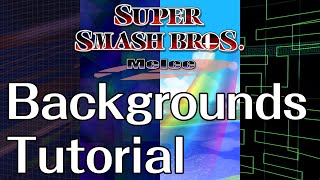
In this tutorial, David walks viewers through a complete technical workflow for extracting and capturing high‑definition background footage from Super Smash Bros. Melee using the Dolphin emulator. He begins by configuring Dolphin with a set of Gecko codes (invisible characters, no HUD, widescreen, disable screen shake, etc.) to strip visual clutter. He then demonstrates how to open a vanilla 1.02 Melee ISO in DAT Texture Wizard, export a stage file (e.g., Battlefield), and edit it in HSDRAW by deleting all stage objects while preserving background model groups. The modified stage is saved, re‑imported into the ISO, and the edited ISO is loaded in Dolphin with Fixed Camera mode to verify that only the background remains visible. David also shows alternative camera navigation methods (Free Look settings and Shift+WASD controls) for flexible HD B‑roll capture, and explains how to dump textures, replace them with transparent images, and use Dolphin’s texture loading feature to achieve green‑screen character footage. Throughout, he provides practical tips, links to related videos, and encourages viewers to experiment with the workflow for their own HD projects.
Chapters
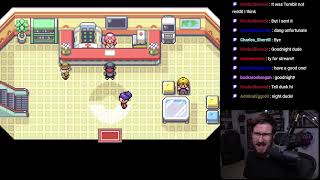
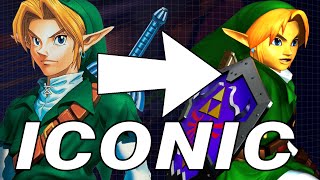
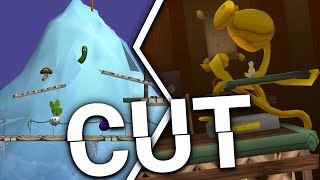
Hello everyone, this is David, and today we're going to be talking about how to get HD footage of backgrounds in Super Smash Bros. Melee. And you'll be able to see how you can take it from this to this to this, and finally to this. And they all have their uses and purposes, so we'll be going over that today. First of all, we're going to start with your version of Dolphin, and we're going to right-click your 1.02 Melee ISO. And we're gonna hit properties. Now make sure you go to GeckoCodes and we're gonna review the codes that we'll be using today, and, um, I'll make sure and include links to these codes in the description so you can use them, including a tutorial on how to add codes if you're unfamiliar with how to do that. So the big ones that we're going to be using right now are character models invisible, no character shadows, remove HUD, as well as the widescreen 16:9 code included in Slippi, for example. Uh, we'll have the hardcoded music off code, and then a few other ones that don't matter as much. You can do vs with one player only, which is kind of handy. Move C-stick with down pad on the D-pad down, I should say, and C-stick. And then of course C-stick always working no matter if you have develop mode or not on. And then the last one that I like to use is disable screen shake. What's helpful about this is For stages like Pokémon Stadium and Dream Land, the screen will occasionally shake, which makes capturing footage less ideal. So I enjoy turning that on so that the capture process is a bit smoother. Alright, now that you're familiar with kind of the codes involved, I'm now going to show you these two programs. We have DAT Texture Wizard, DAT Texture Wizard, and HSDRAW. So first we're going to use DAT Texture Wizard, and the first thing we're going to do is open up an ISO. So make sure you select Open Disk. And actually what I'm going to do is— this is an unmodified vanilla 1.02 Melee ISO. I'm actually going to copy that, make a duplicate of it really fast, and I'm going to call this modified. Whenever you're making edits to ISOs, it's really helpful to know which ones are original and which ones are copies that have been modified. So I've just done that. I'm now going to open this modified copy and you'll see an entire list of files that make up the ISO of Super Smash Bros. Melee. Thankfully for us, we have helpful descriptions and icons in this UI that make it easier to find what we're looking for. In this case, we're looking for Battlefield. So we're going to scroll down here until we see Battlefield, and it looks like here is the file for that. I'm actually going to right-click this and select Export, and we're going to call this the default file name with unmodified in its filename to make it very clear that this is Battlefield, no changes whatsoever. So now what we're gonna do is we're gonna open up HSDRAW, make it fullscreen here. I'm actually gonna open that file that we just exported. Here's the unmodified Battlefield one we just exported. I'm gonna scroll down. You're gonna see a lot of, uh, entries here. You can pretty much ignore them. The big thing to look for in all stages is go to Maphead, expand that. You're gonna go to Model Groups, expand that. And then you'll have a series of arrays, and what you'll do is you'll double-click the root node on each one and kind of go through and see what we're dealing with here. This looks like the first phase of the background of Battlefield. This is the second phase. Okay, these all look like backgrounds. These are the kind of things we'll be wanting to capture, so we won't want to get rid of these, but we do want to remove the stage. So looks like these are still backgrounds. Okay, we have another background, very nice. This, hopefully this is the stage. Let's see. And looks, look at that, looks like this is the stage. Very nice. And in fact, sometimes this is including the platforms in the base stage, but sometimes the platforms is on a different set of nodes or in a different array than the platforms of base stage, or sometimes background elements of the stage are on a different array. So anyway, just, just make sure you explore all these and find the parts of the stage you want to remove. And this is the way that I do it. It might be kind of janky or not ideal. So if somebody more knowledgeable in the modding Melee scene wants to leave a comment below correcting me, by all means, please do that. But this is just how I do it. So what you'll notice here is there's this tab called Objects, and I basically just delete all the objects. To do that, I just hit this and yes. Sorry for the noise, by the way. And I just hit this and enter over and over. Until they're all removed. Okay, so the entire base stage and all the platforms have been removed, theoretically just leaving the background. So at this point, I'm actually gonna export this modified stage. I'm going to do that, I'm gonna hit Save As, I'm gonna call this Modified. Alright, so now it's very clear which of the battlefields has been tampered with and which one is not. So now I'm going to go back actually to DAT Texture Wizard. We're going to make sure we're in the right area here. We're under stages, we've got Battlefield here, and we have our modified ISO loaded. So we're good to replace this file because I've clearly labeled this is the modified version of Melee. So what I'm going to do is I'm going to right-click this, I'm going to hit import file, I'm going to select the modified version of Battlefield, open. And notice that said File replaced, awaiting save. So at this point, it's going to basically wait for you to hit save. You can also hit save as if you'd like. I'm going to use save because we're already on our modified version, and it's going to save it. So this is a modified version of the ISO with a replaced version of Battlefield. Let's see if that worked. One thing I like to do is close out of all the programs that I had running it and just start fresh. Open a new instance of Dolphin, and I'm actually going to navigate to that modified ISO that we just edited. Notice the date modified are a bit different between these two. This is when I ripped this copy of Melee, and then this is when I, uh, just modified this just now. Now we're gonna go to VS mode, we're gonna go to Special Melee and fixed camera mode. The reason we do that is because it gives a pretty good view of the background, and it just is a nice way to demonstrate what we're doing. I'm also going to pick one character with One player, I'm gonna change the time limit to none. Now because of the code we've enabled, you'll notice I can already start. And the other codes we have enabled, keep in mind, are invisible characters, no character shadows, removed effects, widescreen, and no HUD. So let's see, if everything goes according to plan, we should load a version of Battlefield that has a completely invisible stage. Ready? Go! And sure enough, look at that, we have not only an invisible character and all the stuff we planned on with the codes, we actually have a modified version of Battlefield that is simply the background and no foreground, which is awesome. Now obviously I'm technically still playing, so you can see Fox's shine here. This is me, my character on here. But— "Tutti up!" We have a setup here that allows for background capture in Full HD. There are a few other ways you can get background footage also. One of them is by going to Options and selecting Free Look Settings. And enabling that. In some cases, depending on your version of Dolphin, it might actually be under Graphics, uh, so you'll have to keep out for that. I believe it's Graphics Advanced. But if you have a more recent version of Dolphin, it will be under Options. Now back here in Dolphin, if I hold Shift and I use the WASD arrow keys, I can actually move the camera freely and get footage this way too. Which is pretty handy. You can look up, you can move up, down, pan. You can actually, if you, um, if you use the keys below WASD, you can actually look up and down, you can tilt, you can rotate. There's all kinds of things you can do. If you completely mess up the camera, you can hold Shift+R to reset it, and of course you can always disable it if it becomes a problem. Additionally, you can actually manipulate the Dolphin texture loading and dumping feature to essentially replace images with transparency. Uh, there's another video I covered that shows you how to kind of mess with HD textures which relates to that, so I would look at that video for further instruction. But essentially you just dump every texture that you can in a scene that you want to get rid of, you know, open it in a photo editor, replace with transparency, save it as the same file name, and then put it in the load folder and it will essentially load transparency instead of the images that it's supposed to be loading. I've also created a video that shows you how to capture green screen footage of characters in Melee, so I'll link to that in the description also. As some of you may know, I've recently completed my Melee HD project, but my hope is that you are able to go out there and capture your own HD footage. Thank you again so much everyone for subscribing and liking and continuing to support me, and happy 20th birthday to Melee.