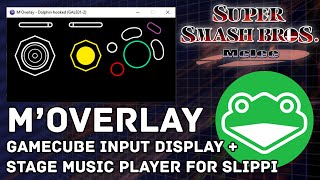
David shows how to install M'Overlay, a tool that displays GameCube controller inputs over Dolphin gameplay, and add it to OBS streams. The overlay includes a built-in music player where you organize MP3s into stage folders and use the D-pad to skip songs during matches.
Chapters
Hello everyone, this is David, and today we'll be going over how to set up Moverlay, which is a GameCube controller input display for use with Dolphin. And you can use it with a GameCube controller adapter and your GameCube controller. It's really, really cool and very easy to set up. We'll be going over how to set it up initially and then a few little extra things that it can do. Shout out obviously to the creator of this overlay, which would be Bacaccius. Thank you so much. You can follow this person on GitHub. You can also support them on PayPal right here with this link. Links will be in the description below as always. So assuming you're on this page, this GitHub page, on the right you'll locate releases. Make sure you grab the latest release. In my case, it's 1.3.3 as of 4 hours ago. And all you gotta do is click the installer x64.exe file and then just run it when it's done downloading. This will probably pop up. Just click more info and click run anyway if you're on Windows 10. I think Windows 8, you'll get a similar screen to that. And then you'll accept the agreement. Obviously, after you read the license agreement carefully, and then you'll click install and you can now launch it. So here's what it looks like. So if you have Dolphin open, it'll say Dolphin hooked. It will indicate that Dolphin is open. So the next step, of course, is actually running Melee itself. This is Slippi 2.21, which is the latest one as of this video. And as you can see here, here is the input. The game is running in a different window. So here's the game, and then here is the actual overlay. And you can see it's, it's respecting my movement, which is really cool. Works on the C-stick, the control stick analog, on the L/R buttons, all the other standard buttons. It's really, really cool. So briefly, I'll show you how to add this to OBS. So here's our other OBS window, and as a reminder, you want to add this window to OBS itself. So there's one key, uh, in doing that. Instead of adding it as a window capture and adding a filter for the transparency, you can actually just add it as a game capture. Call it my overlay and then change it to capture specific window. Pick the correct window, and I like doing window title must match, and then click allow transparency because right now it's got that black background. And then that'll add an alpha channel and you can drag it wherever you want. Really, really cool stuff. So I'll demonstrate to you a little bit how it looks in game real quick. And then I'll show you some really cool additional features you could do with it. So you'll notice this is Slippy and so there's no music playing or anything like that. And normally I'd be doing like a VS match or something like that. But just for demonstration purposes, we'll do this. So as you can see, really responsive, doesn't take up a lot of CPU usage or anything, reading exactly what I'm doing, so really cool stuff. So now I'll show you some of the things you can do with it. So I'm gonna go over to this again, I'm gonna press Escape, and here are some of the options. If you're playing on Slippi, you wanna hit this little arrow and select Rollback Netplay with this Slippi icon here, and I'm gonna enable stage music. And I'll do the loop stage song also. I'm also going to hide the D-pad because that kind of makes it a little more concise. So if I go back to OBS, I can actually hold Alt and click and drag this to kind of crop it a bit and make it take even less space on my stream, which is really cool. So here's that. Now I'm going to demonstrate the music stuff because honestly, the music stuff is really, really neat. So if you locate your user folder, in mine's case it's called David, but yours will be different, make sure you click the View tab and select Hidden Items as a checked box so you can view the hidden items. Go to AppData, go to Roaming, and then M-Overlay. And then once you get there, there should be a Staged Music folder. It'll be comprised of a bunch of other folders. And so right now I believe I have one for Battlefield. You have a couple music tracks for Battlefield. This can be MP3s or OGGs. And then also I have some for the menu, which will start as soon as I exit. So I'll demonstrate that really fast. I'll go to Battlefield and you'll notice music that's playing. Ready, go! So here it is. This is Dual Zone from Smash 64. Now if I want to skip this song, go to the next one, I can press down on the D-pad and it'll actually skip it, which is really cool, really neat. So I have those two songs right now, but they both work. So if I quit, it's gonna play this menu music. Ready, go! Now there's no music here because I haven't set anything yet, but if I want to specify one track to play on every single track, I can go to this All folder, copy a music file, and then if I go to any track at all, doesn't matter what it is, it'll play. So let's go to Dream Land. Ready, go! So here it is. Pretty cool stuff. So really a big fan of this tool, wanted to get some more awareness out about it because I believe Leffen's using it and some, some other folks are catching on to it. But man, it's cool. So anyways, hope you guys enjoyed this video. If you want more Melee content, make sure you subscribe because I'll be— I'm about to be uploading tons of stuff. And follow me on Twitch for some more Melee goodness, and I'll see you guys again real soon.