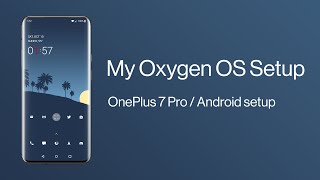
David shows his OnePlus 7 Pro setup with a minimalist dark home screen using the Min Pack icon set, unnamed folders, and a toolbox folder for utilities like Venmo and LastPass. He hides rarely used apps in OxygenOS's hidden app space and uses Firefox with uBlock Origin and Dark Reader for privacy-focused browsing.
Chapters
Hello everyone, this is David, and today I'll be going over my mobile phone setup. And this is the OnePlus 7 Pro running the latest version of OxygenOS, so some things won't translate over 100% if you're— depending on the kind of Android version you're running, or if you're trying to apply these principles to iOS or a different mobile platform. But I thought it'd be fun to kind of walk through it. So as you can tell, I kind of have a minimalist look on my device. I like kind of a dark— I generally like dark theme. So I've got a simple dark background going on and I have these white icons. Now to set these up, you can obviously customize what kind of themes you want, whether it's your wallpaper and all those. So if you were to go to this and you were to customize the kind of icon pack you're using, right now I'm actually on OnePlus, which is the default one. So you might be wondering, how do I have these white icons on the screen if I have the OnePlus one selected? Well, I just have basically tapped in hell with the icon and I go to edit and I pick a completely different icon pack. In this case, I'm using the Min Pack and then I select the icon that I want and I completely get rid of the label. Normally it has, you know, its standard name like that. But I prefer with no— with nothing because I like the icon-based look. So I've erased that and just leave it blank. Same with this folder. This is technically an unnamed folder. But once we're in this folder, I don't mind the names appearing. I just like having my main screen this way. I also like the default clock widget on the home screen that also indicates if I have an alarm for the next day. And I just like how clean it looks. So on the drawer side, I've actually— the first widget I use here is a widget called Month. I believe it's called Month Calendar. And it's like a really nice widget. It basically mirrors your— it mirrors your calendar and it has this really cool look when you tap whatever month you want. It has like this really cool thing. You can quickly jump to a future month or the current month or whatever. I really, really like it a lot. And for the toolbox section, I have more utilitarian type stuff. So I've got Venmo for easy cash transfer, my contacts, my photo gallery, camera, LastPass, my to-do list, and payment methods. That's what I kind of keep there. Please ignore how little steps I've taken today and do not judge me for that. I have that there. I have my notes here. And then I have the parking location stuff and some of my card stuff. So rather than carrying membership cards in my wallet, I actually just have them scanned here for easy access. And this parking location stuff's really, really great, by the way. You can mark where you park, take a photo, and you'll never remember where you parked because that has burned me many times. And then lastly, on the drawer with all the applications, on the OnePlus OxygenOS software, there's actually like a hidden space if you drag to the left. And basically what I put here is apps that, you know, I have installed for various reasons. But I don't necessarily want to open them, or they're already on my home screen. So LinkedIn, Firefox, and Facebook are already on my screen, so they're kind of redundant in this bottom one. So I've hidden them so that when I scroll through apps, they're not taking up as much space. So that's that. And then the mobile app that I use for my browser is Firefox, and part of that is because I switched from Chrome to Firefox recently on desktop, but also you can enable some really cool add-ons So I currently have uBlock Origin installed. We can also add them— you can also add other ones like Dark Reader, which I'm going to add right now. And we're going to say, sounds good. And now I've got Dark Reader and uBlock Origin as add-ons to my mobile browser too, which is pretty cool. So that's a kind of short overview of my mobile device setup. Hopefully some of this is helpful to you, and I'll catch you guys next time.