Windows 10 Mobile Technical Preview Build 10149 Overview
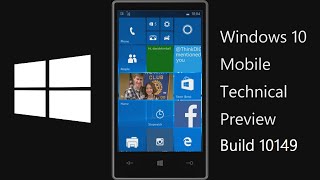
David V. Kimball tours Windows 10 Mobile build 10149 on a Lumia 920, showing redesigned tiles, a bottom navigation bar, revamped Settings with quick toggles, and new Xbox social features. The camera app adds Nokia-style pro tools, Microsoft Edge moves the address bar to the bottom, and OneNote syncs automatically. The build is polished but still early, with occasional bugs.
Chapters
Hello, David here. This is going to be an overview of the latest Windows 10 Technical Preview. I'll try to give you a brief tour without revealing too much personal information like phone numbers, etc. But this is— I'm— this is on a Lumia 920 that's running the latest build of the Windows 10 Technical Preview for phones. For one thing, I have to show you some of the animations have changed. So if I tap, say, the People tile, it has this zooming-in animation. The tiles don't flip anymore like they used to, so that's one big change. And the People tile is still, you know, the People Hub is not quite what I'd like it to be. It's alright, but it certainly is much more improved than the alpha version in the previous build. That's for sure. Lots of people like to gripe about that. So we have— these are all my groups. These are contacts. The jump list has changed. It's pretty elegant. I like it. So that's pretty cool. But what I do like is that a lot of the navigation is on the bottom and you can pivot still, which is nice. The only inconvenient thing, if you needed to search, you have to tap the top of the screen. To do a search. Of course, the keyboard hasn't changed much. It's really snappy, really cool. So that's nice. Let's open the Xbox application. Now what's interesting about the Xbox application is it seems like they're going for like a social component. I mean, I know they've been pushing this for a while with Xbox One, but if you take a look at your posting options, it's not just sharing you know, achievements and those sorts of things, or screenshots, or adding friends. You can actually just post statuses. So let's see, so here I said Xbox app is clean. That's just a text post. And here we have achievements and people adding friends, but you can actually just type in just like a status or something, which is pretty interesting. Alright, so here are— let's see, it's funny, lots of elements are not showing up in this app, so it's very, very early build, I'm guessing. But alright, so here's suggestions of people to add. That's interesting. Alright, I'll add Sam. Why not? Wow, this is very strange that it's delegating so much of the screen to this suggestions part and the part down here is tiny. Huh, they'll probably have to work on that. But anyway, so you can go to achievements, you can go to your game DVR, just sort of the Xbox One-like features, which is pretty cool. And yeah, the elements aren't loading on here, but in theory this app is pretty cool. Let's get notifications here. Anyway, so that's pretty neat. Um, let's see, where else can we look really briefly? So Cortana is changed, and they're definitely still working on it. I think it's a little more awkward than in 8.1. They have not figured it out completely, in my opinion. But, um, so this is an example of the weather. You can tap the down arrow on here to get more information. That's pretty cool. And it's pretty similar, but I don't know how I feel about the white and black. They need to make it look more natural. But I'm pretty sure you can change the theme. I just gotta figure it out. But here's a notebook, for example. This will probably be revealing things that are— yeah, so— oh, there's Quiet Hour settings. Okay. I was wondering where that was. Alright, so yeah, so that's another thing is if you go to Settings, I'm gonna drag from the top here. And if you notice, you have a lot more quick access settings. And one of the new ones is you can open a note, you can open a flashlight to turn your flash on, which is pretty cool. And then they've renamed something, so mobile hotspot rather than internet sharing, which seems a little bit more intuitive. If you tap note, it opens OneNote and you can start a new note. So that's pretty neat. That's sort of in the spirit of the Surface Pro 3, it seems like. Oh, this is the first time I've opened it, I guess. And whenever you open a Microsoft Office application, it has a very similar opening where it says, "This is this Office application. This is how it works. This is what you can do on mobile. It's pretty awesome." And then it says, "Would you like to sign in?" And then it shows you a profile picture, and then it says, "Start using OneNote." So that's pretty neat. And then opens the application from there. And of course, with OneNote, it's going to take especially long to load because it's going to sync all the notes. Oh, that's interesting. Personal web. That's cool. You can now specify where your quick notes are saved. That's pretty neat. Looks like it's syncing all my notes now. I think I have more notebooks than that. Yep. So anyway, there's that. The new camera application. I don't know what's going to happen when I open the camera application. On this demo, but nothing's happening right now. I just crashed. Let's try that again. There we go. Wow, it's actually showing. That's cool.
Look at this.
Inception. All right, so there's— I like the new iconography a lot, and you'll notice a lot of the pro tools from like the Nokia camera are now in the Microsoft camera, which is pretty cool. The self-timer built in, and then of course the settings you had before. I like the translucency though, kind of overlays on the, on the image so you can still look at what you're doing and pick the settings in a very elegant way. I really appreciate it. So there's that. Uh, let's see, maybe the photos application. That's changed. At least it's a little bit more stable now. But yeah, you have— what's nice is it just pulls things from the cloud relatively seamlessly. Uh, so it's nice and really easy to access photos from other places on your device. There's like all my Beyond Tweeting stuff. So yeah, that's pretty cool. You can actually specify albums. This is like a concise little view of albums on your device, it appears. It's pretty cool. So yes. Oh yeah, and Microsoft Edge too. Cool stuff here. So I'm going to go to— also, if you notice, the, the address bar is on the bottom. And it automatically tabs on here, but now you can close tabs in bulk, which is pretty cool, which is a new feature. Let's think about another address. Let's go to—
that's right, and you can add, you can add stuff to reading lists, which is cool. There's a quick share button here. So they are doing some pretty cool stuff with, uh, Spartan— with, uh, Microsoft Edge. So I was very excited to see that. I'm trying to think of another thing I can show you guys. I'll go over the settings really quickly. So the settings look great now. I love the settings. And if you don't want to go through all of it, you can just search the settings. Let's say I want to go to Bluetooth, and I don't want to worry about where it is.
Bluetooth!
There it is. And of course you can specify which shortcuts you have.
Trying to remember where that is. Probably System.
Yeah. So you can change when you drag down these bottom 4 ones, but it appears the ones above it never change, which is pretty interesting. I don't know why they're flashing like that, that's kind of weird. Maybe it's a bug or something. But yeah, you can change that. You have a lot of good options here. Um, here's all the notifications. So yeah, in short, those are some of the more major changes. Again, the jump lists are just so cool now.
I really like it.
It actually reminds me of Zune a little bit.
I don't really know why.
Because Zune had those boxes, but—
but yeah.
Let's see if— I'll give you one last preview of the store. This is the upcoming store, which is currently called Store Beta, which I really dig. I actually really like it. It's very, very clear what's going on. Just lots of content on the main page, and if you want more specific categories, you can go here. Easily go to your downloads and go to settings. So I'll go to apps, and hopefully it's the same page. Ah, yeah, I think it's the same page. Here's app categories. Okay, yeah, so I think it's cool. I think I'm really excited about where this is all going to go. I hope you enjoyed this version of Windows 10, and if you enjoyed it as well, let me know. I'm just, I'm just so excited about it. Look at all the stuff it's doing. I can't stop talking about it. It's definitely different than Windows Phone. As far as Windows Phone 7, Windows Phone 8, uh, but it's a good change. I'm excited for it. So with that, I will sign off. This has been David V. Kimball with a brief overview of the latest Windows 10 Technical Preview for phones. Thanks for watching.