A walkthrough of Windows 8's Start screen and desktop. Learn to toggle between them with the Windows key, access the Charms bar from the corners, power off via Settings, and pin apps like Firefox to your Start screen by right-clicking and selecting Pin to Start.
Chapters
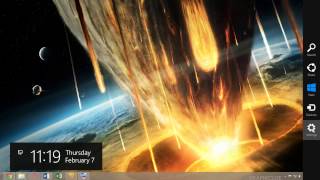
Alright, so here we have the Windows 8 guide for beginners. Um, as you can see, the Start screen is the new part, so I decided I'd start with that. And it's comprised of Live Tiles. These are shortcuts to your favorite applications. You can see mine are organized, and I've actually shut off some of the live capabilities on these tiles to protect my privacy. Uh, but with that understood, let's move along to the basics. So the first thing you're going to want to know about your Start screen is this is going to look a little unfamiliar to you, especially if you're used to Windows 7. The good one to find is the desktop tile. I believe it probably starts somewhere down here when you turn it. I moved it up here. But anyway, the point is, find this desktop tile because as soon as you click it, you'll find yourself in the familiar desktop environment with your files, like My Documents, etc. That's kind of the first thing, people kind of panic about that. Another thing that, that's kind of nice is, um, there's a Windows key on your keyboard. If you pull up your keyboard, you'll find a Windows key. It will look something to the effect of this. And you can use this key for some shortcuts. For example, If you press this key, it takes you to the Start screen, like that. So again, this is me hitting it, and it toggles between the Start screen and wherever you were previously, in this case the desktop. You can also do this by going to the bottom left corner, clicking. Also does the same function. And then the bottom right and bottom left corners pull up the Charms bar. This is another way you can get back to Start. So the idea is whatever works for you. There's several ways to do it, and they keep them out of the way so that, you know, it's not, you know, it's usable while you're doing other work. Another way is to shut off the computer. You do the same thing, you go to the Charms bar here by going to the bottom right or top right corners. And then you click Settings, and then there's the power button here to which you can restart, shut down, or sleep your computer. Also, you get access to more PC settings here. So anyway, that's kind of some of the basic stuff. Hopefully that'll get you started. As far as this side of it, it's almost just like Windows 7. And yeah, and the way— if you want to pin something to the Start to the Start screen. For example, if you wanted to pin, say, Firefox to the Start screen. So you go to the Start screen. What's cool is you can find apps really quickly on your Start screen by just typing in what you want to find. So I just typed in the word "fire" and Firefox popped up automatically. Say I wanted to open this application, I would click it. As soon as I clicked it, it would load just like on the— since it's an application, it would load up on the desktop right here. Just like that. And if I wanted to pin Firefox to my Start screen, um, I would go back to the Start screen, uh, find the application I wanted, Firefox in this case. Now I would right-click the application I wanted and select Pin to Start. Once I did that, I return to my Start screen and find the tile I just pinned. So then you can click and drag, and this will move it around to the area where you want it. And, um, some tiles have the capacity to change their size. For example, the Mail tile, you can make it smaller for flexibility, or I just like keeping it larger because I usually use it to read my emails. Um, but that's how you use that, and I think for the very last thing, I'll show you is you can see I've named each of these categories something different. If you want to make a category, take a tile and just drag it over here until you see this vertical line, and then that makes a new category. If you want to name a category or see all your tiles in an overall view, there's a minus button down here, and if you click it, it zooms out and you can see all of your tiles in groups. And if you wanted to name one, for example, let's say this is a group, you can right-click it, you can right-click it in sections, and then go to Name Group. I'll just call this Browsers. Now I have a group called Browsers, as you can see here. And I could move Google Chrome over there if I wanted to be consistent. Now I have a group called Browsers. So anyway, I hope this was helpful to you, and, um, yeah, I'll probably make a few more quick videos soon, but hope you're enjoying Windows 8, and that is all.