How to Get Your Videos Found on YouTube
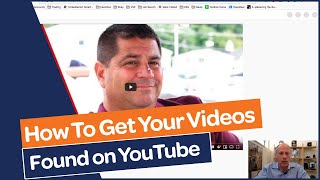
David Vogel walks through uploading and optimizing videos for YouTube search. Front-load keywords in your title, put a clickable URL first in the description, tag with your highest-value keywords first, and upload a custom thumbnail instead of using YouTube's auto-generated frames.
Chapters
This is your video marketing tip with David Vogel. I intentionally left off one minute because today we're going in deep. This is going to be a how to video on how to properly upload your videos to YouTube and more specifically, how to optimize them for search. Now, YouTube is a great free online platform for hosting videos, but it is also the number two search engine in the world. So it's really important that not only putting your videos there, but optimizing them. So I'm going to step in right now and I will see you on the other side. Okay, so here we are on my desktop. We're at the Google website. And if you're logged into Google, really easy to get to YouTube, click on this. I call it the dice, but it's this nine square icon here. And if you click on it, here are the different applications you have access to. So just click on YouTube. If you don't have a YouTube account set up at this point, it will prompt you to. And once we're here, we can, we can do a couple things actually. Right here, this movie icon with a plus, as you can see, is to create a video or post. So we're going to do this step by step. We're going to upload a video. Okay, you're gonna go here, you can click here. And we're gonna go and find the video. I have a folder here ready to go. So here is the video I'm gonna show you. This is a video testimonial a client did about their experience working with Video SEO Pro. So this takes a bit of time here, but while we're waiting for this to upload, you can see the time here. It'll take about a minute or so to upload. What you should notice is right here, this is the title field. What you can see right here is that when you upload a video to YouTube, what YouTube does is it takes the name of your file and that's what it puts by default into the title field. So you're going to want to change that. So many people when they're uploading a video to YouTube, they simply go as far as what we just did right now, and they publish a video and they're done. They get their embed link, they get their, their YouTube link here that you can share in an email. But really, that is not the best way to be using YouTube. Yes, that's the fastest way to get a video uploaded. But remember, YouTube is a search engine, is actually the number two search engine, as I mentioned. So you want to Be mindful of not only using this platform to host your videos, but also to make sure your videos are getting found. People can find them through a Google search, they can find them through YouTube search. So we're going to go step by step and we're going to talk about four things in this video. The first is the title field and how to put information in there. The next is going to be the description field. The third is tags. And then the last thing we're going to talk about are thumbnails. Okay, so let's. So you can see the video has already been uploaded, it's been processed. Now the one thing that you should know about YouTube that most people don't know is that whole process that it went through right now of uploading the video. One thing that YouTube does every time you upload a video is they take the audio, they strip it away. They have their own voice recognition software and they turn your audio into text and it's that text that they use to help better optimize your video. So what you say in your video is just as important as what you put on this page. Alright, so let's start with the description or, sorry, the title field here. Now you want to be sensitive to what is it that someone is going to Type in to YouTube to find your video. So as much as you might be giving them, like you want people to be finding this organically as well. So search engine optimization is very important here. You can use the keyword planner tool from Google. There's a bunch of other free resources you can use, but you want to be mindful of what word someone's going to use to find this video. Now I've already created something so I'm going to go right to that right now in this document and I'm going to cut and paste it in here and I'll explain exactly why I did what I did. So number one, you can put up to 100 characters into this field. And what's important to note with the title field is YouTube as well as Google give the greatest weight to the words that are at the beginning of the title than the words that are at the back end. So you want to front load this with the most important words at the front of your title. So in this particular case, this is a video testimonial from a client of ours. So this is a review. Now many people today, when they're vetting a company, they will do a Google search for that company space review. Whether you're looking for a doctor, you're Looking for a business. You're looking for whatever. We're always looking for reviews. Google reviews. You look at reviews on Facebook, we looked at reviews on Yelp, etc. So the same thing applies here. So what I'm putting here, normally I wouldn't put our company name here because most people are not looking by company, but in this particular case, I'm suspecting that someone is looking to vet our company and they're typing in Video SEO Pro review. So that is what I have as our first keyword phrase. The second phrase that I put in here, I'm using what's called a pipe character, this vertical line here to break the different word groups that I have here. The other one I have here is client testimonial. This is a client testimonial. You could also put customer testimonial here. But this is something that someone might be doing a search for Client testimonials of Video SEO Pro or client testimonials, just in general. Then what I put in here is the name of the individual and the name of the company. And I put success story. These are all different keywords that I've loaded into the title that someone might use on YouTube or on Google that will help this video get found. This is by far the most important piece of text you can put or associate with your video. Next is the description field. Again, I've already done this, already written this copy, so I'm going to cut and paste it into here. I think you can put up to 5,000 characters in here. I don't know why this is not. Oh, there we go. Now you can see the whole thing. Okay, so the most important thing you want to do here is in the very first line, put your URL or whatever URL you want people to go to. The reason why we're putting this on the first line is when people see this video in search results or on a page, typically you're only going to be able to see one to two lines of the description field without clicking into that field. So by certainly you want to have the link to your website so they can just click right there and go to it. Next is you want to put a description in here and you want to load it with as many keywords relevant to this video as possible. Now, I'm going to go back to our Word document here and I'm going to show you. I've highlighted some of the important words that I want to make sure this video gets found for. So if anyone is looking for Charlie Melchner, I made sure to mention him in the description. His company, mayapac Marine. I've also indicated this is we're talking about as related to him. Search engine optimization around video. So getting more online traffic. This is a client video testimonial. So I put that word in here. You know some people use the word review so I've also included that word. I've mentioned our company here, optimizing video. The video we made for him is a company branding video. He talks about that. So I've mentioned that a couple of times. I'm using the word video multiple times in this document. We're talking about video search engine optimization driving traffic. We're a video marketing agency. We talk about that and our company name once again. So you can see here that in my description field I've organically and very naturally added important words to the description. That's going to help YouTube as well as Google understand how to optimize this content, get it found in a search. Now the third part of the information you can enter associated with the video is tags. Tags are like keywords. And so I've gone ahead and made a list of keywords here. Now you want to, it's always a good idea to do this all in a word document. So if something happens when you're in YouTube, you close it by accident. Something happens, you don't lose all your information. So it's always good to work in some sort of word document. Google Doc is fine. But it's also important here as it relates to your tags that YouTube gives greater weight to the first tags than it does the later tags. So you want to prioritize these in order putting the most important keywords first. All right, so I've, as you can see here, client testimonial, custom testimonial video testimonial. These are all company branding video. This is what the video is about both as a testimonial as the content that it talks about. And you know, I put video SEO here later. Even our company could be listed here. Actually you can see it here, it's listed below. So let's just view this in draft mode and you can see all the tags now. I don't think you can. You still can't just copy these and paste them in here. We'll give it a try and let's see what happens. Yeah, it'll just make it one. So what you have to do is basically take each one of your, your word phrases, paste it in here one at a time. There are some add on, plugins you can use in, in Chrome that would allow you to actually cut and paste this. I'll. I'll share that information either in the comments below or in another video, but this is the way that most people will have to do this. And you just, like I said, you highlight all these, you paste them in here. It doesn't take very long to do. Of course, you can't reorganize these once you put them in there. It's a little bit of a drag. I wish they would do something about that. But again, this doesn't take a lot of time to do. We're almost done here. A couple more. Okay, I have this one VSP here because we are rebranding our company as VSP instead of Video SEO Pro. Now, as you can see down here, YouTube by default will just choose three arbitrary frames to represent your video. It's really important not say from an SEO standpoint, but from an engagement standpoint that you don't just rely on YouTube to choose the image. You really want to make that image as engaging as possible so people are more likely to click on it. So you always want to create a custom thumbnail. Now I've gone ahead and ready done that. So you can click on this word custom thumbnail here and we will go to my folder and here's my thumbnail and I will upload that now. And now that is going to be the image that they use instead of this kind of random image of Charlie with his mouth open. So I'm going to save and hopefully you'll see the update to this image and you'll see the change. Okay, so now let's. We've made all the changes. Here we are good to go. We're going to just look at the video live. We're going to click on this link here. You can see it full frame. He had a nice smile on his face. We've given this a description. It's very simple. It's a client testimonial. Now if somebody sees this in Google search results or in search results on YouTube, they're going to be more likely to click on it, as you can see here below here is our title that we saw before. And you can see here is the URL that's going to take them to our website. And as you can see, there's only three lines that you can see by default. And the only way to see more of the information, you have to click the show more. But you can see here and you can see the remainder of the text. So in most cases people will not see that information. So again, you want to have that URL link as the top part of your description field. So that's pretty much it. Title, description field tags. You want to be mindful of keywords. You want to put those keywords into your description as well as into your title and as well into your tags. And take the extra time to take a frame out of your video. Or you can create a custom thumbnail from a stock image if you want and put some text on there. Make it clear why people you want people to click on that video now. I hope you found this helpful. If you have any questions, put them in the comments below. Happy to field those questions for you. And if you'd like me to look at one of your videos that you're hosting on YouTube and give some feedback, I'm happy to do that as well. And I wish you well with your videos. I hope again that you found this useful and I will catch you in the next video. Take care.
More from David


Best Testimonial Video Examples| Remote Video Testimonials | Alenco | Natalie Sunderman

Customer Testimonial Video | Remote Video Testimonials | Clever Digital Marketing | Sam Byrd