10 REASONS to Go Paperless! | Evernote Guide
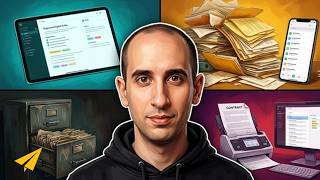
Evan Carmichael shows how he uses Evernote on desktop, laptop, and iPad to go paperless. He scans receipts and documents with a ScanSnap scanner for searchable cloud storage, captures meeting notes and ideas on his iPad during travel, and builds offline travel guides with maps and TripAdvisor excerpts. He uses the premium plan at $45 a year.
Chapters
Hi, I'm Evan Carmichael. Welcome to another edition of Entrepreneur Tools, where I talk about all my favorite tools, resources, and apps that I use to run my business. Today I'm going to talk about Evernote and how I use it on my iPad, as well as on my computer and my laptop. Alright, so let's get started. Evernote is, at its core, a great way to be able to share research and ideas across all of your different computers and devices, as well as back everything up online in case you need remote access to it. So I thought the best way to actually show you how I use Evernote is to use Evernote. So I use Evernote on my, my office computer, on my laptop at home, and on my iPad as well. I'm going to quickly cover how I use all three of them. So how I got started here in terms of creating this video was I created a file yesterday on my laptop called Evernote Video, and when I got into the office, it automatically synced automatically, so I can come in and I'm ready to shoot my video. So today I wanted to go over the intro, which you guys have already seen, the 3 main uses, and I'm gonna end with a conclusion. So the 3 main uses. The first thing that I use it for is receipts, and this is what got me started on Evernote. I heard a lot of people talk about Evernote, and it looked interesting, but I couldn't really find a really good use for it. Until I found out about the receipts. So I'm a big fan of having a paperless office. I was trying to figure out how to do it, and Evernote combined with a scanner called ScanSnap allows you to scan in all of your receipts and have them available online for you through Evernote and also through their online backup. So you can access it from any of your devices and you can throw away your actual receipts. So quick example, Evernote allows you to create different notebooks and also have different files within them. So under Business Receipts, and this is how I got started, if I go back to last quarter, for example, and if I type in— so these are all the different receipts that I've had. So this was a lunch or dinner at Boston Pizza as an example. I can quickly scroll through and see all of my different receipts, Visa statements, whatever I need so that I can shred the actual files. I don't need to keep physical copies of it. If I ever need to find something, this is the really cool part, if I ever need to find a receipt, instead of having to go through all of my, you know, stacks of shoeboxes or whatever it is, I can just go to Evernote and do a search. And if I'm looking for Little Nicky's, for example, I type in "little" and it shows me that I spent on whatever date this was, January 10th, I spent $56 at Little Nicky's. So if you ever need to find a receipt, it's so much easier to put it here. Now I've also even done this for all of my government documents, and that was the last thing that I wanted to let go of. I thought I have to have the government documents just in case, but I found out that if you ever do need your government documents, at least in Canada, you can always get them, uh, resent to you with hard copies again if people won't accept the digital copy. So after that I realized I'm just going to get rid of everything, go completely paperless, and twice a year I put together all of my information, pop it through, send ScanSnap and have everything ready to go here in Evernote. So if I ever need to find a receipt quickly, I can do it, and it saves me a lot of time from having to actually input them manually. So I flipped over to my iPad now, and another really cool thing that I love about it is you can get all of your files and receipts right here on your iPad if you ever need it. The best use that I found for it is if you have to make returns. So as an example, if I bought something at the Home Depot, and I use this also for my personal reasons as well, not just for business, I can go search my notes and I could type in Home Depot and say I bought something that I wanted to return and I've now thrown away the receipt because I've scanned it in. I can do a quick search. It'll look through all of my different files looking for the words Home Depot. I didn't put it in quotes, but you can. And say I bought something May 27th, this one's popping up here. It'll show me the receipt, I can click on it, it'll create a PDF, and then here's my actual receipt. So I bought this, uh, from the Toronto Home Depot, cost me $22, whatever it was that I bought, total $25. And the great thing about this is I can use this, I could just bring my iPad, and because it has this scanner here, the barcode, the scanner can pick it up and I can make a return just from my iPad. And I've done this on a number of occasions. Sometimes the retailers are not as friendly about it, but they, they are able to scan it in and it's in their system. The alternative here is you can always find the receipt at home and print it off and bring in a physical copy of the receipt from your printer. But I've done this a couple times, just bringing this in and they could scan the barcode in and you can get your return. So you don't have to keep the receipts anymore. Okay, so the next thing on our list is creating business notes. And I found that when I'm meeting people or traveling, I like to have my iPad handy because it's easy to carry around with me and easy to take notes on instead of having to carry around the laptop or have a notepad and then have to transfer it over to my computer. So it's great to have it on the iPad, and I find that whenever I'm doing meetings, I'll take notes and I'll create a new Evernote note for it. So a quick example of a meeting I have coming up, I'll click on this one here. It's with Gretchen, who's on my marketing team. Gretchen, if you're watching this video, here's what's coming up for our September meeting. So I'll just take some notes, and you may be able to read some of the things that we have on here. Adding articles for Entrepreneur Advice category, famous entrepreneur Twitter pictures. May not mean a lot to you guys watching, but it's our to-do items that mean a lot to myself and Gretchen. And as I come up with ideas, I can always write them down here and then they'll show up on my office computer ready to have our discussion. So another great thing is if I ever— if we're having our meeting and I have these items here, again, I can add to them if I'm on my laptop or if I'm on my computer. And then as we have our meeting, I can also add items to it. So I can click on the note and I can click on the little pencil here. And, you know, we might come up with an action item like write new blog post. I could put that in, write new blog post, and save. And now that's on my to-do items. I also find that I like doing it when I'm finding different books or coming up with different ideas. I don't know about you guys, but I come up with a lot of different ideas when I'm traveling or not always at my computer. So I have an idea list list here. Down here at the bottom I also have things for books. So I may research different books that I wanna read and if I, you know, find something on my computer I can always save it to this file here and then whenever I'm at the library or bookstore I can refer to my books to read and it's all here ready for me to go. So I don't have to actually remember what I wanted to read. Now it looks like I'm a little behind on my to-do on reading but Evernote won't help you with that but it'll help me store all the information at least that I need to remember. So I find that it's really helpful for when I am mobile to take notes, and then when I am on my office or my laptop computers, I can quickly find those notes and refer to them and follow up on those action items. So again, I went back to that file with Gretchen and just added the write new blog post. So now I just switch quickly back over to my desktop at the office here, and if I go and find that note with Gretchen, I'll find here that it says write new blog post. So it's been added. And then I can keep making changes. I can say 10 more, and that'll save back to my iPad. And so whenever I'm traveling around, or you need your information or the different ideas, it's always very accessible. And so I find that when I— especially when I'm having business meetings, or if I want to take a note and then have that accessible to me quickly at the office and have running notes— I used to do this by email. If I had an idea, I'd send myself an email, but emails start getting a little bit out of control as lots of ideas come in. I'm sure entrepreneurs can relate to that. So I found just sharing everything in Evernote and having a file that's always updated that I can access from any of my devices to be extremely helpful. So there's a lot of different ways you can use Evernote, and we've talked about how I use it for my receipts and how I use it for my business notes, and now I want to talk about how I use it for my travels. The third most important thing that I find I use it for, and this is for personal reasons, but I find that when I'm traveling, I like to do a lot of research on the places that I'm going to. We often like to do a lot of cruises, and so you only have a little bit amount of time in each city, so we want to try to maximize what we see and find things that are interesting and help us get around. So what I do every time we're going traveling now is I create a new stack in Evernote. Let me find it here. So vacation— this is good for personal or business use. Let's pull one up. So this is one that I'm working on right now. This is a trip we're doing to California. It's a cruise. And what I'll do here is create my agenda. So this is where we're going. LA, San Francisco, all around California here. And I'll create a new note for every city that we're going to. And what I'll do then is I'll— say we click on San Diego. I'll go to TripAdvisor and I'll pull out a lot of the things that I find are really interesting. I think that myself, my wife, and my son would enjoy on this trip. And I'll copy and paste it in. So I'll have my description, what it is, the ranking on TripAdvisor, the description, the map of where we're going, and then that continues as we go down the list. So these are all different things to do in San Diego. If anybody's watching this who loves San Diego, let me know, or any of California, let me know things I have to see. But I find this really helpful, so it's all in one place. And then when I go to my iPad, the maps are super helpful because we can actually go through, and when I'm, when I'm in the actual city, I can find my way around and know what we're gonna do. So typically I'll do all this research either on my laptop or on my office computer, usually one of my laptop when I'm at home, pulling information that I want to see, and then know that I'll have that information readily accessible when we actually go on our vacation. I'm not struggling researching kind of last minute, carrying around a whole bunch of guidebooks with me. I've already done the work. It's on my Evernote. It's on my laptop and I can just quickly browse through. Or if we're having dinner, I might pull out the iPad and we'll talk about the different things we can do the next day. So we'll flip over to the iPad and I'll show you what it looks like there and how you can use that for your travels. So we're back on the iPad and I'm going to show you what it looks like so when you're planning your trip you can also do the same thing. So here's our San Diego file. And if I load it up, you'll see it looks basically the same as I had it on my computer. It'll show me the places I want to go to. It'll show me the descriptions, show me the map. And why I find this super helpful is if I'm, you know, on the couch chatting with my wife or we're having dinner or whatever, and I want to show her all the different things that we've researched and ideas for the trip, it's a lot easier to just pop up the iPad than it is to pull up a laptop or go to the computer. So it looks exactly the same. The big benefit though is when I'm actually in San Diego, I can open up my iPad and have direct access to all the files and especially the maps. So it shows me exactly where I have to go to get to the places I want to see. So if I want to go to Petco Park, as an example here, and I know I'm in the East Village, I know, you know, here are the streets I have to take to get there and I'm not that far away. So I found that to be super helpful. Sometimes if you're new in a city, it can be hard to get around and the maps aren't very intuitive or user-friendly. You're not quite sure of where you want to go. So I found this to be super helpful, and this is the main reason why I upgraded my program. So for Evernote, the regular package, you get a limit on how much you can upload per month, and I found it to be actually quite generous, and I never really exceeded my limit. But you can't get offline access to your files through your iPad, and when you're traveling, I found that was really important, you know, to be able to get at your files. You have to then go to a Starbucks or find some kind of connection to be able to download your files. Where I find, especially when traveling, you need to have it more readily accessible. If you're on the free program with Evernote, then you can get all your files on your computer and your laptop. You don't need to be on the internet, but for your iPad, you need to be online to be able to get your files. So that's why I upgraded. The, the other upgraded price is $5 a month or $45 for the year, so I thought very reasonable to be able to get access to my files whenever I want. Thank you for joining me for another edition of Entrepreneur Tools. If you guys like the video and you want to see more, please give it a thumbs up below. I'd also love to hear what you thought about the video. If you want to leave a comment or if you have a question about Evernote or share how you use Evernote or any other apps or tools that you use, I'd love to hear about them. If you want to leave it in the comment section below. So thank you and I'll see you on the next episode. [MUSIC] [MUSIC]
More from Evan


How the Biggest Mistake in History Created A Trillion-Dollar Empire | Sergey Brin


9 Machiavelli Principles That Force People To Respect You | Machiavellian Philosophy



The First 10 Words That Instantly Ruin A Sales Conversation | Vanessa Van Edwards

The Top 1% Mindset Behind The First $5 Trillion Company | Jensen Huang (Nvidia)

