Evan Carmichael walks through his Gmail system: check on your phone and delete or reply quickly, star emails that need desk work, use labels to auto-sort incoming mail, and schedule batch review sessions for each label. Stars become your mobile to-do list.
Chapters
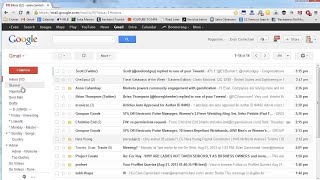
Hey, it's Evan Carmichael. I believe that hungry entrepreneurs deserve help, and today I'm going to share with you a few secrets of how I use Gmail for my productivity. I know a lot of you guys use Gmail as well, and I want to share why I like it and 3 quick tips to how to get the most out of it. So starting up first, I usually will check my Gmail actually on my phone. So my main email will come to my phone, I'll go through it, and whenever I have emails I'll just quickly browse through. So if something comes in, I don't know what this is, I'll delete it. If there's something I need to get back to and I can answer it on email, I'll just quickly respond to it on email and get back to the person. If it's something that I need to do, that I need to follow up on that I can't do from my phone, I find most emails I could just answer on my phone and I'll send a quick email. Even just could be a happy face if somebody's writing in to say, I really liked your newsletter. I try to respond to everybody, but if it's something that I need to take action on, then what I'll do is I'll give it a star. So I'll click here on the star button and then I'll archive it. And what that does is it gets it out of my inbox, so it's not in my inbox anymore, but it'll go to a new folder called Starred. And when I get to my office, I'll click on all my starred emails and this becomes my to-do list. These are things that I need to do for my business or even for personal reasons that I couldn't have just answered from my phone in my downtime. So this is the one that I just did from Janie. Now I don't actually have to get back to her, so I don't need to have that one starred. But these are other works that I have to do. So this is it. I have to do a sample chapter from my, my new book. I have a voicemail I need to check. Don't send me voicemail, I never check it. This is a deal I'm working on with Microsoft. There's content for my website, getting accounting software. This is my schedule for my son and what I have to do. So I keep this here because that is my to-do list. So I check everything again from my phone, and then the important ones I put a star Next to, and this becomes my task list. So when I get to the office, this is everything I have to get done. The next thing I do is I have different labels. These are, these are called labels down here. They're equivalent of folders in Outlook. And for different types of content that comes in, different emails that come in, I have it automatically sorted. So a quick example is my social folder, and this is anything that comes in from my social channels will go to my social folder. So it skips my inbox. I'll never get it on my phone. But when I have dedicated time to go through, usually in the morning, I'll go through it and when I'm eating my breakfast, I like checking my social account to see the comments and the YouTube comments and all that stuff. It makes me feel good. And I write back to people. So this is an example. So this came in from YouTube. My website is— it wouldn't let me publish the address. So this is a question that somebody came in and wrote to me that I have to get back to. This is from Google+. He joined, fine, whatever. So all the comments that I have— this one wants me to create a video on how to make money on stocks. So these are, are designated to go to this folder, and I'll check it at a set time. The other ones are where I'll manually move things over into labels. So an example is here I have worksheets that I'm working on. These are things that I sell for entrepreneurs, and a lot of these are tasks that I have to get done. A lot of them are related to testimonials that have come in. So whenever I'm ready to work on my worksheets, I'll go to this folder. This will be everything I need to work on my worksheet. So as an example, what will happen, I'll go to my inbox, I'll be checking on my phone, and if it's related to worksheets, something I have to get done but I don't have to do it right away, it's not priority enough to give it a star, I'll just move it to my admin worksheets. Another example is when I'm doing these videos, if somebody writes in with a video question, they have a question for me, I'm going to answer them with a video. I will put it— I'll write back to them and say, hey, I'm going to make a video reply for you, and then I'll move it to my Do Videos folder. And these are all the videos that I have to do. There's still a lot, and I'm late on getting back to you guys. I'm sorry, but you got a lot of questions. So these are some videos that I have to get back to people on. And then on a Wednesday when I'm doing my videos, I'll just load up my phone, go to my Do Videos folder, see all the different videos that, uh, that I have to do, and when I'm done with it, I'll move it to my Do Videos Done folder. These are the ones that I've just done recently and are being edited right now. And so I find that to be super helpful. So again, a quick recap: I check mostly from the phone. I'll try to answer as much as I can on the phone. If it's a quick reply, doesn't need me to do a lot of work, it'll be on the phone. If I need to do something on it and it's more important, I need to check out a document, something that I can't really do quickly on the phone, I'll give it a star. And then when I come to the office, I'll have my to-do list of everything that I need to get done with stars. I'll automatically have some emails filtered to go to different folders, like my social media ones that come in. And then for other ones that are not automatic but I need to do at a later time, or not super high priority, or I want to do it at a specific time like the videos, I'll label it to go to my Do Videos folder, and then I'll check that out when I have the time to do it. So it's a great way to be able to quickly manage my email and stay productive and not get sucked into spending all day on emails and not having much time to actually do anything for my business. So hopefully that helps you guys. Maybe a lot of information packed into one video. If you liked it, please give it a thumbs up. It will make me do more for you. And if you have a question about this video, something a little more in depth of what I've covered, or if you have a question for your business, I'd love to hear from you in the comments below. I always read those. I'll make a video reply for you. So thank you, and I'll see you on the next episode.