See how Stora works
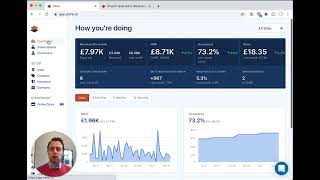
A short recorded demo by Gavin Shields (CEO) introducing Stora, a software product for self-storage operators. The video outlines three core areas—web presence (homepage, bookings, T&Cs), automation of recurring payments and invoicing, and a store management system for units and facilities—and demonstrates account setup, editing the storefront, creating unit types and units, making a booking, configuring insurance and coupons, allocating a unit, and provisioning access via integrations (Nokia, Barebox, padlocks).
Chapters
Hello, my name is Gavin and I'm the CEO of Stora. Stora is a brand new software product for new and existing self storage operators. We help you bring your business online, take online bookings, online payments and automate all of the key processes involved in running your business. So I'm going to use this short video, the time in this video just to show you Stora, show you how to get set up, show you what it does. There are three key areas that we focus on at Stora. The first part of our product is your entire web presence. So that's your homepage, online bookings, online payments, and even your online check in to allow people to get their contract signed and agree to your T's and C's. That's provided right out of the box. The second part is in the background and that's the automation of recurring payments invoicing. So you don't have to worry about processing payments, issuing invoices. That's all taken care of automatically for you. The third and final part of the product is the part that I'm going to show you mostly now and that is the store management system. And that's where you manage those two other parts of the product, but also manage your facility. So allocating units, tracking inventory, updating prices, and even things like adding insurance and adding coupons and promotions. So this page you can see here is the login page. It shows you your key metrics. I have set up a few bits and pieces just before this call. So I took a couple of minutes to enter this information on the company. I've clicked that we're VAT registered. We also support non VAT registered businesses and that automatically filters through to the pricing on the website. I've also set up a facility, so I've made up a facility in Wandsworth which is where I used to live and I've entered a bit of information in there. So I've the address. I've chosen Nokia as the entry system, but we also support padlocks and barebox. Nobody. Ours can be set. I haven't done that. I've uploaded a photograph and I've also set the site to open, which means that on the site people can book and move in today, tomorrow, anytime they like. Let's say you're looking at this and your facility isn't opening until eight weeks down the line. You can set this to setup and you can then set the date that you expect to be open on. What that'll do is on the site it'll let people make bookings but it won't let them make bookings that move in until that date. So it'll stop people arriving at your facility tomorrow whenever it isn't even ready for business. Okay, so I've also set up a few unit types. So five different unit types here, 25 to 150s. You can set up whatever you like. You might have only one site, you might have size, you might have 50. These could be garage spaces, they could be car parking spaces, shipping containers, whatever. And then you can go in and you can edit each one of them. So there's the key information here, but then mostly, I suppose, more interestingly down here, you can add some key selling points. So these might be things that are unique to this particular type of unit. It's things to help your customers understand what it is they're buying. This is ticked to make sure that it's on the site and available to be booked. I've added in a coupon because let's say we want to sell this site quickly. And then there's a photograph here. We have a library of photos of all sorts of different sizes that you can use for yourself if you're setting up other units. So I've set that up and I've also set up 39 units, so it's very easy to add more. Let's set up another unit, let's add one more and let's call that unit 40 and we'll call it a 50 square foot unit that will add that unit to the list. So like I said, one of the main things that we give you at store is your entire web presence. So let's take a look now at what that means and what it is. So if we click here under Storefront and click on Online Store, these are the key pages that you can edit. I'm going to just open up the homepage. This is the page that is automatically generated the moment you set up your store account. This page is created. I've just edited this text. I've uploaded the various images. I've done all that through this edit page here. So this is where you as a user can come in here and edit, upload your own text, personalize the site, put in your own photographs. So this site is the way you want it. So this is the homepage. We also, as you can see here, provide you with Terms and Conditions Privacy page and a Frequently Asked Questions page. The T's and C's and the privacy, we actually automatically populate that for you. So we have defaults in there for you to go ahead and use. You can of course edit that and make your own as well. And then the faq, you can upload that yourself. Look at the page. What does this, what does your website actually do? So if your customers come to the site, they can see where it is, they can read it, more about it, and they can look at your location, they can click this to view the units, they can read more information. Obviously the opening hours need to be updated there, but they can see a picture. They can even click on the map to Google Maps and they can scroll down here and see what sizes are available at your site. Interestingly, here we have the 25, 50, 7000 500s. The 150 is not listed. If I go back here and click on the Wandsworth site, go to unit types in this 150, let's go to edit that. This box is unticked, so let's tick that to make it available for the public to book. Let's just change the price as well. And you know what, let's just put a coupon on, let's put the 50% off, let's update that, let's go back to your live site and you can see that it isn't even there. Let's refresh that page and the 150 will appear, showing the discount for the first month and calling that out there. So what else does the site do? I mentioned that it has the homepage, the bookings and the payments. So let's make a booking here and see how that flows through. Let's put the 25. So click on the 25. You can see these bits of text that you can edit in here. Let's go in and change one first floor unit and learn how to type. There we go. So let's refresh this page and that's changed that for you instantly on the page. Let's also remove the half price just to show how that flows through too. So we've taken off the discount. If I refresh this, it will refresh that price. Okay, so let's go ahead and make the booking. It'll pull in my details because it has them saved in Chrome. So those are my address details. Okay, so when do you want to move in? Your customer picks a move in date. Let's pick tomorrow and let's change our insurance. So let's say I've got something a bit more expensive to be stored. Going to choose £10,000. That will automatically change the insurance price here too. So I'll agree to your terms and conditions, which are controlled via the page in the system. I'll confirm that. So your customer then is taken to a payment page. So I'm going to use some test payment details here. Really doesn't matter. And they press save. And what will happen now is this payment so for tomorrow is set up in the background. We take care of that. That payment now will run tomorrow at one minute past midnight and it will then run on the 23rd. Whatever. It'll run every month from then on until somebody cancels it. So until your customer cancels it or until you go in and cancel it for them. So your customer gets instant notification that that has been received. The booking is made. There are two things they can do now. They can go to their email, there'll be an email confirmation and they can click on that and log into an online portal that's hosted by you, that is branded with your branding on there, where they can update their payment details, update address, download invoices, that sort of stuff if they want to. The second part then is they can start their online check in. So this is where you want to collect ID from your customers to make sure you've done that KYC check. And also you can send them to the contract signature so you have that signed as well. They can do it now or they get the email as well. They can click on it through the email. So the booking is made by the customer, they receive everything they need and they're waiting then to move in tomorrow. What else happens? You as the operator will receive a notification that there's been a new booking. So this is this new booking here, I've just made it and the move in date is tomorrow. All you have to do now is choose which unit to put them into. So they've chosen to book a 25 square foot, you allocate a unit. Let's give them number three. Okay, so if we go back to this, you can see they've been allocated unit number three. And what will happen now because I've chosen the Nokia system and we Stora communicates with Nokia, the Stora system will tell Nokia to send this user the details for them to move in. So at 11 o' clock the night before they're moving. So that'll be tonight. Your customer will receive a text message saying here's a code, here's a link to download the app, download this to be able to access the site. So if your customer has done their online check in, they receive this text message. They can then arrive tomorrow on site, download the app and move in without you even being there, without you even talking to them once. And that's all taken care of. If you're using Barebox or if you're using padlocks, what will happen there is we will instead send your customer an email the night before telling them the unit number and if it's Barebox, we'll give them the PIN number to be able to get in at the gate and get into the facility. There are a few other things I suppose to mention. You know, you can set up your insurance here, you can change details, you can add new sites. You know, if you want to grow and open up new sites, that's no problem, you can do that. It's very easy to add a new site here. And really this, this is the place where you manage your business. This is the portal for managing your bookings, your payments, and we automate as much of those processes as is possible to do so that your time is freed up as well. So I'll do more videos in the future and happy to show you lots more of our features, but for now that's kind of an initial overview. If you have any questions or if you'd like to have a demo yourself, just visit our website at Stora Co and we'll be very happy to set this up for you or show you how it works or answer any questions. So, yeah, thank you very much for watching and hopefully speak soon.
More from Gavin



Wie Space4You Einzüge von einer Stunde auf wenige Minuten verkürzt | Kundenbericht