2016 08 09 09 00 eConnect Training Query Builder
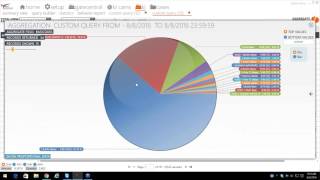
Marcus Kelley, investigations manager at eConnect, walks through the Query Builder tool for searching and analyzing data in large environments like casinos. The training shows how to use the software to efficiently filter and find specific information across datasets.
Chapters
Good morning everybody. Looks like we only had one person vote on my poll question today, but I want to thank you for your input.
To start off, my name is Marcus Kelly. I'm the investigations manager here at econnect, one of the guys that if you haven't already seen me, I do come out and do training for sites. The reason why I picked Query Builder today, it's to build on our last webinar where we touched on advanced techniques. And the thing with Query Builder that you need to remember before I go in depth, can everybody see my screen?
Okay, I got one person who's not able to view right now, so that means probably the rest of you can't see it either.
Oh, here we go.
So you now everybody's now able to see my screen.
Okay, technical problem on my fault. You think I'd know better working for a technology company.
But getting back to why I decided to work on this Query Builder today as a topic is it's one of our most powerful tools in our software and it's one of those.
Once you learn your terminology at your specific location, the Query Builder is going to allow you to find that information at a quicker pace.
One of the things that I like to tell everybody, all four of our tabs, summary view, Query Builder, statistics and behavior report, it's going to allow you to get to the information. It's just everybody thinks differently and it's one of those sometimes you have to think outside the box and maybe approach the information a different way. And with Query Builder it's going to allow you to find, like I said, anything and everything that your property has to start with. Query Builder is searching on one line of data and what I mean by that, as you see my mouse and it's highlighted over this line. Any one of these columns within the line you can search for. So you can make it as broad as.
Show me every time the word cash shows up in basic data or you can make it as specific as I want to see this check number on this date with cash drawer open in it, amount of zero terminal and you could narrow it down all that way. It's one of those. Keep in mind because there is a large data set out there currently right now we have over 300,000 records showing for the past 24 hours. It's a lot of information. So Query Builder is going to allow you to narrow down that information.
The first part I want to go through is pretty much like our other tabs. We have our date range up here just like before, you can click on the number one, which is a calendar, you can select your start time.
And your end time.
The other thing you could do is you could use our dropdown. Let's say we only want to look for the last hour.
Or the way I like to search, last seven days. From here we follow the numbers. So we go to the number two field. This is what information do we want? And again, you see all these tabs across the top, those are going to be the same fields under the number two. So to start with today, we're going to start with basic data.
So as soon as you click the plus sign under the number two field, under the number three field, it's going to tell you what, what you're looking at. And then you're going to have a number four. From here you can start typing in and searching for different things.
So for this demo, let's start with water. So once you type it in and if you're running the newest version of E Connect at the bottom, you're going to notice that this field, it's going to search for it, it's going to populate, you don't have to run the query automatically and it's going to tell you if you have any results.
So as you see, we have over 17,000 results. So if we query this.
We'Re going to let it run for a little bit and it's going to pull up the information. This is going to pull up every single time the word water appears in the basic data field.
So as you see, we have Dasani Waters, we have Airhead, it's water M, so probably watermelon for a candy, bottled water. And the other thing you can do is to see what all type of results you get is you click on the aggregation tool and then we're going to go by basic data.
So once we're here in the basic data.
As you can see, we have a total of 76 results. It's showing us the top 15 and bottled water is number one. You see that we have the sunny water, we have void. Basically every single time the word water appears, it's given us a result.
So if we want to go back to the query builder, this is where we're going to start getting in and making more advanced queries. So from here let's change this to yesterday. So let's look for water and under number four we can add a condition.
This is where using the query builder, you're going to learn to use either and, or you can click on the drop down or you can use or what I found best is when you are using.
Data, you're actually searching for particular items or is the best way to go when you start looking at amounts, that's when you want to use and, and we'll cover that in a little bit when we get to the amount.
So from here we could search for water and let's say or let's type in soda.
So we're going to run this query.
And then I'm going to go to my aggregate result, Aggregate results, click on basic data.
And looks like water is still outpacing sodas.
So just to show you, just to make sure there are sodas in this, I'm going to do a search under the basic data field.
And as you can see we have soda. Just we have soda but it's due to there only being 26 records, it wasn't in our top 15.
So from here what this is going to allow us to do, this is where we can save a query. So let's say we like this, we're looking for water or sodas and we want to save it.
We can call this test.
This private button here. If you click on it, it's going to make it private to your user login and anybody who has admin access.
If you leave it unchecked, it's going to be open to everybody that can log into econnect at your location.
So once we hit save and if we clear out this basic field one, it's going to show back up on the summary view and the two is it's going to be in our list of pre built queries. So right here we can click on test.
We can load it and this time let's say, you know what, I don't want to look for soda, I want to change it. So let me type in beer. I want to run the query to make sure I get results.
And let me aggregate this out and see what we have just to make sure it's working.
And as you can see, draft beer is number three. So that query does work.
So if we go back to our query builder page.
So we've changed this the title we can leave the same and now that we changed it, we just hit save selected.
So the next time we load this query you're going to see that it's water beer.
So some of the other things like I was talking about earlier, we can look for any one of these columns. So this time we already have our basic data set. So we're going to add amount this time.
So don't be alarmed. Our Beer and water still there, but under amount, now we can say let's look for anytime the amount is.
Let's go with greater than.
$3.
So we can run our query.
And we can organize it by amount.
That's the highest. And then we can go to our lowest.
Correction, that was our lowest and this is our highest. So as you can see, we've added another condition to our search. So when we aggregate again, we go to basic data.
We'Re still getting beers and waters. So if we click our back button, we can also go by amount this time and let it sort out. And we see that the majority of the transactions were between $3.79 and $20.97. And then we have two other fields where the amounts were higher.
So after covering amount and adding a couple extra fields, do I have any questions?
So let me see. Looks like I might have a question in here.
Nope. And we're still good on questions. Moving on. So to clear these fields out, under the number three column, just click on the minus sign. There's our basic data, and we click on the minus sign again.
Now, like I was saying before, we were able to search with multiple basic data types. We could also search for multiple amounts. So let's say we want to see everything.
Greater than zero. Under the number four field add conditions, we're going to add another one and.
Less than $5.
So we're going to go ahead, click on our query.
This time we're going to sort by amount.
As you can see, our lowest amount is one penny. We're going to click on this again.
And now our highest amount is 4.
So where this comes in useful, if you have a certain price point that you guys want to monitor.
Let'S say you sell an item that rings up at 469 and after tax it's going to be $5 even. You can look for that particular item in that price range or if you wanted to dig down a little further, if you knew what the actual item was. So let me. So let's say we want to see every time there was a cash payment in that price range, we can either go to basic data or the other thing is getting a little deeper into query Builder. Let's go by event type. Because I'm proficient with the system and I've used it for several years now, I know a tinder type is going to be type number 26.
So I can hit query.
And this way it's going to show me every time there was an event type 26 and the amount was greater than 0 but less than 5.
So if I wanted to take it a step further, we can add basic data and as long as basic data contains cash, I want to see those results and weed out everything else.
So here are all of our cash payments between 1 penny and 499 and here are our results and then we can start investigating from here and why this becomes useful. It's because if we just look at, let me take out amounts, let me take out basic data. If we want to look at every cash or every payment for our property just for yesterday, we're looking at over 32,000 records. And the thing with econnect, we're trying to make it easy for you to dial in what you're looking at and see if there's any vulnerabilities within, within whatever criteria you.
So with event type being said, just like before, if we want to look for tenders we can add another condition and this time let's do or I believe it's going to be 27 for tender voids. So let me scroll down. Yes. So basically I'm looking for every time there was a cat or any type of tinder and every time there was a void. So let's run this query and see what the results we get.
So let's look at amount and with it being from zero a correction with it just being those two tender types. As you can see we have multiple voids. If you wanted to, you could narrow it down to say hey, I want to see anything between negative $280 up to zero. And that way we can filter out all the positive ones. It just gives you a different way to look at the information. And like I keep repeating, everybody looks at information differently, processes it differently and there's multiple ways of getting down the road. But we're all going to end up at the same endpoint.
Do we have any questions so far?
Okay, moving on.
Some of the other things that we can do. I found this useful. A lot of the casinos when I go out and train, they find it quite helpful for them. Me personally used to work in the casino. I've always would get a call probably at least once a week. Hey, I have this cat or this customer down here at my main bar. They're saying that they gave the bartender a hundred dollar bill. Bartender swerves up and down. It was a $20 bill.
And the thing about that is you ask them when did it happen? Oh, it happened about 15 minutes ago. We all know from doing reviews that that 15 minutes is usually A half an hour.
Of review time on either side because the time's never right. It's one of those. If they actually have a check number, let's type in 1, 2, 3, 4. Just as an example.
We can run that query.
And every time check number 1, 2, 3, 4 appears, we can see, but you'll notice on the far right side we have multiple revenue centers because checks are used throughout. So one of the things we can do is we know the check number.
We know the name of the employee.
So when we run the query.
We get all the information from that employee for that check. Cash payment of $10. We can go straight to the video here, play the video and verify if it was a $10 bill, $5 bill, $20 bill, $100 bill.
And watch the video and see what happens.
This way again, Econnect is trying to save you time on your end and it's going to allow you to pull up information a lot quicker versus looking back at 9 o', clock, hoping that that patron is paying the cashier at that time and not having to rewind a half hour or fast forward and find the exact transaction type.
So as you can see, we've narrowed it down to just a certain criteria.
Some of the things that we like to do here in investigations.
When we hit a wall, we'll start searching for off the wall type events. And what I mean by that is.
Like bogo, buy one, get one.
You could type in, again, it comes down to the terminology of your location to see if that actually shows up. And as we see here, we have a PW.
BO geo, which I'm assuming is buy one, get one, you look at the information, verify if it's accurate or not, and then you can move on from there.
If you want to stretch your search out even further so we can look for the last seven days.
And allows you to pull up information.
Some of the other things that you'll be able to search for is let's say you're working at a casino and you guys sell $2 beers on Wednesday night. You can actually do a search for that $2 beer if it appears as the dollar sign with number two and then beer just spelled out, you can search for it, do it for a seven day time frame and see if it's being sold when it's not supposed to be. From there you can determine is it a policy violation or is the cashier.
Excuse me, or is the cashier truly trying to take advantage of you and what's going on.
So some of the other Things I like to do. Some of our guys here, me included, let's say I have an employee and I'm looking at her and I just get a gut feeling that something's not right. But I don't have enough to make a case. This is when.
Let'S see, let me find an employee name here.
So this is when we can.
You can either type in the employee's name.
Or you can click on the drop down and find the name within the list. So from here we can run a query.
And now we're seeing everything that this employee's done.
For yesterday for the past 24 hours.
So let's say we want to take it a step further and let's narrow it down. Let's say we want to see one particular employee.
And we're going to select another event type and every time they did a void.
So we're going to run this query and this is going to narrow down all the voids for you. And as you can see, some of the other things that we do with this is let's say we have an employee doing voids for this backpack drawstring and we want to space it out for the past seven days. And the reason why you want to do that is if your employees work multiple locations.
It might be when they are only at, for example, this is Girl Space, that they're doing these voids. It might raise a red flag for you because if they work three different locations, but only when they're at Girl Space, they're doing voids. What's going on at that location? Is there no management over there watching them? Does the manager leave their card there and tell the employees to do whatever because they trust them? Or does this employee work at a standalone location when they're at this particular revenue center? So there's a lot of different variables of why it's happening, but when it's happening only at one location, it's every time they work there, that's when I say, yeah, you know what? That's when you need to dig a little deeper and try to figure out what's going on with that one location with this employee.
So let me close these up, get back to it.
Some of the other fields that we use here, object number. Object number is one of those. If you're a large property, let's say this might be more for an auditor versus an LP or surveillance guy. But if you know how your numbers are.
Categorized in your inventory, basically by number, it's going to allow you to search for that item. So this is searching for every time the object number zero shows up. So that's pretty much none of the menu items that are sold.
So let me.
Go back and find a, just a random object number.
So let's say we want to see every time this biscuit, sausage with cheddar and egg is sold. So we're going to copy this object number.
Let's see, go back to object number.
Paste it in there, remove the front zero and hit query.
So for the past 24 hours, this item was sold 86 times. And as you see, they're all the same object numbers. And because they're, because that item has that specific identifying number.
Even when they void it, it's going to bring us up results.
So you're probably asking, how is this useful? It's one of those things where it's a quick urge. If you're somewhat into technology, me working at a technology company, my guys are always about what's the fastest way you can get the results. It's a lot quicker for the computer to search for these numbers versus it's searching for this combination of letters and numbers to give us a result.
And it's also one of those, as long as you can type numbers. It's a lot easier to type in numbers if you want to remove them versus having to actually type in the name of the item and make sure you get all the commas, the correct spacing, the correct verbiage.
So on the flip side, I know we work with a lot of amusement parks. Let's say you want to exclude a certain number, that is maybe you don't want to see the refills we could put. Does not contain. So give me all the object, all the other object numbers.
So does not contain. So my bad. So it's not equal to.
So it's gonna give me everything else but that object number.
So for example, let's let me find a refill and I'll show you how this will work.
So we go back to basic data in our text condition, we're typing in refill.
We'Re going to run our query.
As you guys know that work at the amusement parks, you guys do sell a lot of refills and a lot of different types.
So for example here, if we want to exclude this refill every time we can copy this number.
Go back to query builder.
Remove the front zero and we're going to select not equals and then we're going to run our query.
So we have all the other other object numbers except for the one that we excluded.
And with that being said, we can do multiple numbers.
So we're going to do an or. Let's go back to our first query. Let's exclude number 334.
Type in 334, change it to not equals, and then we can run our query.
So this is going to allow you to make custom queries if you want to look for events. Where you'll notice is, let's say we want to see every time there's an event type of a void, which is number 13.
And then we can start excluding what items we don't want to see within that void query. So we got 334, we got 7900. Go back here and where is it at? Object number. Let's see if I missed any.
And basically what this is going to allow you to do is customize the query that you're building. As you can see, there's two more or correction, three more.
So this is a bucket refill. So we want this number.
To go back to our query builder. We're going to add another condition, make it not equals.
Paste it, and run our query.
So like I was saying earlier, Query builder is going to allow you to search for anything in the system, in your POS system, and from there it's going to allow you to make specialized queries. Again. It might, it's only going to print out one line of data, but as you start to become more proficient with query builder, it's going to allow you to tweak that query to give you the most precise results that you want. So we could keep narrowing this down so we can take this number from 54,000. If we take these fund picks associates out, we'd probably knock another 4,000 off. And then you could just narrow down to, let's say maybe food items only or however you want to set up your query. That can all be done within the query builder.
So let me close out some of these windows.
And again, just like before, if you wanted to remove one of these additional conditions, you would just click on the X sign. Or if you wanted to remove the entire search parameter, just click on the minus sign.
Let's see some of the other ones that I use. Again, thinking outside the box is quantity. Every now and then you're going to find employees that's going to find a way to manipulate the system to their favor. So let's say let's start with 50.
And I'm gonna put greater than or equal to. This is gonna allow us to search the quantity field. And as you See quandi here. Every time there was 50 or more of that item rung up, it's gonna give us results.
Every location is different, but it's gonna allow you to ask the question, why are they ringing up 55 regular cones and then voiding it out? 100 regular dipping dots and then voiding it out? Same with the kitty dots. Most of these are rung up and then voided. Is it one of those, is it truly a mistake and they fat fingered it or are they actually keeping track? And the reason why I bring up this query, A couple years ago I was able to do an investigation and I, I found out that the way the employee was keeping track of how much money is still at the nine at the end of the night, he would type in 2,195 T shirts to him. That meant that the previous he just took in $21.95 and so he would cancel the transaction. The way their system was set up, after every transaction counsel a receipt would print, which I later found out was supposed to be turned into audit. So they can track on the back end is he would keep those receipts and never would turn them in. But at the end of the night when he was counting out his till, he would use his cell phone, total up all the receipts that he had and that's how much money he would take out of his till.
So it's one of those, those who are more loss prevention oriented or surveillance oriented on the call today, they're going to find different ways of stealing. And it's one of those, I consider it, it's like a chess game. You find a way, you find a way to beat them at their own game and then that's going to take you to that specific search that you can do.
Some of the other things I might look at is.
When we initially sign on with the client for investigation hours, one of the things is because we are a third party, we don't know what type of items they sell, what their price ranges are. What we'll do is we'll go to revenue center, click on a drop down, and then start going through their different revenue centers. Generally it's usually four or five. And then we can figure out what type of, what type of items they're selling there. Is it a cafe, is it a gift shop, Is it a casino bar?
Is it the employee dining room or is it an employee gift shop? It's just one of those. As you go through the data, you're going to start to learn what works best for you. And how to direct your focus while you're in that location.
Another thing you could do is let's say you're looking at a specific terminal. And this goes back to, let's say you're a little kid that has.
Five terminals back of house at a fine dining restaurant. You have no coverage over it because they don't keep cash there. But it's one of those. Keep in mind, if it's a terminal and it allows the cashier access to their checks.
And they know a camera's not back there, they could get a hold of the manager's card, let's say, or, or the manager is working with them and then that's when they, that's where they could do all their voids. So if you have a terminal that has a high number of voids, maybe you want to focus in that route.
And it's one of those. Keep in mind with query builder, again, it's going to allow you to search any one of these fields here.
And like I said at the start of the conversation, you can make it as precise as you want to or you can make it as broad as you want to.
One last thing before we end this.
Terminology is probably the biggest key because every time I teach people Query Builder, I tell them start with basic data, start with check number and then just start typing in how they come across in your system. For example, you would think cheese will be spelled out C H E E S E. I've seen.
Some locations, they type it out CHZ for cheeseburger or chez. And as you can see, pretzels with chz.
Let me change this to yesterday.
And so what I mean, as broad as you wanted to, every, we just type in che and see what comes up. So we have check. So let me go to query.
We're gonna go to basic data and it's probably going to be, well, we have multiples.
So every time the word the letter C H, E appear in basic data, we're going to get a result. And as you start making broad queries like that, you could be, oh, I just wanted to see every time cheddar was sold to a hamburger or I want to see every time a side of cheese was rung up. Because with side of cheese and cheese dip, what I tell everybody when they see single items like that is look two or three checks before and two or three checks after, does it make sense for them to sell a single cheese dip? Does it make sense for them sell a soda with the side of cheese. Are they actually selling a soda pretzel and a side of cheese and they're just trying to get the drawer to pop and make it look normal via camera or somebody who's walking the the floor. Or was it a legitimate mistake? But this is going to give you the ability to find those certain items. And as you become more proficient with your, your software and your terminology, Query Builder is going to unlock a lot of new doors for you.
So let me go back to Query Builder.
So with that said.
Do I have any questions?
Okay.
Honestly, I could go on for Query Builder for probably a couple more hours, but it's one of those, one of the things I've learned if I've been out to your, your location to train, it's information overload. The best way or the best suggestion I have for you is use the software, use Query Builder. Start, start playing around with it. And then a day, maybe even a couple hours later, if you have questions, you can reach out to us. You can email investigationsconnect tv or you can send me an email directly to my work email. It's Marcus Kelly, K E L L E Y Connect tv. I respond fairly quickly. If it's over the weekend, it might not be till Monday. If you don't hear from me by the end of business on Monday, shoot me another email and I'll be sure that you're the first one I answer when I pick up my phone or come into work on Tuesday.
With that being said, I'd like to thank everybody for joining the webinar today. Our next webinar will send out a reminder next month. I'm not quite sure what topic we're going to cover, but I'll give everybody a heads up before it happens. Once again, you guys have a good day. Talk to you later. Bye.
More from Henry

Skip the line, not the security: Facial Recognition for Guest Experience & Safety





eConnect’s Red Light Green Light – The Most Advanced Facial Recognition Tool for Casino Entry


Skip the line, not the security: Facial Recognition for Guest Experience & Safety