eConnect Training Webinar 2/11/14
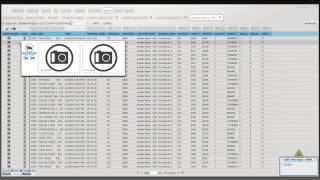
R. Conde walks through eConnect's dashboard features, covering user activity tracking and query building. The webinar includes a Q&A on system capabilities.
Chapters
All right, so we're going to go ahead and get started. I'd like to welcome everybody to the webinar. As you can see that our dashboard has changed. We just recently released a new version of the software which will be making its rounds to everybody. If you don't already have it. Go over a few of the features of the new home screen and some of the new features we have with the system. We'll also go through the basis of the POS system. We'll also go through query building, saving video clips, downloading the video clips, and answering any questions you might have. So we'll go ahead and get started here.
All right, so on the home screen, for anybody with admin privileges, you've always had this Active Users tab which will show you who's currently logged in the system. We've added a new piece to this which allows you to see who's logged in the system, how many times they've logged in the system, their total time logged in the system, and their average amount of time logged in the system. It's really tell you who's been using the system on a regular basis. You can customize this report to any specific date and time range that you have.
Going on to another one. This is one that's been requested by several different users of ours asking to say, well, how can we see who's doing what in the system? And as you can see here, we can come in and this will show us.
All the reviews done by everybody and then how many reviews have been done by me. And so you can see on the 5th.
There were a total of 4 reviews done and I did one of them. So this will allow you to really keep track of see who's doing a majority of the reviews.
In your system. And anybody who's logged on and done any reviews, their names will show up in this drop down.
Like before. We do have the number of cameras that are online, the approximate revenue, the number of revenue centers that are online, and this is all stuff that hasn't changed.
So we'll move on to the POS tab. The POS tab is where most everybody's going to spend the majority of their time. And this is a summary view. Now there's been a lot of questions that have come in as of late as to the queries.
And we'll go over some of the basic query building. But I just want to reiterate to everybody, if you have a question about a query, don't hesitate to email me or give me or my team a call if we don't already have the query built somewhere, we can get it built for you and send back off and show you how to put that in the system.
With the query builder, there's multiple ways you can with Summary view, there's multiple ways you can look at your queries. We can let's find line item boards. Click on the picture. We're going to get a nice little graph and as you can see now, we've added this purple line that shows up whenever you're going over your graphs, which in this view isn't real difficult to see. But if you stretch it out over 30 days or 60 days, having this little graph makes it easy to identify which day you're on.
Now if we click on a piece of the graph.
It will take us to that day and all the line item voids from that day.
So we have multiple things we can do from here. We can say we want to look for Lee Eric. We can type in his name up at the top. That's only going to show me his results.
Well, now that I have just his results, if I want to extend this search for just Eric Lee, I can say show me the last seven days that Eric Lee's done this. It's going to show me the results and if I get rid of Eric Lee's name up top, it's going to go back and show me everybody's line item voids.
All of the.
Areas up top we can do this. So if we want to say show me any menu item voids that were less than.
Negative $5.
It'S now going to return all the results.
For any voids less than negative $5, we can clear that out and it will return all the results.
Over here we've got our camera view. Now if you notice there's the change most of you should see is that current status. On the left hand side of my mouse, you'll see a black flag, you'll see a red flag and you'll see a green flag. This is to help keep track of who's looked at things. This will prevent your team from one person coming in and looking at all the voids today and then tomorrow another person comes in and they look at all the same voids. It's kind of a waste of time. So once we've looked at a clip and if we move the mouse away, you'll see that up here a black flag has shown up. This is showing me that it's been reviewed. If I want to see who reviewed it, I can see that right down Here R. Conde reviewed it, which is me, the date, the time and how many seconds I spent reviewing that video clip.
If I go back and look at the clip again, it's going to add me to the list again. So every person that looks at this clip, it's going to keep track of who's looked at it, how much time they've spent looking at it.
Now, if we.
Determine that we want to flag this, that this void looked suspicious to us, we can click on the red, which takes it to a pending status.
Now we can write needs review.
And we can update this. And now what will happen is it's going to update that flag to red.
Now you see our flag change to red. That will let us know that we can come back to our home screen. And right here you see pending reviews 21. These are the number of clips we've actually sent to that pending status. So once we're in here.
Look for the one that I put in just now, which is right here, and I can click on it and it's going to take me back to that clip.
Bear with me.
All right. For whatever reason, it's not going for me. Let me see. We've got a couple different modules on our demo system. So.
For whatever reason, it's not clicking over the way it's supposed to right now. And all it might be, the system hasn't been updated yet because I'm running the latest version of our software.
But what will happen is you'll click on this and it'll actually bring up that one.
Item that needs to be reviewed, depending.
Also, I don't know if I have any of them here. Try to find any that don't have cameras. We've added actually a new check summary view. If you don't have a camera, it will allow you to see that. See if we can find.
All right, so moving forward, back to our summary view. The other way you can look at these voids for the day.
Is by clicking on the words. Click on the word. It's going to take you the last 24 hours of that query.
Once inside, we can always hit the aggregate button. The aggregate button has a few new things we've added to it. We've added day, hour, date. These are nice because it will allow you to select an employee. We see this employee is doing 34% of all the voids on this day. And we can select it if we want to. We can aggregate it by hour.
All these voids happened in the 21st hour of the day.
If we have multiple dates we can aggregate it by dates, payment type. We've added a few more choices in here for your aggregation that will help you out.
All right, so we have any questions on the summary view so far?
All right, if we don't, then we will go ahead and move forward.
And we'll go ahead and go into the query builder, which is probably where we get most of our questions coming in. It's very important to really understand this query builder and the way it works right now.
When I refer to everything as being in a single line, I'm referring to this top line right here where it says cash drawer closed. On February 11, 2014 at 9:49am, the terminal was MHK Terminal 169, Employee 1258. That is one line. So if we want to look for Cash drawer closed on this day by this employee at this revenue center, we can search for that. What we can't search for is this check Right here is 577 start to finish. I can't search for a check that has an egg roll in it and was paid with a MasterCard and.
Has a closed check at the end because that's three items that are on three different lines. Now that's one of those queries you would call us up on and say, hey, I want to see any checks where an egg roll was purchased and was paid for with a MasterCard. And that's whenever we will go in and we'll make that advanced query for you. Going back to our query builder, there's really a handful of these that you'll use on a regular basis. Basic data.
Monetary amount, Event Type Identifier, and check number. Those are the four most popular ones that you'll use. Event Type identifier. If we click the plus symbol here, we see it pops up here under column three and under four we can hit this drop down. And this has all of the basic event type identifiers that are in the system. So for instance, let's use Begin check because we know everybody has Begin checks in their system. Click on this, you'll see the number two shows up up here. The event type for Begin check is number two. And so that's why it pops up there. So we query Begin checks.
And you'll see we get all the Begin checks for the last 24 hours.
And if you look over here, event number is two. So if you ever want to find the event number you're looking at, look at the far right column and look for event number. It will show you the event type you're looking for.
Go back into our query builder. If we want to find to begin checks done at a certain revenue center, we simply come over here to revenue center name.
And we hit the dropdown. We'll select all zoot. And now we're looking for event type 2 which is begin check at this revenue center.
When I query this. Now if we look at the revenue center name, all of them say all zoot. These are all the begin checks at all zoot.
Now you see we have a Susan Perez.
We can always go to aggregate and separate out by Susan Perez or we can type in Susan Perez. But let's say we want to build a query that we can save on our homepage that will look for all begin checks by Susan Perez at all zoo. We can come back over here. Now we can look for an employee name.
Going to look for.
Perez Susan. So now we're looking for Perez Susan at Alzu doing a begin check.
We query this. It's going to pull up just Susan Perez's begin checks at that revenue center.
Now if that's a query that we want to run or have and have saved, we can go ahead and save this. We can call this.
Pres Begin and we'll save it.
Now we go back into our summary view.
We'll see it showed up right here.
We can graph it out and it's going to show us all of Susan Perez's begin check. Now where this is really helpful is I've actually used this to make special queries. I had a employee, a cashier that would do a menu item void at only a specific register.
And so what I did was I set up a query to search for menu item voids by that employee at that terminal. And I saved it. And every day I came in, I ran this query and what happened was I was able to come in and quickly see every time she'd done it and each time she did it with ceft it made it really easy to document and track. The other benefit to this is if you have the right privileges and if not you can always talk to your manager or give us a call. If this query is one we want to be alerted to, we can go into setup, we can go into our POS tab, we go into our query manager.
We can scroll down and we can find our Perez Begin query that we just made. We can set it up to do real time alerts and save that.
Now if Perez does a new begin check, we should see a little pop up down here during our webinar that she's Done. So we'll go ahead and save that.
And we'll go ahead and go back to our pos.
Alright, back into our query builder. Let's go ahead. And we're going to get rid of these and we're going to go back to basic data. The reason basic data is so great is it really will allow you to search for anything. So if your IT department adds a new item in for a special event, they add in $2. Coors lights, you can type in.
$2 and query it. And anytime $2 shows up in the system, it will find it. For our demo purposes, I always like to use water.
And you hit query and now it's going to show me all the waters that were sold in the last 24 hours.
From here, obviously I can aggregate it. I can come through and say just show me the ones that were sold at Revenue Center.
I'll zoo.
I have a lot of options of things I can do from here. I can spot check.
Watch the clip and say this one looks good. And if I want to, I can set it to green, which sets a video clip to close.
I'm saying this clip is all good. I update it, move my mouse away and you'll see I have a green flag on this. So now anybody else who comes in and looks at all these waters sees it's already been reviewed. I've looked at it, I've deemed it good to go. Nobody else has to worry about spending their time watching it.
Do we have any questions on the query builder?
All right.
Any other examples you guys want to go over? I mean we have event type identifier, we have employee name, employee number, monetary amount. Monetary amount is really good. If you're looking for.
Let'S say a total due of less than a certain dollar amount. So if we want to look for total due of less than a certain dollar amount, we would say we want to use event type identifier.
And we want to select total due.
And then we would select monetary amount and we say total due is.
Less than.
90 cents.
We query this now we'll get all the results. Any check where the total due was less than 90 cents.
It looks like we have some questions coming in, so bear with me while we read read over them. Can you show how to look up discounts?
All right, so we have a question from John. We have a couple of them.
Okay, so for season pass or specific discount cards John's asking about, it's really going to determine how it's viewed in your system. This is where that basic data Tab comes in really handy. We can go into our event type identifier and we can select discount and we can query that. In this system, most of all, discounts are airport discounts. So if your system shows up like this, for instance, airport discounts, but you have other discounts as well, we can actually type this in one Airport discount into our query builder and basic data.
How is it spelled?
And because we've spelled it just how it shows up in your system, when we query this, it's going to search for any basic data that contains exactly what I typed in. So if you have a specific season pass and it says season pass discount, or, you know, scpass discount, if you type that into basic data, run the query. You should see the results. Once you've determined that you're able to return results, that's when you come back into your query builder. Save that query. Now we can name this our airport discount.
And we can save it.
And then.
I showed you how to look up discounts as well, John. If we go into our event type identifier, we can go down here and type in discount or discount or once again, basic data and just type in discount.
All righty. Joanne asked, can you show us the pie chart view? Sure thing. Let's go ahead and we'll go to Event type identifier.
And let's look at.
Menu items voided.
Let's look at the last 14 days.
So now we have 600 records of menu item voids. So we're going to go ahead and aggregate this. We're going to aggregate it by employee.
Now you can see we have a total of 39 employees that were returned. In our results, we're showing the top 15. We can take this bar, we can say, show us all of them. We're going to see all 39 employees.
And now we can see that all the employees that have done menu item voids in the past 14 days. And we see that Maria stands out. So we can click on her piece of the piece. Now it's going to take us into just her menu item voids for that 14 days.
Now, if we want to, we can aggregate this again and say, show me by date. We see that on the 6th, she did a nice big chunk of voids. On the 30th, she did a chunk of voids. And then the rest of the day she's only done a few. So over the past 14 days, she's only done voids on six days. So these days we can look in and see was there a certain manager working Were these just the days she worked? We can really dive into what she's doing. So we got someone's hand raised.
All right, so John's got his hand raised. Let's go ahead and see if we can turn on John's mic.
All right, John, you should be on.
John, are you there? Can you hear me?
Alrighty. I guess John doesn't have his mic turned on because I can't hear him.
He says he doesn't have a question.
All right, so I got a question coming in asking is it possible to monitor cage transactions, tickets, vouchers, cash payments, markers, et cetera. And the answer to that is going to be yes. We do have an integration to counting machines.
And also the casino management system.
So basically, yes, anytime a transaction happens, we can record the transaction and also associate it to the video when it happens. Look down here in the bottom right corner. That query we made earlier for begin check by Perez, we had an alert just pop up, shows up with a bright yellow triangle, says what the query is. It's letting us know that she began a check.
So we can click right here and it's going to bring us in once you begin to check.
See right here. Susan Burrows began to check. That's what the alert was for.
Yes, it does log. We had a question of does it log? Who changed the status of the flags with the date, time and name? The question is yes. What I'll do is I'll show you right here, I'm going to go ahead and set this to black.
Which says it's been reviewed.
Once it's set to black, I can come back in and I can change this to red.
I can update this.
Now this is going to show up red. Then I come in.
And someone else can come in and they can change it to green.
I can update it.
Now when we come back in, you see it turned green. But we can see that I came in at this date and this time and I reviewed it. I came back in at this date and this time reviewed it again and marked it as red, needing to be followed up. Then I came back in on this date and this time watched it for this amount of time, determined it was a good transaction. Now, all of your people that have their own logins can all login and they can update this. So it might say that I did the initial review and marked it as needing to be reviewed or pending. Somebody else followed up behind me, they reviewed it, they put in some more notes saying, yes, it still needs further review. And then maybe manager popped in later. And says, I've reviewed it. I talked to the supervisor. It's all good. They mark it green. It'll keep track of each step along the way of what's going on with that particular video clip.
Hope that answers that question.
Did we get all the questions answered?
Okay, let's go ahead and move forward. If you guys have questions, please feel free to add them. If you want to talk to us, just raise your hand and we'll turn on your microphone and you can ask the question.
So moving on, another big change to our latest.
More from Henry

Skip the line, not the security: Facial Recognition for Guest Experience & Safety





eConnect’s Red Light Green Light – The Most Advanced Facial Recognition Tool for Casino Entry


Skip the line, not the security: Facial Recognition for Guest Experience & Safety