Top 10 Queries Used by eConnect LiveAnalyst
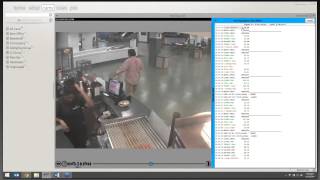
Robert Condi walks through the top 10 queries investigators use to catch fraud at retail and restaurant sites. He covers no-sale transactions, voids, discounts, refunds, and checks open too long, then shows how to build alerts in eConnect and what patterns to watch for.
Questions this video answers
Robert Condi (presenter in the transcript).
YouTube video titled 'Top 10 Queries Used by eConnect LiveAnalyst', uploaded June 10, 2014 (source metadata provided).
Chapters
Alrighty. So we're gonna go ahead and get started. If everyone is ready. Let's hold on one second.
Marcus, turn your headphones on, please. Just a little bit. Turn your headphones on for me.
All right, so we're get started. As you saw from the webinar invite, today, we're going to go over the top 10 queries used by Econnect Live analysts. Me and my team do remote analyst work for several different clients, some of which are on this webinar. And these are the top 10 queries that we use the most of whenever we're doing our investigations to try to detect theft and fraud.
So we're going to start by going over these today. If you have any questions, please raise your hand and I'll turn on your mic so you can talk. You can also type in your question in the chat or in the questions area. So we'll go ahead and we'll get started. So these are the top 10 queries we're going to go over today. If you don't know what they are, just raise your hand or ask the question. We'll go in more depth as to what they are. We're going to show you how. I use these to search what we look for and hopefully find some examples for you to take a look at.
So not all of these queries are going to work at all locations. Some locations actually have these functions disabled in their system. They can also be named different things. So we'll go over those as we go through them. So the first one we want to touch on is going to be no sales.
Now, no sales are a necessary evil when it comes to.
Running a business. You have to be able to pop the cash drawer. You have to be able to give customers change. And this is great. But the one thing to remember is when someone's going to steal or commit fraud, they need to have access to the money. The easiest way to get access to the money is to simply press no Sale.
So for most of you, if you go into the system under the POS tab, there should be a query already created called no Sale.
Click on this query, you should get results. Now, if you don't have this query, if we go into the query builder.
Click on Event type identifier right here and hit the drop down. We can select.
No Sale and then we can save that query. And now you'll have that query saved on your home screen, just like we have it here.
Once you have it up, we can click on one of the days and now we can go through and we can take a look at these no sales. What I prefer to do is in this case we only have 33 records. It isn't a lot. So I always like to extend it out so I can get some really good data. So I'm going to look at 14 days of no sales.
So now I have 115 no sales and I want to see who's standing out, which employee is really jumping off the chart. And I got three people here that are over 50% of all the no sales for the past two weeks. So now I just want to hop in and take a look and see why is this person doing so many no sales.
So in this instance, this is the guy that does the mid shift drops.
So we can take a look at this and make sure everything looks good.
One of the other things I look into is also going to be the length of time the cash drawer is left open.
Time on a lot of these things is very.
Crucial.
All right, so here we have the hot dog stand and we can take a look and see how long this cash drawer is left open.
Looks like he's having problems even popping the cash drawer. He's hitting no sale lot.
It really is the easiest way to find theft. Most people will ring up items or they won't ring items and they'll accept the cash and make change.
Without ever recording the sale.
So do we have any questions on no sales? How no sales can be used to commit fraud, or how we search for them or how we aggregate them? Anything to do with the first query of no sales?
All right, so we'll go ahead and we'll move on to the second one. The second one's going to be voids or menu item voids.
Menu item voids are another one of those tasks that are necessary. Some places do have them turned off so that employees can't use that function. But it's also very important.
To watch out. I've actually had a case that I had where an employee would ring up five or six menu items when the customer handed over cash, would void out the most expensive item, make changes if they bought that item and then the drawer be over that four or five dollars so that she could steal that money. Just like with the no sales, the menu item voids query should be on your home screen. If it's not, we go back into our query builder, we go to our event type identifier, we hit the drop down and we find menu item voided and we can save that query, name it menu item void or whatever you'd like or you can just query it and you'll see the results you have.
So on this day we had 685 menu item voids.
And we can aggregate the data. Show me which revenue center had the most voids. So we had a dining room, we had an ice cream stand that had 107.
This is only in one day. So let's take a look at this ice cream stand.
We had a new employee that did a majority of them. So now we can go back and we can take a look at these and see if these voids were legitimate or not.
So in this instance, that menu item void happened.
Over a minute after it was initially rung up.
So by default I would go in now and look at this further. I want to see when it was rung up. Why did it sit there for over a minute and did someone just not buy the ice cream?
So this was a minute earlier. We run the video right to when that was rung up.
And we see this guy here, looks like he has got some ice cream.
Not really sure what's going on. So this would be one of those instances where I'd flag it. So I'm going to go back.
This was our incident, so I want to go ahead and I want to flag this. Please review. And this tells my team and anybody else who logs into this particular location that this is one we want to further investigate. We want to see if this was a legitimate void or if somebody was served the ice cream and didn't pay for it, or if somebody was served the ice cream, paid for it and the cash was never recorded in the register.
So any questions on menu item void so far?
Alright. Another thing I like to do is take a look at the check summary and make sure the void happened right around the time whenever the transaction took place. Meaning they rang up these two drinks. Did the void happen and then the transaction was closed out right away or did it take some time? Time is a very useful thing when it comes to running these queries and looking at the checks.
If you think about how long it would take if you went to that location or you went to the Burger King or the Starbucks and you purchased it, they asked you what you wanted, they rang it in the system, they asked you for your money, you paid for it, closed it out. You want to use that same mindset when looking at the times. So this whole Transaction took around 22 seconds.
About 12 seconds. Sorry. So I can live with that.
So moving on.
Oh, looks like we have a question that came in.
See.
Bear with me one second, guys.
Actually the question I got is about menu item voids. Asking about.
Micros and E Connect, communicating with each other on menu item voids.
If you can send me an email, I'm not really able to pull up who wrote this question? Send me an email at Robert CondieConnect TV.
Because actually this is a micro setup here and we can go into any of these parks and we can see those menu items.
Give me one second. There's a menu item voids and so with Micros we can see menu item voids. So I'm not sure which location you're at.
Hard Rock and Tulsa. Okay.
Yeah, shoot me an email and we'll. I'll work with you on that one.
Jot that down for me, would you Marcus?
Alright, any other questions on menu item voice before I move on? And Jenny, I will reach out to you.
All right, moving on. We're going to go on to discounts. Discounts, sometimes comps. If you're at a casino or a restaurant that comps food, discounts and comps are a very common way for employees to steal. Employees that give a lot of discounts.
They will memorize how much things cost. So if they work at an ice cream stand and they know that the ice cream cone costs three and a quarter and if you're a season pass person or a regular, you get 20% off, they serve up enough of those to know what it is. So if someone walks up and doesn't get the discount, they can still apply the discount, give the proper change and know how much they owe themselves.
Like before, you should have a query for discounts already set up. If you don't, you can always call us up and we'll be able to help you get that set up.
If you want to set it up yourself. Like before we go to the query builder, we go to event type identifier, we hit the drop down and we're going to look for discount.
So it's all the same process when setting up a lot of these queries. Some of them be a little more in depth, but you can see on this day we only had four discounts. If we pop into one of our other sites, I know we'll have a few more.
So at this location we had 8,000 discounts on this day.
So from here we can click on the discounts and some of you might recognize the data coming through.
We can now go through and start looking at these discounts. One thing I like to look for is let's aggregate it by Amount.
Okay, so now we can see that a lot of our discounts happen in this dollar amount range. And we can sometimes identify if there's something with that, if that's a normal discount or if that's one that someone's taking advantage of. So from here now we can aggregate this and say, okay, which employee is doing the most?
This looks pretty even. I don't see anybody really jumping out. And so I'm not really going to focus a lot on this. So I'm going to go back to my original data set, which we separated out by dollar amount and I'm going to instead aggregate that by employee to see if any employees jump out. So I still don't have any employees really jumping out at me, which is a good thing. This is what you want to see. It's a pretty even.
Another thing we want to look at is, like I said before, time is important. And so we do want to look at time, the time the items are rung up, the time the discount is applied, and how long after that is it recorded. Another good identifier is how they paid. If you see the discounts happening a lot on cash transactions, but don't see the discounts happening much on credit card transactions, that could be another sign that, that that employee's committing fraud.
And we also have a query for some of you that does have cash discounts, so we can focus solely on those transactions.
Consequently, if you have a comp that you use at your location, if you comp, you know, food, if you want to, you can come in and you can search for discounts. If that doesn't show the results you're looking for, you can always click on basic data and the basic data is going to allow you to search for anything you want. So you can type in comp and query that and it's going to give you the results you're looking for.
Over comping or comping stuff up that isn't supposed to be is a very common one in the casinos. I came from the casinos and had a lot of cases where people would use other people's players club cards or if they had a comp from the pit that said they could spend up to $500 in the restaurant, but yet the customers only got to 300. The cashier might take items from someone else's check that they paid for with cash, move all those items over onto that comp.
And then pocket that other $200.
So comps and discounts are another vulnerability that we can search for in the software.
Alrighty. Let's see if we have another question.
Alrighty. Got a question that came in asking how to flag a particular transaction. If you have been updated in the past few months to our latest version, you will have access to these flags.
What the flags do, Let me pop back in here real quick.
What these flags do is if we run a query.
Let's just go back to no sales real quick.
You can see that these black flags have appeared. The black flags, what those do is they just let you know that somebody has reviewed it. And if you mouse over it, we can see right here that I reviewed it, the date and time I reviewed it and how long I reviewed it for.
To set it to pending, we click on the red flag and it allows us to type in a comment and it will update it and it will set it to pending, which will make it a red flag.
Alrighty, hold on. Yes, Bill, you'll be able to get access to that. If you want to, you can go ahead and email.
Our Support team at SupportConnect TV to be set up to be put on the list to get updated.
All right, I got Jeff asking me a question. Let me check real quick. Jeff.
All right, your mic is on. Jeff, did you want to ask a question?
All right. I guess not. I guess your microphone isn't working. You can also call in. If you click on telephone up on the right hand side, it will allow you to dial in, be able to talk.
All right, any other questions so far?
All right, we're going to go ahead and move on then. So we've.
Cancel this.
Alright, so we've gone over no sales, we've gone over voids, we've gone over discounts. So the next one I want to go over is transaction cancel. This is one that gets a little confusing because transaction cancel when it comes to some of the POS systems being multiple things. For instance, if you're at a sit down restaurant and you walk in a sit down restaurant and you order your drinks, the server will walk over to the terminal. She's going to ring up your sodas that you've just ordered. Then she's going to save that check. Then she'll go get your drinks, come back to you and ask you for your order. She's going to return to the terminal and she's going to pick up or recall the check that she started that has your drinks on it. Well, if she picks up the incorrect check and goes, oh, that's the wrong one, she's going to try to get out of that check and it's going to say, do you want to cancel this transaction? She'll say, yes. Doesn't mean anything's happened to that check.
What we're really looking for in this instance is if somebody rings up two or three items and before they tender that checkout, they sign out of the system or exit the system, this will automatically cancel the transaction out. Now some systems I've been to have it locked down to where you can't sign out once a transaction has been started. But if you have that ability, that's what we're looking for in this particular situation.
I got a question that came in. It says, in regards to the last portion, can we flag a particular employee?
I'm not really sure what you mean by flag. These flags are meant to flag any type of transaction. So we can come in and we can search for an employee and we can flag that employee's transactions. I think more of what you're looking for is probably going to be to set an alert up. And if you'd like, toward the end of the webinar, send me another question or raise your hand. I'll go in on how to set flag or set alerts for employees. So that way you can watch an employer know when they're working.
All right, so back to transaction cancel. So that's what we're looking for in transaction cancels. We want to.
Find those employees that would ring two or three items and then just exit out the transaction altogether. A popular thing we were seeing last year was people would ring up two or three items, cancel the transaction, then press no sale or unassign their drawer. We'll go over unassigned drawers a little bit later.
So let's go look for transaction cancelled.
So you see at this location we had 295 transaction cancels. Now because I spend a lot of time here, I know that places like the sports bar or this dining room are going to be places that I expect to see transaction cancels. To give you an idea, let's see if we can look at a video real quick. You see how this employee is picking up a check and then the transaction canceled. That just means they're looking at each one of these checks and it's not the check they're looking for. They're looking for a specific check. So this is a normal transaction for. Or a normal example, transaction canceled. What I'm looking for, I believe is going to be something more like this.
Where their system is set up to automatically sign you out and cancel transactions. So she started a transaction over A minute and a half earlier, rang up something and then didn't do anything with it. So once again, going back to time, this is more time than I would expect to take place. So what I want to do is rewind it and see what happened here.
I still didn't see it, so I'm going to rewind it again.
So once again, this is going to be one of those things where I'm going to flag it because I have a guy run over, throw money down. She rings up a Coors Light, which we don't see, and puts money in the register.
This guy then hands over the M and Ms. She has a cash drawer open, rings it up, makes change for him, but never tenders it out. So now her cash drawer is over that $2. And so actually right now I'm going to tell my guys, write down the time and everything on that transaction because she didn't record that transaction properly.
So because of that, now her drawer is going to be over. Or if she knows she did that, if she did that intentionally, which I don't know for sure, we want to try to find multiple examples of her doing this. If she did it intentionally, she can take that $2 out later, put it with her tips, and keep it. Half the house isn't going to be the wiser.
So does everybody understand transaction cancels and what we're looking for? I mean, I don't think I could have found a better example for that.
All right, so we don't have any more questions on transaction canceled.
Go ahead and hop into refunds and returns.
Refunds and returns are a good one for obvious reasons.
If I have the ability to.
Say somebody returned something.
And keep the money for myself, it's an easy way to give money back if they say someone came in and refunded this item. Most places that are retail have the ability to refund money if somebody returns an item. And sometimes employees have ways of getting their hands on items that either have been returned or they were rung up and then somebody came and swapped it out. And the system doesn't always keep track of each SKU number as a separate entity. So if you have 10 shirts that are all the same, the SKU numbers are all going to be the same. And they can have the ability to try to return these or refund these and keep the money for themselves. Like before, we can go in and you might have that query made. If you don't have that query made, you can go to the query builder like before, go to event type identifier and we'll see if we can find.
Looks like we don't have that in there. We actually have to search for that. So we're going to go to Basic Data and search for refund.
For return.
So we went to the query builder, we went to Basic Data and I typed in return. So now it's going to look for all the returns in the past week.
As this is searching through all the data. Does anybody have any questions so far?
All right, so here are results of all of the returns.
And so I can come in and I can aggregate this by employee to see which employee is doing the most returns.
We see that I have four employees doing well over 50%. Now, the one thing to always remember is when you hear me say that these employees are doing 50%, this is 50% of the top 15. This is what it's going to aggregate by default. If you want to see the true percentage of what they've done compared to everybody else, you can see these are showing our top 15. We have 124 records returned. If I click down here to say, show proportional data, it's going to add all those other people into this piece of the pie. And now you're looking at all. So this person really did 10% of all the returns in the past week.
So now I can click on this piece of the pie and I can investigate into this person's returns a little more. I can open up the checks. I can see if they look legitimate. This location, you can see it says auth before. That means the work actually requires a manager swipe. Not to say that managers or supervisors are not prone to theft after fraud. But it's. It's a check that's been put in place to try to determine if it's fraudulent or not.
Making sure everyone's off because I'm getting some bad feedback in my headphones right now.
All right.
So any questions on returns or refunds?
All right, so then I guess we'll move forward onto Void plus no sale.
This is one of our favorite queries.
If you don't have this query, you like this query. Get a hold of me or anyone in my team. We will help get you the.
The code that you need for this query. This is called an advanced query. So what we're looking for is we're looking for any checks that have a void in the check and then a no sale is conducted within, I think, a minute or so of that void taking place.
So like I said, a lot of places we have this query already set up. We go over to our summary view, we should see void plus no sale.
All right, so on this particular check, brings up funnel powder, soda funnel powder then voids off the soda and then rings another soda and a charge to Visa. And then shortly after the transaction, no sale happens. So for this instance, I wouldn't be as worried about it because this is a credit card transaction and theft using credit cards is a lot harder. But the one concerning thing that I would consider and the reason to look further into this person is she rings up these items and she voids the soda off.
And my question would be, was the void legitimate or was it accidental? Because the item was re rang but because the item was exactly the same as the item that was rang up before, was that done? Because now they handed over credit cards, now they need to bring that item in. So I would continue to further investigate this employee.
The next thing I want to look into when I look at these is how long is the cash drawer open?
A lot of the cases I look into, when you look at the time the cash drawer is left open, sometimes can be left open. I've seen it open for minutes to, I think we even saw half hour an hour before. A popular thing at bars is if they get the cash drawer open, they take a shot glass, they can put it in the penny slot, close the drawer and the drawer's not actually going to lock closed. They actually have access to work out of an open drawer. Once again, if an employee ever has the ability to get access to the cash, that's when fraud can take place.
All right, so any questions on void plus no sale, what we're looking for.
Or what it tells us?
If you have a question, feel free to raise your hand on your little gotomeeting. I'll be able to turn on your microphone and you'll be able to talk to the group.
Alright, so moving on, checks open greater than an hour or five minutes. This is a query that we play with quite a bit and we change the times up and depending on restaurants or whatnot, you can edit this advanced query relatively easily and search for different things. What we're looking for in this check is if we have.
A bar or.
A sit down restaurant that's a relatively quick sit down restaurant. We wouldn't expect a lot of people to be in that restaurant for over an hour, especially if they're at an amusement park or certain casinos. You don't expect people to sit down in the buffet for over an hour. You expect them to eat and go. So we want to look for checks open more than an hour. Consequently, if we have a Starbucks, we really don't expect to see many checks open more than five minutes. So what we're really looking for is floating of checks. And if you're not familiar with the term floating checks or floating drinks, it's where an employee can ring up items. It's usually done by employees at Self bank and they're able to ring up an item for one person, float that to the next check, and then leave a check open for a long time to try to get all the items off that check. So that's what we're looking for, checks open for a long time. So what I'll do is I'll go into here and I want to look for checks open greater than five minutes.
Now what you don't see is the other side of this is less than an hour. So on this day we had 145 checks open greater than five minutes. So the first thing I want to do once this populates is going to be to aggregate it by revenue center.
Because we'll be able to look at the revenue centers and see if any of these are sticking out as locations that shouldn't have checks open greater than five minutes.
All of these look good, I believe. Let's just check this one. Not sure what revenue center this is. So this is another bar. So to have a check open greater than five minutes, these locations is acceptable.
What we're really looking for is going to be any locations.
And we'll extend this out over 14 days to see if we can find one of our fast locations. Like the places that sell hot dogs or ice cream. They shouldn't have checks up in more than about 30 seconds.
Okay, so I got one pop here for the sherbet stand.
And we can see if this was accidental or if it was fraudulent. Based on the fact I only have one over the past few weeks, I'm going to probably say it's pretty good.
Looking at the data, they ring up a Miller Lite tender, $5 cash, $1 cash, $1 cash change to $0.50. And then it looks like manager comes in and they pop a no sale and then do a tender cash of $20.
So not really sure what happened there. We have to look at it. But this is one of those queries I love to run because, you know, certain checks should not be open for a long period of time. This allows you to see who's doing stuff they shouldn't be doing. It could be simple policy procedure violation or could be fraud.
We can go the other direction. Look at checks open in greater than an hour.
So there were 214 checks open Greater than an hour.
And I believe it's less than 600 minutes or maybe it's 900 minutes.
Okay, so take a look at one of these checks.
And the check was started at 6:02 and it was closed at 7:05.
So if you have multiple cameras or a check that's open for a long time, you can come into this check summary view and we can see when this check was opened. This isn't the best example. Let me grab another example. I had one the other day where there's one one person at the bar made it really easy to identify.
Of course we pick a busy day. So we can come here and see when this check was opened up. Once we go to the summary view, we can watch when the check was opened up, we can watch each time another drink was rang and be able to determine if it was all being served to the same person.
So we come here, you see the check being started. If we rewind the video a little bit, we can see who's being served that drink.
We can come down to 30 minutes later they go back into that same check. We can see if she served the same person this drink.
This check was open from 6 until 7:30. We can go down to the end.
Verify if that person is who paid for the drinks.
So do we have any questions on checks open greater than an hour? Checks open greater than five minutes.
All right, moving on. We're going to go look for total due less than $1.08. This is a great query and I've talked to some of you in the past few weeks that actually have used queries like this or used this particular query. The cases I've had with this query is if you have an item, for instance, at a Starbucks, if they sell cream cheese, they can sell cream cheese for 69 cents. Most people go to Starbucks know what their coffee is going to cost them when they walk through the door. They might even have the cash and change ready to pay for it.
If the person becomes a regular, they'll walk in the case I had the person walked up, ordered his black coffee, threw the three or four dollars down, whatever it was. Cashier rang up a cream cheese in the water, served the guy his coffee, put the 64 cents plus tax in the drawer, kept the rest of the money in his tip jar for himself. One of the customer sites I was at recently, they said that at one of their locations, extra icing Or I can't remember what the other one was but extra icing was one of the ones that they would look for and it was a dollar and with tax was a dollar seven or a dollar eight. So they can search for this and see if anybody was selling an excessive amount of. I think it was cheese, nacho cheese. And so if you don't have the query, I can show you how to build it. Most of you should have it, especially if I've been out to visit your site. I love this query.
Might take us a minute to search for.
Alright, so total due less than $1.08. We had 14 of them on this day we can go in and we can see that this was all total due of a penny, which this location was a problem that they were having of how these guys were opening their cash drawers up.
Now we're going to go ahead and flag this.
So we can go back and look at that later. Let's hop into one of our other sites real quick and just take a quick peek.
Alright, so here I can see all my total dues less than $1.08.
And so what I can do is come in and say.
What'S my amount? That's the most popular. Let's say it's $1.06.
Then I can go into the check.
And I can tell this is a refill for a soda and the total due is $1.06. If you have video, this is still a good thing to look for because even though it says it's a refill, it could be the purchase of a new soda that they're able to ring up for this 99 cents and pocket the extra few dollars that the soda would have cost.
So any questions on total due less than $1.08.
Alright, moving on, we're going to discuss unassigned drawer.
Some sites will have this, some sites won't. Some sites that I've been to have actually turned this off once they determined it was happening. In the E Connect system, if you go into your query builder and you go into your event type identifiers, the unassigned drawer in E Connect is going to show up as a pickup loan.
Now if you look for pickup loan, pickup loan, like some of the other stuff we deal with has multiple definitions. The pickup loan can be used to pay out tips. Pick up loan can also be if you have a drawer that's overflowing in money in small bills or even big bills, you need to get those changed out, you'll give a loan, it'll print off so it shows the microsystem and.
Everybody that you paid that money to the bank. And that way we know where the money's going. The last way that it's used is in this case, it's unassigned drawer, which is when an employee shows up at their drawer for the day. If you have two drawers at one terminal, they need to assign which one belongs to which person. If the employee has the ability to unassign the drawer, this will kick the cash drawer open. Going back to what we said before, employee has access to the cash, they're able to commit fraud more easily. At some of our locations last year we had employees that were unassigned their drawers many times as 50, 60 times a day.
Now every one of these transactions, you'll see a plus one and a minus one. This is what the system does to balance out the draw. You're unassigning it and reassigning it. So plus minus. We can aggregate this by employee to see which employee unassigned their drawer the most times that day.
And we had this employee here that unassigned the cash drawer seven times. I know it says 14. You got to remember there's a plus and a minus there. So it looks like it was at 1251, at 2123-386206-21622 and 734.
Now we also see that the revenue center has changed. So in this particular situation, I wouldn't be so worried. Now if she was at one location and was unassigning her drawer this many times. I would want to focus in on what this employee is doing and why they're unassigning their drawer so many times throughout their shift.
Does everybody understand the unassigned drawer, what we're looking for or what it does?
Alrighty, so we've got about 10 minutes left, so we're going to pop. We're going to try to speed this up a little bit. The last query that we like to use here is service total greater than three per check.
This is, you know, this is a good query pretty much all across the board. Depending on what your POS system is, it could be a save check, it could be a lot of different things. The reason this is great is first off, if you are able to save a check or set the service total on a check, typically it's going to print out an extra copy of what's been rung up so far. So if I'm working at a sit down restaurant and you order three sodas and I ring up those three sodas and I save the check. It's going to print off your check and what your total is so far. It does that. So I can put it in my little black book and I can carry it around with me and know which check belongs to you. So if you ask for your check, I can give it to you right away.
We had one case where an employee was doing this, but she would have her first check of the day. She would have 30 or 40 service totals on this check. And what it turned out she was doing, she was printing off extra copies of those checks so that if someone came in and ordered a buffet, the first buffet she sold that day, she just printed off 20 of those checks extra and she would give you that check and keep all the cash for herself.
The other reason for this is if someone is.
Floating checks, they'll also print off multiple copies so that they know where all their checks are and what items are on all their checks.
Once again, under your query builder, you may have this. You might not.
I don't see it at this location.
Looks like I might be adding that one to these locations. It's actually going to be an advanced query, but I don't have either one of these locations. It looks like.
Let me check one more place real quick.
So, yeah, I don't have that query on any of these for direct examples right now. If you would like that query, let me know, I can get it for you. It isn't a difficult one to get, but it is very, very powerful.
So Those are our 10 queries and oh, there's my service total greater than three per check.
If anyone has questions on any one of these Tim queries, I'm going to go ahead and open this up to you for a few minutes before we go back to the.
Flagging of an employee.
Okay, does anybody have any questions about anything in general when it comes to E Connect software? They'd like to ask.
All right, so going back to your question, Craig, of flagging a particular employee.
What I like to do is we want to build a query and I don't know what you're looking for for this employee doing. If we set up these alerts to be something like a begin check, it's going to pop all day long. It's going to happen constantly for you. So the first thing I would do is go in the query builder and I would add this employee's name. So we come in here and we can select employee name. We hit the drop down.
Once it populates all the employees, it takes a second. And we can find our employee that we're looking for. Once we've selected our employee's name. Now we want to add what?
Okay, one second, Jim, we'll get to you.
Once we've added the employee, we want to add something that they're doing. So are they doing voids? Are they doing no sales? What is it that they're doing that we want to look for? So if it is one of those event type identifiers, we can click on event type identifier. And so now we're looking for this employee doing this event type. So we can say show me anytime that employee does.
A no sale. Okay, so now that I've picked this query and this is who I want to watch, I want to save this query. So I would call this whatever the employee's name is.
No sale. Okay, now let's save this query. I'm not going to do it right now, but this is what I would. I would save it. Once that query has been saved, you can actually go into setup and then into your POS tab. In this case, ours is labeled by the parks and into the query manager and you'll be able to find that query that you just made in here. Once you find that query and you click on it, you'll see where it says real time alerts right here. You'll be able to click on it and save it. And now every time that employee conducts a no sale, it's actually going to pop up in the bottom right hand corner right here. So you can actually go to it as it's happening. I'm going to go ahead and log into our demo system, see if we get lucky to get one to pop.
Before we finish off this webinar. Do we have a hand raise, Marcus?
All right, Jenny, your mic's on. Can you hear me? Yes, we can. Okay, I was going to go back to the checks open greater than one hour query. I couldn't. I missed it. If that was a query you guys need to build for us or if that was something I could.
Alrighty. Checks open greater than an hour. It's going to be a query I'll send to you. Okay. If we.
Let me show you the information, basically what will happen is we go into setup and you go to your POS tab in your query manager and I'll send you the code for that. But I'll copy this and send it to you and all you have to do is copy and paste it in and you'll have that query okay, thank you. And if you want to edit that query, make it two hours. You just change the 60 minutes to, you know, 120 minutes.
That would be two hours. Okay. Okay.
And yes, Bill, the email to get updated to the latest version is going to be Support Connect tv. That's correct. I'm going to be able to help you out with that.
All right, let's open up the floor for a few more minutes for questions. This pretty much concludes our top 10 queries that we use over here. Can you do fields?
Fields under this employee? Yes. If you want to look for this employee doing voids, doing no sales.
Anything like that, we can put those in there. Let's go back into.
Query footer. We were doing that.
Okay. So if we want to add more fields, we can add a condition change this to or. And now we can say we're looking for no sales or menu item voids.
And if you have questions on building queries, please don't hesitate to reach out to us. You can email me at Robert CondieConnect TV or if you look in the chat box, you can always email me at BobConnect TV.
Also, if you send me an email with your address, we will be sending out a free gift for attendees of the webinar.
As long as you are one of the registered employees, we can get registered people to the webinar. We can get the.
Gift sent out to you.
Jeff asked what some of the new features on the new version are and. Yep, and go over that. We have seven and a half minutes where we're going to get booted off. These webinars limit us to one hour. So the first thing is, you saw we were flagging these events. As you flag something, Brad, it's actually going to show up on the home screen. Under pending review. It will open this up and we'll be able to see all the items set to pending. This is great. If you're running a casino or someplace that doesn't have the employees there each day to where it lists who flagged them, the notes they left for it, and will allow anybody that comes in to pretty much pick up where they left off. Or if you're the manager, director and you want to flag it and tell your guys, hey, I flagged something, go take a look at it. They know exactly where it is. There's no digging or searching for it.
When we discussed the flags earlier, it does mark everything with a flag. So nobody's repeating the same work. We're not doing the same work. Somebody else just Did a few minutes ago. And that's really to help save time. The behavior report has been cleaned up a lot since our last version and I don't know why this one's taking so long to load. So let's go ahead and hop over here. The behavior reports been cleaned up. It's much easier to use. You're now able to type search for your employees or type in search for your revenue center. So we'll look at hot dog stands. I can type that in there.
Let's do a quick search here for all the employees for this revenue center. You'll see it'll populate down here. I'm going to run a quick behavior report because the behavior report is much easier to view now. Much easier to find anomalies.
I got too many versions of our software open here. There we go. Alright, so now I can select some identifiers I want to do. Begin check no sales menu item voids and transaction cancelled. I'm going to run this report now. With the new version, all the employees names are going to stay stationary on the left. And then as you scroll you see the dates up at the top moving.
With the data.
It'S much easier to read. Much bigger. Now you're able to see who's standing out. So for instance the no sales average Employee is doing 2 per week. This employee is doing 13. I can quickly come over and verify what this person is doing by clicking on it.
Those are some of the major feature changes are going to be the ability to set a status to a particular line of data. You're looking at the behavior report which changed. We have some new stuff we are working on. Hopefully we'll be showing that to you in the next six months or so.
Any other questions from anybody? Does that answer your question, Jeff?
Alrighty. Well, if nobody else has any questions. Oh wait, one more came in.
Debbie asked a question. Would there be any reason why a check number would show in micros but not econnect?
Not that I'm aware of. Debbie, if you have a question about that I would say go ahead and email up SupportConnect TV.
And.
Support team will be able to help you out. Or like I said, you can always email me or call my team. My team is always able to be reached. You can always call us at 702-523-8786 which is our main line. And you can hit extension.
I believe it's four Marcus or five extension five. That'll get you into the investigations department. It'll ring all our phones. So you can always get a hold of us. We're here to help you with training, queries or if you have a question on how we do our investigations or what we might want to look into, we're here to help.
So this is going to conclude our webinar. We will have another webinar coming up next month. We do them the second Tuesday of every month.
And we will be sending out invites for that.
So I thank everybody for coming, and we'll see you next month.
Home.
More from Henry
Skip the line, not the security: Facial Recognition for Guest Experience & Safety


eConnect’s Red Light Green Light – The Most Advanced Facial Recognition Tool for Casino Entry


Skip the line, not the security: Facial Recognition for Guest Experience & Safety