webinar 8 12 14
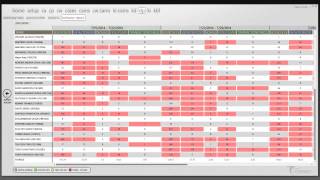
Bob Conde and Marcus Kelly walk through the Behavior Report in econnect: how to open it, set date ranges in 7-day periods, select employees or revenue centers, and run queries that can be slow depending on complexity. They show how to read color-coded averages (green/yellow/red), drill down to find outliers like high no-sales or transaction cancels, and use advanced queries like cash-drawer-open times.
Chapters
The broadcast is now starting. All attendees are in listen only mode.
Good morning. I'd like to welcome everybody to the monthly econnect webinar. My name is Bob Conde. I'm sitting here with Marcus Kelly.
Today we're going to go over the behavior report.
Before we get started, does anybody have any questions? Is the audio coming in clear?
Can you guys hear us?
Yes. Yes. All right, beautiful. All right, so today we're going to dive into the behavior report, what the behavior reports used for.
Stuff like that. We want you guys to give us your questions, your inputs, your thoughts and.
We will go from there. So to start, as many of you know, to get to the behavior report, we're going to click on POS at the top and it has defaults you into the summary view. Look over here on behavior report. It's going to load up the behavior report.
We'd like to tell everybody behavior report is another way of data mining. And as we all know, we all tend to get to the same endpoint at the end of the day, but it's just a matter of how you get there. And the behavior report is just another tool to give us the answers that we need so we can do our data mining and see what's going on. But like Bob's already covered the main difference with the behavior report, it allows you to compare apples to apples. And as we all know, somebody who works midweek during the during the day versus somebody who works weekends that swing shift at a casino or at amusement park, you know, they're going to be busier so you'll be able to tell who's doing what.
All right, so what we're going to do is when you come to the screen, if you're running an older version, it won't look exactly like this. If you're running the latest version, it will look like this. Basically, you're going to have three different mouse. You've got your first box here, which is your date and time and range interval. You've got your center part here, which is where you select what data you want to which people you want to look at at revenue centers. And then we have our POS events and our queried events over here. So to start, I tell everyone by default this is set up to do a range interval of 7 days and to do a 4 interval.
To clarify that, we're going to take all the data we're going to pull, we're going to group it into seven day periods and we're going to display four seven day periods. It's going to cover 20 days of data. This is a really good range to work with because in 30 days you'll be able to see patterns. If you want to make it larger, all you have to do is hit the drop down. Say I want to look at 10 days. It's going to recalculate out all the information and get a 43 hours time frame.
Okay, the next part you'll come to, you have the option to select your employees. You have the option to select terminals or revenue centers. I prefer revenue centers, but just to show you guys, if you wanted to add this employee, if you click on it, you'll see down here where it says selected none show up. What we want to do is click on the employee themselves and you'll see their name pop up, down.
And just to let you know the reason why, some people like to search by employees, if you have two or three employees working the same bar and you want to isolate those employees and compare their numbers, this is where you'll be able to compare employee to employee. Knowing that, hey, I got three bartenders on slingship. I want to see if the numbers all match or if somebody's way out of line.
So I'm gonna go ahead and remove the employee. The minus over here is going to remove this employee.
We've added a search feature in for the latest version. This allows you to type in the employee's name.
And quickly find the person you're looking for. Like Marcus said, if you have a group of bartenders that work at night and you want to just isolate those three people, we can isolate those three people and see what they're doing. Like I said, revenue centers is what I prefer to use. Click on revenue center. Once again, you can type in the revenue center you're looking for.
What I do is I'll go through each one of these and I'll run for the most part the same, the same report.
So I wanted to start with.
Let'S do the hot dogs. Now, most people's mistake is they click on the name of the stand they're looking for. If you have the older version, you have a drop down. If you just click on it, it's not going to put anything down in the selected area and you won't be able to run the report.
You actually want to click on this little guy here. When you mouse over, it says add all active employees from this revenue center for the selected time range. Now remember, if you have an employee that moves around a lot, if they worked five minutes at this hot dog stage, and the rest of their time was spending this New York pizza. They're still going to show up with all their information for everything they've done for the past 28 days irregardless of what revenue center it's at. So to add all the people from this hot dog center, we're going to click on this little guy and you're going to see it populates up all of the employees below that have worked at that revenue center at some point in time in the last 12.
The time that it takes for this to load is going to vary based on the amount of information and data you have coming in your system. Also, we're working over the Internet where you guys, most of you are working in closed networks. This is what it would look.
Any questions so far?
All right, so now we have our employees. We have a handful. This employee zero comes up whenever certain transactions are done before employee signed in. I usually like to remove them from my list. So now we have our selected employees. Now we go to our POS events and our query event. Your POS events are all of the event types that show up in the system.
Some of them might work at your location, some of them are not. It really just depends on how your property has your POS system configured.
For instance, this site, you know they have no sales but really only managers can run it. But I still want to look at these no sales. I'm going to select no sales. I select menu items. Void Begin check is one that I add to every one of my behavior reports. It lets me know who's doing the most work at a revenue center. If a person has the most begin checks and they they far have far more than any other employee through a center, then in my mind they should probably have more mill sales and have.
More menu item voids.
I'm also selecting Tinder void and transaction cancer. You can also come into your query events and you can run these. Now what I want to make sure everybody understands when you're doing this is it's going to take some time to run this. In this instance we have 1, 2, 3, 4, 5. We have 6 employees.
We have six employees times 28 days. 1, 2, 3, 4, 5 queries. We have five event types we're looking at. So the system has to run 840 queries. So it's going to take just a minute to run this. Let's go ahead and run this report.
And as it searches for that it's also grouping them all together. So we have all of our employees here on the left we have the first seven day period here. Here's the begin checks, menu items, sales and transaction.
Just so everybody knows. Keep in mind if you do select a POS event type or a query type and then there are no results for that 28 days it will not show your report. So just keep that in mind.
All right. As you can see on these numbers, as you see some of them have these reddish color bars over them. This stands for above average. And you have this down here to let you know what it is. You'll see we also have the averages. So here's our second seven day period. Our third seven day period as I scroll to the right we'll come to fourth seven day period. And then we come to the most important part which is our averages. This is taking the averages for every employee and what note they are. See they're color coded. Green means they're in the norm, they're one standard deviation. They're doing what they're supposed to do. Yellow means they're slightly outside the norm or 2 cm away or red means they're 3 or more centimeters away. So what we can see is this employee has done 14 no sales on average per week when the average employee is only doing three per week. If this recommendation.
So we can see this is something we want to look at right away. So what we've done is we've taken everyone who's worked at this revenue center and we've focused in on one person doing one thing.
Usually the behavior report is going to lead you into your investigation.
Most of the cases that we worked on, we might start here, find the person we want to look at. And as we look at these no sales or look at something else, we identify what the real problem is and it allows us to further our investigation. This just really points out who the people are. We want to focus our time.
And if you take a look at this employee, look at their begin checks, they're in greens. That means they're doing the same amount as everybody else. And the question again sticks out. If they're doing the same amount of transaction with everybody else, why are they so high with the node cells?
Now to view some of this, if you click on these numbers nothing will happen. These are just the averages. So we want to go back to the previous week. And so we see in the previous week we have 23, we click on it. And now it's going to bring us up to all their transactions for this week. And we can see they worked in different revenue centers line.
So just like Any other investigation you do mouse over, start taking a look at the video, see what's going on. See if there's anything which is going on.
And it's one of those with you guys knowing your property versus us being the third party, you're going to know who your supervisors and managers are. So if that name pops up and you know that employee. Employee is supposed to be doing, that mean no sales. We still tell everybody. You know what?
Take a look anyways.
Because you never know what's happening with that employee.
All right, so I'm coming over here. The next thing I want to show everybody is how to save their behavior report.
So I'm basically going to run the same behavior report, different location, many more employees.
I want to run this and get my results.
Scroll over. We can see most of the people here are in yellow and green, but we do have a few that stand out. For instance, this employee here has more begin checks than anybody, which just tells me more than likely they spend more hours working or they work at the busier time square. They also lead in the new item boards. They also lead.
What's interesting, though, is when you look at the transaction cancels, this person's averaging less than one per week. This employee is doing 41. So this immediately just highlights who I want to focus on or who I want to look at. Now, one of the things I like to do is I come back here and I want to save this because.
Click on save. It's ask me to name this report. This is Patio Pizza.
I can make it private if I'd like, or I can do it for everybody and hit save. So what it's going to do is it's going to save everything that I have.
Selected. So if I come back over here and hit the drop down, you'll see Patio Pizza now shows up and drop down, and I can click load. And you're going to see all my employees pop up down here, and all my boxes over here are going to automatically check.
And what we've learned with this, a lot of our customers, the way they're using it, is every Monday, let's say they want to look at the sports bar for a casino to see how their sales were during football season. They have their private queries, they know everybody. They can come in, click, load, load their report without having to go through the extra steps of going back, Selecting the revenue center, selecting the event types. It's just a time saver is why that function is there.
Now, the other thing I'll use this for is I've selected my favorite POS events that I run regularly and I already have it in there. So now if I want to change revenue center, I can just clear out the employees and.
Select a different revenue center and run the same behavior report for another revenue center. This makes it a little more time efficient so I can get through and identify people I want to look at.
Do we have any questions so far?
Can you change. All right, so we had a question and it says, can I change the name of the saved behavior report after it's been saved without administrator access? As of right now, no. I would suggest you just rename it whatever you want the new name to be. We can go in and.
Delete that.
All right, Steve has a question. Steve, let me turn on your phone. Give me one second.
All right, Steve, I just sent you an audio pin, so you can punch that in on your phone. You should be able to get.
Access to top of it.
Sorry, guys.
Steve, no. For some reason showing that.
You'Re. You're not dialed in on the call.
Can you delete old behavior report names without admin? I do not believe so. Most of that has to come from your administration. But it is something that someone that has admin access can change to allow users to be able to do. It all depends on how you guys want your system set up.
Mike Coons asked a question. Are the queries specific to the person logged in or can they be set? Does all users access to the queries? All of the queries we have will be over here under the query events. So anything you have access to will be in here. If you save the query, that's a private query that only you can access. Only yourself and people with admin privileges will be allowed to access that query and see it in here in your query events.
And keep in mind the query events. I believe Robert covered it, but on your summary view, when you first log in, those are the queries that you'll be able to select from.
All right. Steve Lazewski asked, can you add any POS events if they're not currently on this list?
The way that our system works is we get information as it's sent to us from your POS system.
As far as I know, I'll check with my developers. These are the event types that we get coming in. They might not always be exactly how we know them or, you know, how FNB or retail uses them.
But it's always. It's a test to figure out if it comes through.
A prime example is we found out that unassigned rules for the microsystem comes up as pickup ones. So it's kind of, you kind of got to go through test, see which event types you would like to see. And once you figure those out, you can select those.
Reading through another question right now, so bear with us.
All right, so Steve asked a question. He says if I want to look at three different outlets and I want to look at the breakers that move between the three, how can I quantify if anyone's trending higher between these three particular outlets? All right, so what I would do is.
You have three different outlets and you've got breakers that move between them. I'm assuming you know who those breakers are. And what I would do in this instance is I would come through, go to the employees, search for the employee's name, add the different employees in individually.
And then select my events I want to look at and compare each one of those employees against one another. If they're all three breakers and they're all three moving between them, they should still over the time frame, it might not be the same here because they're working different revenue centers, different times, but overall over the course of a four week period, they should still be somewhat close.
Any other questions?
All right, so one of the things I'll do when I'm doing this is if I want to look, for instance, if this person is no sales.
I'm looking by default. This is going to take me to the past week. So this isn't a lot of results. And we're usually look through each one of these, see what I think about it and see what the data is telling me. Is the data telling me this cache was open for a long time, Was it open quickly and shut quickly? So what I'll do is after I've looked through these, if I want more information, if you hit the drop down and say show me the last 30 days, click apply. It's going to keep.
Basically that query in there for you. So it's going to keep looking for that same employee doing the same event type. Okay. In the same query we were looking at. So then we can go in and we can aggregate it and say was there a specific date? Was there a specific day of the week? Was there a specific hour? This employee was doing this because, you know, when I tell people look for hours, it's because the manager has to go on break. Manager goes on break. They might want to steal more during that one hour. And so I get my hour, I'll see anything crazy, see the 21st hour. And the 14th hour are the two biggest. Nothing's really jumping off at me, but I can click on this if I'd like. So we have 23 of them that have happened in the 23rd hour of the day. Then I can aggregate again and show me which date.
And you see that on the. On the 16th. Now there's a huge portion of all of their. No sales that happen in that hour.
So I've gone from having all this information, all this data, one person to look at, and depending on how you aggregate, it, can let you know if anything's going on there. Is there ever a reason why an employee on a single day, on a single hour, has 17 milliseconds?
My quick answer is no. I'm just looking at this as 9, 08, 9, 11, 9, 12, 26, 20, 29, 29, 35, 36, 40, 46, 47, 51, 55, and 58. In my mind, I've just found somebody I'm gonna focus on for a little while.
Any questions on how I got to there? I know I went kind of quickly. I'm just kind of flying by, seeing them camp right now.
And it's one of those, keep in mind, we tell everybody the Econnext software, it's going to give you information. It's up to you guys as the customers to decipher the information and determine, hey, should we just talk to this employee? Should we sit back, watch them for another week? It's one of those are the determination on your end that you guys will have to make.
All right, does anybody have anything they want to bring up questions, Anything we want to cover? It could be outside the behavior report. I just wanted to focus on the behavior report because a lot of people in the last webinar had asked to learn more about it or say that they didn't fully understand the behavior.
All right, so we had a question that came in that says.
They'Re looking to determine the length of time a cash drawer is left open in food and beverage and retail.
This query, it.
It'S something we have to test with each customer because each individual.
System, this even goes between MicroSign 700, MicroSign 700. Depending on how it's set up at each location, some locations will get that information, some don't. I just had a customer whose site I was at. For whatever reason, they set it up so you can search for cache foreclosed, but they don't send any signal for cash store open or vice versa. And so because of that, I wasn't able to use that query to see how long the cache was open.
What I've done at most of my location, let me see if I have one here is I have a query set up to look for any time the cache was open greater than 30 seconds.
This query, we can, we can get you the information for it so you can run it and see if it returns any results. If it does and you want to extend it out, we can quickly make a change in the code for that query to say show me the time the cache was open greater than two minutes or whatever length you do what you want or necessary for what you.
Want to look at. And keep in mind just section real quick on queries. This query is considered an advanced query for the simple fact that it's searching for two lines of data contained on the one check. And the basic query builder does not allow you to do that. But this query will allow or does the advanced search for you. So anytime you're looking for two lines of data on a single check, that's when you have to reach out to us and ask for the advanced port to see if we can be made.
All right. We had a question come in from Kyle. It says is it possible to have a guest name show on the report when a check is closed? That is actually something that our development team is working on is getting certain information whether it be a player's club card number name, stuff like that. We do have to be careful because of PCI compliance.
Yeah, we'll write that down. Kyle, Kyle, want to know if we can have the Visa and then the guy's name and the last four once again with pci. I'll check on that. We'll write that down and put it through our developers.
Here on the screen. You guys will see this is what we call an advanced query or link query. This is what when we're looking for with a cache for open greater than a certain amount of time, we're basically telling the system to go look for the begin check. And we're telling the system to look for the end check. We're having it grab the two times and we're saying is the time greater than in this instance it's 30 seconds.
We can exceed this to however many seconds we want, rename the query and say that no, you have an additional query to look for the time that checks open. So if you'd like to have this let me know, I can get it over to you or your admin person. We can get it set up in your system and test to see if that queries in there.
And just so you are aware, this will sometimes return false positives as well. If for instance an employee brings up an item, receives payment of cash flow, opens and close it and it took five seconds and then they don't do anything and they decide to hit no sale 27 times in the next hour.
And the cash door is open for one second each time.
It'S going to take the time. The first time the cash drawer was open, the last time the cash drawer was closed to look at the difference in time. And so if it's greater than 30 seconds it's going to give you that false positive.
Make sense?
Looks like we got another question that came in, so bear with us.
Again, Steve Wojcicki asked if we have any companies that use Epicor and their retail outlets.
I don't know the answer, Steve. I actually don't know if there's that system. I haven't used it. We are taking a note and I will find out for you, let you know.
We also have another question.
Is there any way to find out who authorized a particular transaction such as a no sale? That is another one that we currently are in the works of.
Developing for one of our new releases. Not sure when they're going to be in the next release, but.
Is something we are gathering.
Yeah, we've had a lot of customers ask for that and like Pop said, we've been working or direction of developers have been working to get that answer. So bear with us. It is in the works.
So we've covered the behavior report.
Is there anything anybody wants to see? Any questions anybody wants to throw out that we haven't covered that might be helpful to everybody?
A couple questions come in.
So if nobody has any other questions we can.
Do you guys have anything you want to go over? Anything that we want to do a refresher on?
Just keep in mind the behavior report is it's one of the quicker ones to cover. Granted there's still a lot of information and there's a lot out there, but explain it and train it. This is a quick session and that was when we asked the truth. You guys go out, use it. As you come across questions, please call the econnect office. I know Bob's always available to answer questions on the same way even if it's on a weekend. Shoot the emails to us and we'll try to get back to you as soon as possible.
Okay. Mike Coates asked if I can explain the associations menu. I'm guessing you're referring to this Mike.
So if I just say no and I'll stop the associations, not everyone's going to be able to see this due to the fact that you have to have admin privileges to be able to get to the associations.
What we do with associations is we have cameras. We've got POS terminals. So if I select the cameras from this location, it's going to populate up all the cameras within the system. And over here, I can select. Select.
The pos's. And so now what I can do is I can drag and drop from this side over to this side, different terminals. So see how we have the terminals listed both here for these? To show you guys, what that does is when you go into your cameras and you pull up a camera.
So on this camera view, see, we have a terminal here, we have a terminal here, we have a terminal here.
If we hit items, you'll see.
The reason why he keeps falling out and walking back in is we did this this morning, probably about an hour before the call. So once you associate a camera to a POS terminal, you have to refresh it so the system knows that, hey, let me go ahead and start showing this data to you.
And so what this allows us to do is we see the different terminals and we can put all the terminals in and switch between. And when we click on it, we can see that this register five is down there. You can see the employee.
We can pop this out and keep number five over here. And we can go ahead and change this out and say, I want to make it number two.
Both at the same time. This will automatically sync to the time that the camera's at.
Any questions on the associations? Now, the one other thing I wanted to point out. As you see, when you look in here, these are all terminals, but you have this one, which is a revenue center. You see how this terminals. If you click on this one, it's going to show you all of the data from every terminal, which does get confusing if everybody's punching on their screen. Sometimes they show up all over the place. It can be hard to read, but some people like to hit that off.
All right, first one on how to add users. Actually, we just finished a new rule and.
They're asked how we can add users in with admin rights.
For you, Mike. You should be able to do this right now. If you go into setup users and user list, you should see a much smaller list than what I have here. If you want to search for the person, you type in what their username should be. If not, in case Click Add User. You put their information in. Make sure you select the default, the correct time zone, give them a username, give them a password. Once you've done this, you've saved it, you will be able to come back in and click on permissions and you can make them a viewer and make them an admin or whatever you like.
As far as who has admin rights at your location, I.
Know you do. It does.
Probably should be better.
I don't think. Kp. Does.
Anybody else have any other questions?
Alrighty.
I'm gonna ask you guys a series of questions real quick.
I. I want. We always want to know what our next.
Webinar webinar should be. So I'm gonna start to put in a poll question real quick.
And if you don't see the topic listed in the poll question, you can always ask a question to us or shoot us an email and we can add it to the next poll question that we do in our next webinar.
And we found that by doing it this way, as you can see, we're getting more feedback in these webinars. They'll say result driven and it's for you guys. So whatever you want us to cover, let us know and we'll cover it for you in front of, bring you up to speed.
So that poll question's up right now. We'll probably let it run a couple more minutes.
Kyle, I just saw you had your hand up. We just like to chat.
On Kyle's microphone. If not, just tell me. No. Kyle, are you there?
Oh, he has no mic, so we're good.
All righty. So it looks like next month we're probably going to be hitting the Query Builder and touching on cases.
So.
And if we have time, we'll hit stats. Those seem to be the three that everyone's interested in learning about. So next month we'll hit that up. And please bring any questions you have. Query questions you have. Once we really go into depth on how the Query Builder works and what it searches for, it really gives you insight on the how to use the system more effectively. So if nobody else has any other questions, I'd like to thank everybody for coming and please feel free to reach out to me or anyone here on my team or reconnect if you want training for your team or help getting a query or help with investigation.
Thank you.
Thank you.
Sa.
More from Henry

Skip the line, not the security: Facial Recognition for Guest Experience & Safety



eConnect’s Red Light Green Light – The Most Advanced Facial Recognition Tool for Casino Entry


Skip the line, not the security: Facial Recognition for Guest Experience & Safety