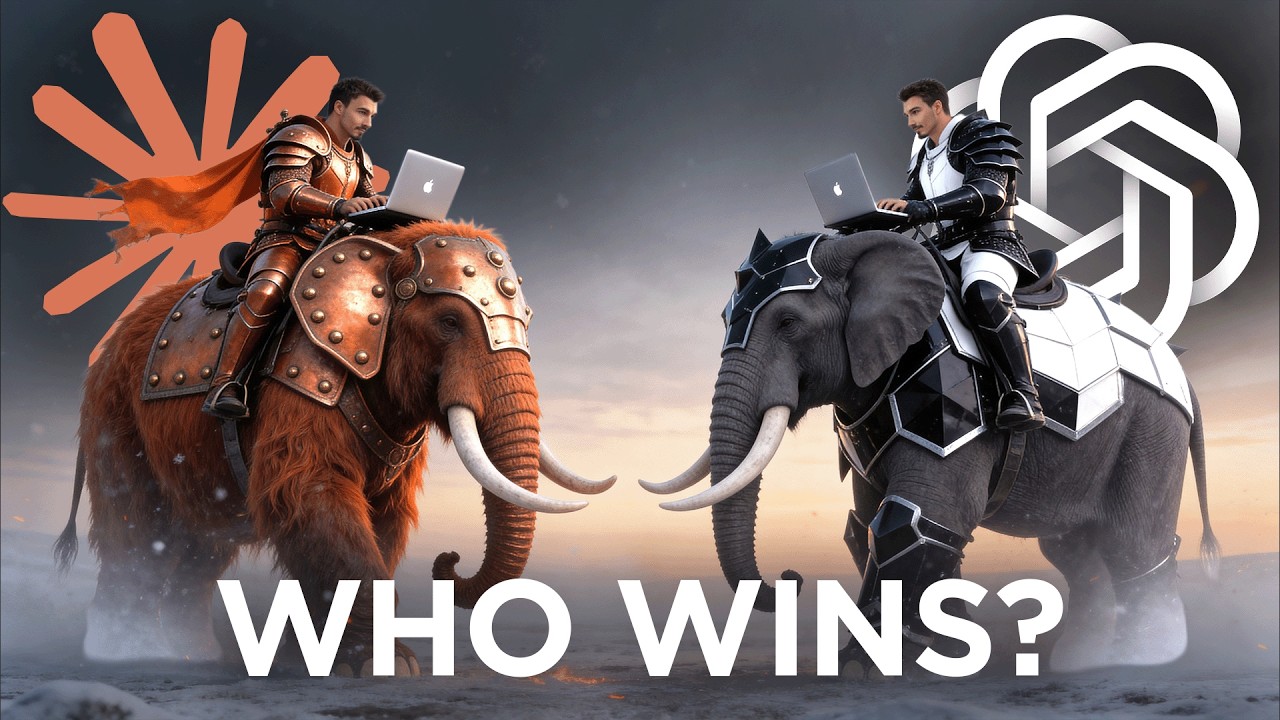
Here's Why ChatGPT May Not Survive 2026

Igor Pogany (AI Advantage) reviews concrete features where ChatGPT lags competitors and recommends alternatives for specific tasks. He highlights six feature areas to consider using other models for: presentation generation, spreadsheet creation, image generation and editing, meeting recording/transcription, and memory management. He argues Claude (Opus 4.5) and Google Gemini (Nano Banana) often produce better results for slides, docs, and images, and warns about ChatGPT's memory feature potentially polluting context.
Chapters
All right, look, usually on this channel I tell you about all the new releases that you can use and all the best features, but today I want to take a bit of a different angle because you and me, both of us and everybody else watching this channel know that ChatGPT is the big dog in this space. The application that everybody's using, the application with 80% market share, what is it, 700 million weekly active users right now? Insanity. Those are the last reported numbers. It might be even more by now, who knows? But in this video, I really want to take an angle where I show you the features where you should actually consider leaving ChatGPT and looking towards other models. We're not focusing on exclusively what other models do, but we're looking at which features in ChatGPT are the ones where you should consider opening a second tab. So let's do this. We compiled a list of every single feature in ChatGPT here for you with. Put that up on screen right now. And look, there's so much here. And they just keep adding new ones, but at this point in time, it's just the fact that they're not the best at every single one of these things. They try to be. And they even rang an alarm this week inside of their company. They called it a code red where they said, hey, the competition is really heating up with Chinese models like deepseek coming out, beating out the competition that is beating out us. And the competition from China is open source. Then Opus is coming out and becoming state of the art development tasks and it writes more human and all of these things. But beyond the kind of abstract vibe analysis of, hey, this writes better and this feels better with coding and all that, what are the cold hard features that you should particularly avoid inside of ChatGPT? If you want the best results possible, it's these six. I looked at all of them and it's not to say that they're bad, but I'm just saying there's better versions of them in other apps. So if you really need this feature, you should consider an alternative. So let's start with the very first one, which is generating presentations. This is pretty straightforward because every one of the big apps has the ability to generate presentations. But if we take the top three players, as most people would consider them, ChatGPT, Gemini and Claude, ChatGPT is actually third in that ranking as of right now. If I take something simple like create PowerPoint slides for presentation about the benefits of learning new skills, I run it through the thinking model on the standard setting. I do the same thing inside of Google's Gemini. Set this to thinking also and run the same thing through Claude, its newest model, Opus 4.5 and Gemini free Pro over here. The initial result is that both ChatGPT and Gemini generates various content for the slides. Gemini even goes a step further and creates images with their Nano Banana model that we'll get to in a second here. And this is all really good, but none of these two give me an actual PowerPoint presentation now. Sure, I. I can always follow up and say something like turn it into a PowerPoint and then it will use its code interpreter to actually turn it into a PowerPoint. But I just want to highlight that Claude actually goes ahead and creates a slide right away and starts working on it. And spoiler alert, Claude is exceptional already. Sonnet 4.5 was so, so good, the best in the market in creating these presentations just inside of this LLM. But now with Opus 4.5, it's not even close how. At least that has been my experience speaking here. Let's look at the actual results here. PowerPoint from ChatGPT. Okay, it literally just put the text in there. In some cases it does a bit better and there's some basic formatting, but it is really hit or miss and it's never amazing. In Gemini. I should highlight that you can connect it to Google Sheets and then you can work directly in them and that works decently well. I did that in previous news. You can use Episodes as that sort of involves an external app. It's not really a fair comparison. So we want to do apples to apples here. And when I say turn it into PowerPoint, sort of avoids that. Maybe because it's trained to work with Google Slides. Again, the content is solid here, but if you go to Opus, which by the way is still working a few moments later. Okay, and here's what Claude did. I'm going to download this and actually open it in PowerPoint. Oh, certainly not perfect. Look at the positioning there. This looks really good. And yeah, there you go. I would argue that these are really solid slides. Sure, the first one and the last one has some positioning problems, but. But this is something you could call a real starting point with some of them maybe outside of the images being done, whereas the competition doesn't even come close. I do have to say if you use Gemini with the slides app, it is quite good too. But in my opinion, Claude is even better. Actually, out of curiosity, I ran it one more time and look at that. It got the first slide right. Some mistakes on the last One too, but a different flavor of good. Actually, this one looks a bit more elegant. I kind of like that. Hey, if any of these tips help you out, then subscribe to this channel because there's a whole lot more coming. On a similar note, if you're trying to create spreadsheets, it's kind of the same thing. Let me just show you the results. Between ChatGPT creating a template spreadsheet for a quarterly social media marketing report, which looks something like this. Again, we're giving it a lot of room for interpretation here. I don't know, I'll give this a 2 out of 10. And that's being generous, to be honest. Then Google Gemini creates all of these different overviews with mock data, different tabs, et cetera. And with one click, you could turn this into a Google sheet. But then again, I could just open it up like so. Not bad. But then it's just one tab. I guess I could copy the content of the other one, create it manually, post it in here. Not bad. This is quite good. And Opus yet again is working at it, but once it's done, we get this. Look at that. So I told you if Sonnet, this was really good already, but this is just. I don't know, perfect is a strong word, but really good, no? Yeah, for all sorts of documents, Opus is just best. Not even close. Next up, image generation. When ChatGPT came out with their feature, it went giga viral. Remember all the Studio Ghibli remixes that everybody was making? Now, they were the first one to introduce an image generator at that model that could remix things right inside of ChatGPT. So accessible, so easy to use, went viral. But over time, the competition wasn't sleeping, and especially Google Gemini pulled so far ahead with their Nano Banana models that most people, even if they don't engage strongly with AI, know that Google's Nano Banana is just the image generation thing that you want to use. And there's a few reasons for that. One of them is that you can really easily upload the image of yourself, like a simple screenshot on my desktop that I had laying around here. And then you can ask for whatever, I don't know, turn me into a pirate on a Viking ship and it will reliably maintain your face and create this new image. Now, for image generation, the competition is high. There's many models that are really good. I would particularly highlight midjourney. It's probably the most aesthetic one. Still, the model just has built in taste, which is incredible. But when it comes to maintaining Human faces. It's just so convenient to use. Not a banana. And it actually sort of resembles you when you do this. But whereas ChatGPT does this, which, you know, fair enough, but it doesn't really look like me. And that's the thing. I'm kind of talking about image generation here. But the same thing goes for editing. If I follow up and say, now add a mustache and a speech bubble with his thoughts, the Gemini result isn't just quicker, but also way, way better than anything you can ever get out of ChatGPT. That's a bold statement, but try using this a dozen times and I think you'll find the same thing tastes so good. This just looks real. This pirate life be tough. What be me treasure what is my pint of Guinness. And this is the edit we get. We were talking about image generation, but when it comes to editing, I mean, I'm going to just leave this as is and then show you the Gemini one and you make up your own mind which one is better at image editing. Such a good mustache. Okay, I got two more features for you that you should avoid. This next one is nice to have. If you have the desktop application of ChatGPT installed, there's this meeting recording mode built into it. Matter of fact, desktop application has many features that most people aren't aware with. It can directly integrate into apps like Notion, which is really nice. But what I'm here to talk about is this record mode. And if you hit this, it simply starts recording your conversation. All right, let's give this a quick spin. So this is made to record dialogue, so you need to just talk and then you reply. How are you doing today? I'm doing great. I feel good. Springy. Fantastic. Fantastic. That is great to hear. Yeah. Myself, I'm doing good, too. Showing people what works in ChatGPT, what doesn't work so well. All right, no dialogue detected. Look, I can't even make it work now. Look, I've used it before. It actually works. Maybe this was too short, but then also I used it once and something like this happened where I got an error. And since then I kind of avoided because I need to rely upon this feature when I use it. Right. And beyond that, I would even recommend just doing one of these meeting transcription services that live directly inside of your meeting app. For example, we usually use Google Meets, and I just use the Gemini product straight inside of that. And you can see when I join a meeting, it just automatically takes notes. I don't have to worry about it. I don't have to make sure it transcribes. It just does it rather than me having to press a button and then it failing here and there. Again, it's just one of those things that they bolted on because all apps have it and they kind of want to corner the entire market on everything that gets mass adoption. I wouldn't recommend this one though. And last one is memory. And this one will be a controversial one, I can already tell you that, because a lot of people use memories and love them and get a lot of value out of it. And I don't have a problem with that. I just have a problem with people trying to get better at ChatGPT and not realizing what memories are actually doing under the hood. If you're not familiar, memories are automatic feature that looks at your various chats that you're having with ChatGPT and then extracting information from them and saving them. Now in future conversation it will refer to them. So if I tell it, hey, my name is Igor and sound some chat, it will save that as a memory. Then in future conversations it knows that my name is Igor. Problem is that over time, memories fill up with various information and things can slip in there that don't belong into your memories. And then it can pollute your new chats, it can augment your experience. And the skill of learning ChatGPT is the skill of managing your context. And in order to manage your context, you wouldn't want ChatGPT managing all the context for you, which is literally what memories do. Rather than that, I would recommend managing your context manually. It's maybe okay to start with memories, just be aware that they exist. I personally usually keep them empty. See, I have literally one memory in there because what I do is I manually manage my context inside of different projects that I create, where I add various files that I created. Sure, there's a bit more of advanced workflow and maybe you just want the automatic way, but even there I would say that Claude's version of memories are actually way better. They Update once every 24 hours and they create different sections for the memories. So if you're just experimenting a bunch or working on a particular project, it saves it in a category of memories that is literally titled top of mind or something like this here current state. But here it realizes that this context is just stuff that I've been dealing with recently, but it's not at the core of the memories. And plus it gets it in way more detail and it gets regenerated once every 24 hours. If I have new chats it's just a better implementation of the feature. If you use chatgpt sure have memories on, but be aware of them. And ideally, as you progress with your usage, what you actually want to do is go into these memories, take what it collected on you, and then say something like open canvas to create a markdown context file for me and then put all the memories in here, create a file where you manually manage all the context, you can download that file, you create a new project and then you add them in here. And now you're in full control of what ChatGPT knows about you and you can still go to personalization and turn on memories. But now all of this info that you might have in here, maybe there's like 20 bullet points, is not going to apply to every single chat that you open. It's just going to apply to the chats that are inside of your project. And that's a proper way to do it if you want to be in full control of your ChatGPT experience. So that's pretty much all I have for you today. It's funny that we're making this video now because it actually marks the three year anniversary of the AI Advantage channel. I mean, how quickly did that fly by? Some of those very first tutorials on how to write with ChatGPT, how to use it different prompts, me releasing the first prompting ebook in December 2022. Unbelievable how much time has passed since then. And I just can't thank you enough for all the support that I've seen on this channel. And yeah, I'm looking forward to way more videos. I hope these are helpful on your journey. And with that being said, my name is Igor Pagani and I will see you very soon.