How to Get ChatGPT to Work for You 24/7
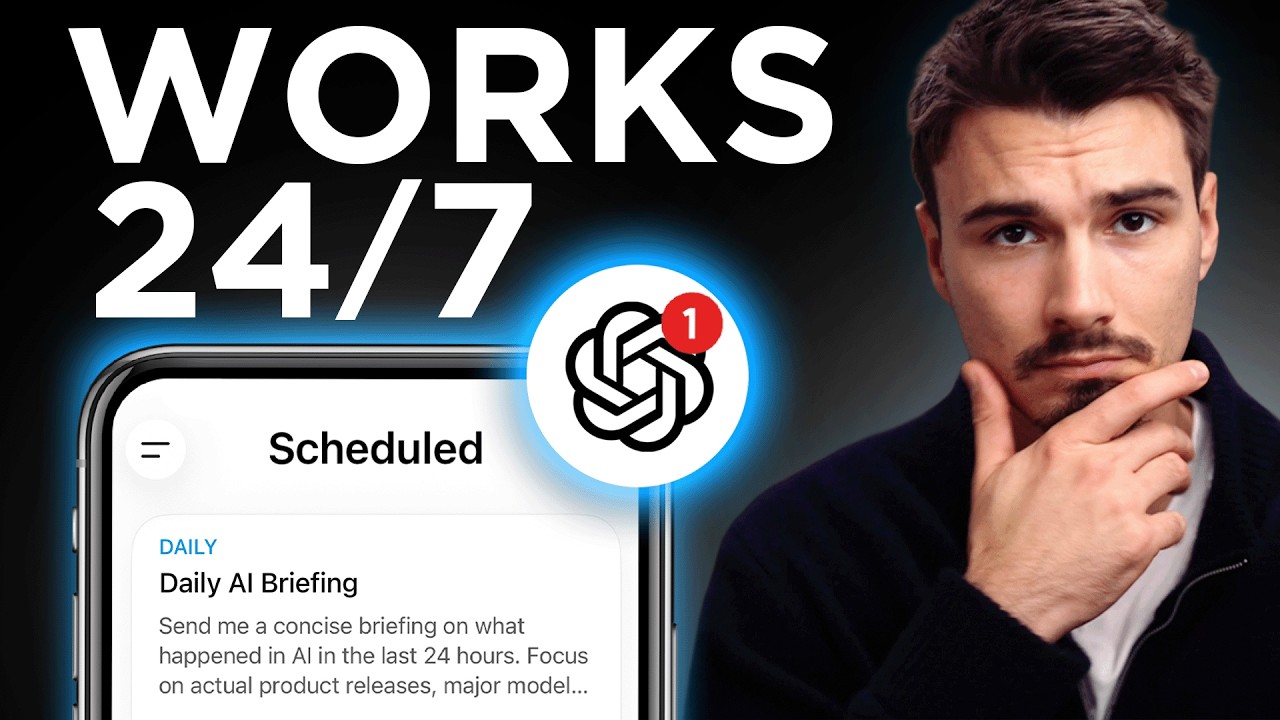
Igor Pogany shows how to set up ChatGPT scheduled tasks that run automatically 24/7. He walks through creating a daily AI briefing that summarizes product launches and an hourly monitor that sends a "CODE RED" email when OpenAI or Anthropic announces a new model. The key is precise prompts that define what counts, exclude rumors and opinions, and stay silent when there's nothing to report.
Chapters
This has to be my favorite thing in AI right now. I wake up, check my phone, and it briefs me on exactly what I need. This is ChatGPT telling me, hey, something happened that you should see because it was working while I was asleep. This is the power of AI working for you. You set it up once and it just runs. And let me show you how to set up these scheduled tasks. So I'm going to share some of the lessons I learned along the way of setting up hundreds of these by now. Some of it is non-obvious. Let's do this. We're going to talk about scheduled tasks. It's a job you hand ChatGPT one time, and there's a frequency attached to it. And then it just runs on, you can think of it a computer somewhere in an OpenAI data center. And it just runs every day without fail. All you need is a paid ChatGPT plan. This is a requirement. This is not available in the free plans. And in the sidebar right here, you're going to click scheduled, which will show you your tasks. And give you the ability to create new ones. And I'm not going to be giving you here concrete prompts that you should run for yourself. I'm just going to show you how to think about this because honestly, this is about getting started and refining over time. You're not going to get the exact result you want right away. Just know that. So I'm going to start by saying, every morning, give me a briefing on what happened in generative AI in the last 24 hours. And then this is so helpful. This is really context management. But I teach this all the time. You want a section on what good looks like. For me, it's real product releases, and major model launches. And then here's the first big lesson I had after tinkering with so many of these. You also want to specify what's to avoid: rumors, announcements without a functional product, and opinion pieces. And then I'll add one more sentence. Keep it so concise that I can read it in a minute. Okay, and the second big learning I had is in the end, you do want to specify that, hey, if nothing happens, don't force this run. Don't force a report if there was no significant story according to what good looks like. By default, this is set up to be a helpful assistant and it's just gonna give you responses just to give you something. So something like, if nothing significant happened, just be honest about it, does it? All right, that's really our setup in here. We're gonna hit send the prompt and now it's gonna set up a scheduled task for us. And there it is, daily generative AI brief. If I click on it, it will pull it up and you will see here's the prompt that I set it up with that I can now edit to. It repeats once a day in the morning. If you do wanna get specific, you can go to custom and specify that, but that is fine for me. And when should it end? Well, never. I want this update forever. The next run is tomorrow morning. And that's pretty much it. If you want to see this, it also lives in your scheduled tasks now. So here, the Major AI Release Watch, if I click Edit, you get back to this menu. And that's basically it. So really, it's a prompt that doesn't just run once, it works over and over again. And for these prompts, that's where context engineering becomes really important. And for something that runs over and over again, while refining that prompt will be significant. Because if you don't tell it not to bother you, it will. If you don't tell it what to exclude, it will include as much as possible to be helpful. But you have to define what good looks like and show it what helpful is like. And if the response is not helpful, that critical voice in your mind criticizing the response, just vocalize it, use the microphone to speak it or the keyboard to type exactly what your complaint is and update the prompt accordingly. That would be my main tip. And hey, a quick note, if you want to learn more about how to craft that context and show it what good looks like and set up your clone that really knows you, which is basically a class on context engineering, all of that is available in the AI Advantage Club. Specifically, I would look for the Navigator course that really teaches context engineering. And you can get access to all of that for a month for just $1. It's the first link in the description. Check it out if you're interested in it. And now let's get back to another scheduled tasks use case because there's more. This is the base setup. But let's turn it up a notch. So for me personally, now this will be different for your context, but for me personally, when I'm scanning for news and new things that happen with these scheduled tasks, there's two companies that are the most important in the space: OpenAI and Anthropic. So I'm gonna set up a second task that watches only for their official announcement page. Okay. And I want you to understand this concept that you can make this very specific. The scheduled task, my vision for it is it checks their announcements page every hour. Okay, not the web, not a blog post sharing some rumors, their official announcement pages. And the prompt tells it to alert me for exactly 3 things, a new model, a major new product, or a big relaunch. These are just the things within my space that are the most relevant for me. And then again, I'm gonna add a longer list of things to stay silent about. And don't worry, if you start with a short list, you can make that list longer over time, right? If it fires and shows you something that you don't wanna see, add it to the list and your scheduled tasks will become better over time. That's the mindset here. But if something does clear the bar, I will get an email with the title CODE RED in the subject line in all caps, 2 sentences and a link to what happened. That's it. And it scans every hour. And this is basically the prompt for it. We tell it about the task, we tell it what good looks like, what to exclude. And here is more. And before you get overwhelmed by, oh my God, like I wouldn't even know what to add. Let me tell you, these evolve over time. If you encounter something you don't like, you add it. So for example, when uncertain, treat it as a non-qualifying and do nothing. Sometimes when I ran this, it lands in the middle, it doesn't know what to do. So I just added this line. Also, before alerting, check prior automation alerts and send Gmail messages to ensure this exact release has never been emailed before. I added that because I got an email on something that has already been sent. And then finally, one paragraph on what I want the email to look like and what email to send it to. By the way, this is just my burner email. And if I check that inbox, and as nothing came out over the past 48 hours from Anthropic or OpenAI that is significant, I did not receive an email. And that's it. I just set this up, make this run once an hour. And all of a sudden, I'm not just scanning for news stories every day. I also have an alert system set up where it notifies me once a day. And look, it's not that these things were impossible before. It's just they weren't this simple. If you wanted a news brief, it was really hard to condense all of the madness that is news on the internet. So there you go, it's checked now, decided not to send anything because there was nothing. And then finally, as I have the scheduled task, my final lesson would be more specific is going to always make this better. So I might be watching for major releases, but what I didn't do at any point in time is add the exact sources. So at the bottom, I'm just going to say sources, add the Claude blog right here and add the OpenAI blog, just a little comma separates them well. And there you go, this runs every hour. Until it basically drains my account's usage, which if you go to settings, you can always check that under usage. And yeah, the only point at which these will stop working is when this hits 0%. You'll just have to wait until the next billing cycle or upgrade your account. Hey, if you enjoy content like this, make sure to subscribe to the channel. We upload multiple times every week. And now let's move on. One more thing before I leave. If ChatGPT already knows you, and either you have a bunch of memories, or you went through the Navigator course and you have a personal DNA file set up, or you just manage your context yourself, and it basically knows you, you can just go in and ask it what kind of scheduled tasks you could set up to help you in your daily work or your personal life. It's quite good at brainstorming these. And then you can always just try it, right? As you can see, the cost of it is very low and the potential return very high. And then finally, I just want to say you're not going to be able to go out into the internet and find a bunch of scheduled tasks that are just killer. Usually the best ones are self-discovered because they're only relevant to you. So I would implore you to explore, go out there, make a bunch of them that don't work. And then if you find something good, leave a comment below and let me know what did work. My name is Igor Pogany, and I hope You have a wonderful day.