This is How You Delegate to AI in 2026
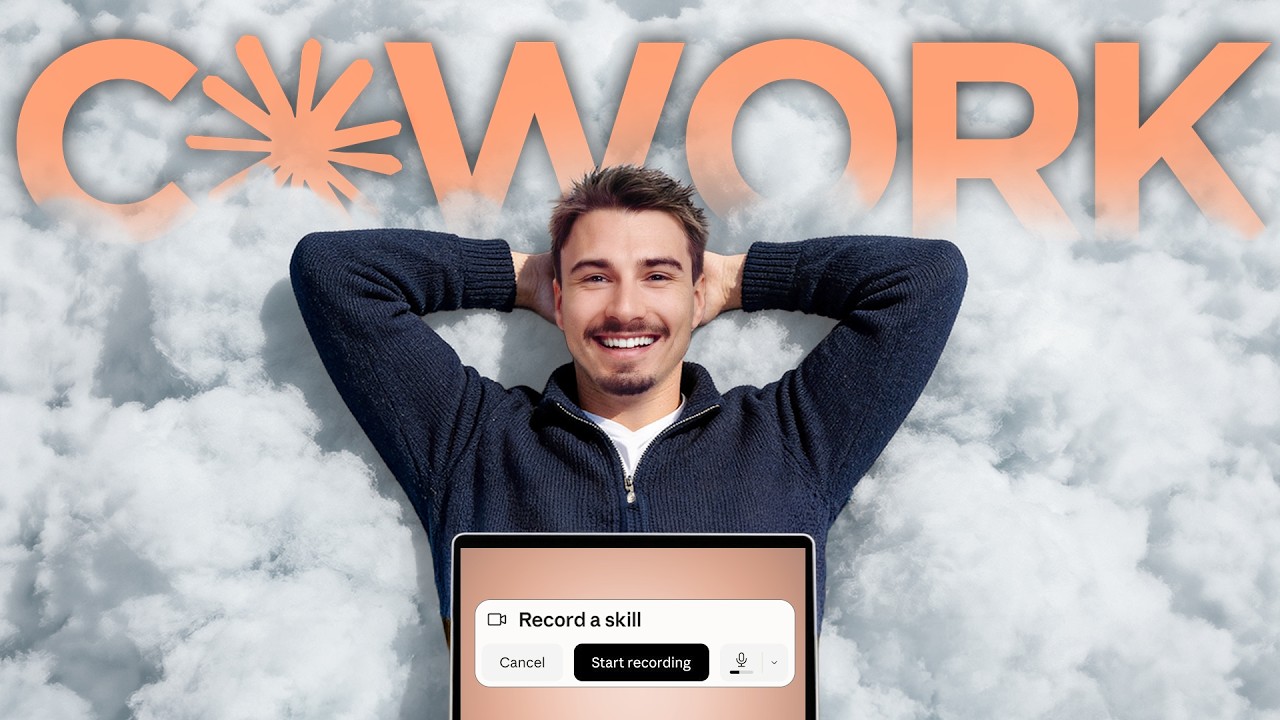
Igor Pogany shows how Claude Desktop's new "record a skill" feature lets you automate tasks by performing them while AI watches. He demos a YouTube QA checklist that verifies thumbnails and descriptions, and an invoice processor that extracts fields, renames files, and sorts them into folders.
Chapters
Ooh, so this week we got a feature that is going to make it way easier for you to automate recurring tasks with agents. No technical skill required because Claude can now watch you do a task. It listens while you explain your decision-making and it turns the whole thing into reusable skill. And yeah, that's essentially what I want to show you today. It's the easiest way to show Claude the type of work that you're doing so it can do it for you. And that's basically this week's news story that I want to focus on in this show called News You Can Use. We look at everything that comes out and then we zero zero in on the stuff that matters, I think this is a big one. This exists within a few other places, even the Claude Chrome extension and Codex, which is the OpenAI version of Claude Cowork. But here it's just so simple. All you need to do is update the app. It's available in all regions. And you could do various use cases with this. We'll be looking at two of them today. One of them is our QA checklist, meaning if you have a checklist of things that need to be done on a certain task, well, that's one of the prime use cases here. You can literally give it that checklist and be like, go ahead and check asset XYZ if it has all 12 of these things. And then it comes back with a report saying, yeah, it has 11, but it's missing one automatically. And then schedule it out and check other people's work this way. It's very reliable. I like it a lot for this. And then secondly, I'm going to be looking at accounting workflow where it's like moving invoices around and adding things to Excel sheet. You can use this for so many things. The big point here is it's just easier to create these than ever before because you show it instead of crafting prompts or I don't know, putting together intricate automation flows. So let's look at the feature and show you how to set this up for yourself. If you're inside of Claude Cowork on the web, you're not going to see this. You need the desktop app. If you don't have it yet, you can basically go down here, say get apps and extensions. And then one of these should be Claude Desktop right here. And this is the installed application. Now that you have it, you switch over to Cowork because you wanted to use your local files too in the process of recording these skills. And then here under plus, there's this new button, record a skill. If you don't see it, make sure to update your Cloud Cowork desktop app, and then it should appear. Alright, so now if I hit record a skill, you will see that if I do this for the very first time on a Mac, I have to give it some permission. So obviously it wants to see my screen and record my mic. So I give those permissions. And once I did that, I can kind of just start recording. Now here's the deal. Before I even do that, let's get very clear on what we want to record here. Because as soon as I hit start recording, this thing is going to be very, very perceptive of everything you do on the screen. Meaning if you show another tab by accident, it's going to take all of that in as context and it might get confused. So you want to get clear. Matter of fact, what I did here is I have my little checklist here in a text document, and I'm going to be using that. Just by having the checklist pulled up here, it's going to register that and I don't even have to read all of it off. It's just going to know what to do. So if you have an existing SOP, you could kind of just scroll through that thing and maybe add some comments and then do the process yourself. And boom, it just records a first version of that repeatable skill. But again, be careful not to clutter this. It gets easily confused. And as it sees everything, be careful with exposing any sensitive information. And final clarity on what we're actually doing here is I wanted to go to the AI Advantage YouTube channel. You could do this with literally anything that you want to QA check. And I just wanted to go to videos and check out the latest upload and make sure it has all items on on this checklist, like is the thumbnail text readable? Has the video been added to a playlist? Is there any placeholders in the description as we have them there by default? Does it have chapters? And a few more things that we kind of QA check for every time manually. Heck, in the preparation of this video, I realized that this is a no-brainer thing that we should be doing. So let's do it. Oh, there's one caveat with this feature. When we were testing this, we ran into one limitation, which is file size limitations. So it can only manipulate files up to 10 megabytes. So if you wanted to do some video workflows and move those files around, it's not going to work, unfortunately. Another thing is setting up this Chrome extension, it takes a few clicks sometimes. You have to install the Chrome extension, make sure it's updated. And then there's permissions you need to enable for this to work. And before you try this, make sure to go to the settings and capabilities and enable this code execution and file creation. This is really going to help with it doing things on its own. It's required for skills. So again, in Claude, I click plus, record a skill. And now when I start recording, here we are. So what I want this skill to do is to open up the AI Advantage YouTube channel, both from the public-facing view and YouTube Studio. And then inside of the YouTube Studio, I wanted to look at the latest video. And I want to check for various items on this checklist that I'm showing now. All of these items should be checked. And then I want a concise message back on which ones have been recorded and which ones haven't. So we'd literally just go on here, click on the video, and then check out the description or anything else that might be needed to verify the checklist items and then get me a report back. I'll click Done. It's as simple as that. Because I had my checklist prepared here, I didn't even need to show it all of that. It can just read it. And that's a real hack because initially when I was trying this, I was going through and performing every single one of these actions. But honestly, stuff like, hey, has this been added to a playlist is straightforward. It understands that. So I can kind of just show it this checklist. And that's a real hack on how to do this quickly. And there it is. That's basically it. It took this 50-second demonstration and now it's going to think through this and create the process and bake this into a skill, which we then save into our account. And then whenever we activate that skill, it's going to do exactly that for our new video. So now in the setup, it's asking me some questions. What would you like me to do with this recording? I'm gonna say draft a separate new skill because I already did this in preparation for the video. So we already have a skill that does exactly this. And hey, by the way, if you're not sure what kind of QA, which by the way stands for quality assurance checks, you could do on your own work, just tell it, hey, what kind of work could you check for me so that we hit certain quality standards? And then it might quiz you on what kind of work you do, or it already has the context on you ideally, and it just makes suggestions based on that. By the way, talking about context, if you don't have that context set up yet, it's literally the biggest unlock where you move from AI just answering questions to AI working with you on a daily basis and then eventually working for you like this. It's the context that makes the difference. So if you want to set that up or learn about other workflows that you can teach AI, that is exactly what we help you with inside of the AI Advantage Club. Every week we give you one practical AI win that you can execute with no code and much more for just $1 for the very first month. The goal is simple. We help you get at least 1 hour back every single week. You can check that out in the link in the video description below. All right, now back to the skill, which by now has been packaged because I can see it baked in the checklist that I had in there. And yeah, I have the video launch check. Oh, I did forget to save the skill. I actually have to click this button. There it is. It has been saved. And now I can go to a new chat and say /video Video Launch Check. For the purpose of this tutorial, I'm gonna say skip all approvals. So it's not gonna ask me for permission at all. It's just kind of gonna do it. And just a note, as this concrete skill is gonna be using the browser extension, what model you select here is not gonna affect that. As in a second here, you will see it opens up a brand new tab here in my browser. And then this extension uses Opus 4.8 for now. Oh, there it is. Opening the channel dashboard. And now it's working. Let's fast forward over this. And see what it came up with as a result of the skill that it just recorded. And there's the result. Let's review this. Okay, so these are all the criteria. And it basically told me, okay, this is all good. No playlist selected. That's accurate. This video is not in a playlist. And there's no end screen and card. You could literally see it go into there. See, if you open up this, you can see what it did. It went into the editor when you add these end screen and cards, and it saw that there's none. Even went into the transcript, didn't change anything. And then it says no subtitles have been added. We usually don't add these, it's just auto-generated one. And no sponsor mentioned, so the promotion box is unchecked. Perfect. Look at that, isn't this just amazing? Now I could set it up to check, I don't know, once a week, newest video, and then yeah, you have an automatic QA system if you If you wanted to evolve that further, you could even attach an extra document where it logs what videos it has checked already so it doesn't do one twice. And then once a week, it just QA checks all your new uploads or any new work that has been done. I mean, this is just an example of something that is publicly available and that has a clear quality expectation right here. But you can kind of go crazy. Now, I don't want to just end there because the possibilities here are really vast. And I want to show you something a bit more concrete. I'm going to breeze over this one. I'm just going to record it with you and then show you the result. So basically I have a folder here that I need to navigate to. So I'm going to go to Cowork invoice receipts training batch. And inside of this folder, you can see 3 subfolders. Incoming, which is new invoices that have been placed in here. Needs reviews, stuff that is not perfect, that needs human review. And process, stuff that fits all the quality criteria and can be moved into an Excel sheet where we track all of these. Something super practical, right? So you can see here in incoming, we just have some mock invoices here. And then right here is my income tracker. So I would go in here, say record. And now again, let's be careful with what we do because it gets everything. Okay, I want you to turn the following process into a skill. I have this folder structure set up with incoming invoices and processed invoices. And if it fits the quality criteria that I have, then I want to move it over. If it doesn't, you can move it into the needs review folder that I will go through manually. So what it basically looks like is you go into incoming, you open one of these invoices, and you check for all the quality criteria. First of all, these are the required fields. All of these need to be filled out. So everything from document type, vendor, document number, date, due date, currency, subtotal, tax, and the total need to be present in the invoice. You will enter all of those fields here. And if it's missing any one of these fields or has unreadable totals, a duplicate document number or a mismatched total, it must go to the needs review folder so I can check it later. Additionally, I want you to take these generically named invoices and apply exact naming. So I'm going to do this once here manually. I'm going to take this file and then I have this template that I want you to follow, which is going to be the year, the month, and the day. So 2026-07-11, and then the vendor name, in this case, Brightline Studio. I'm going to enter everything into here. And for these last two fields, if it says on the invoice, you can fill them in. If it doesn't, say missing. And for payment status, you can assume unpaid. All right, now that this is complete, I will move the invoice over into processed. And this way, I would go through all the invoices manually. All right, now you will see the same thing. It creates a skill. And then we're going to try and run the skill of the rest of these invoices and see how it does. And there it is. All of them have been added and moved to the folder. And in case inconsistency comes up, it will go into the needs review folder. And that's how it's done. This is acutely practical. Wouldn't you agree? It just saves time in setting these things up. And then obviously you could put it on a schedule. Again, now just the limit is finding tasks that are repeating or coming up with new tasks and workflows that you could add to your workweek where AI just does it for you. Again, if you need help with that, we do that inside of the club. But I hope this video was helpful to you already. There was one more thing this week that popped up in the news that I really wanted to show you, which is basically a minor ChatGPT update. If you use ChatGPT under personalization, they really upped the amount of context that you can now put into your custom instructions. So this field now more than tripled in terms of context size. It used to be 1,500 characters. Now it's over 5,000. So if you have something like the DNA files that I teach inside of the club in a course, which is basically context on your life here, I have it linked from a Google Drive file. Well, this used to be way too long for custom instructions. Now, if yours are pretty concise, you could just throw them right into custom instructions. And yeah, basically every message you will ever send will include that context. Costs them way more. That's why they kept it so concise. And now they just tripled the size. If you use that feature, this is going to be good news. And yeah, for everybody else, Have fun using this new Claude feature. It's comparable to the Codex one. And that is pretty much everything for this week. If you enjoy videos like this, make sure to subscribe. I make multiple videos every single week. And with that being said, I hope you have a wonderful day. AI news you can use. Breaking down the stories you actually care about. AI news you can use. Igor's here to help you figure it out.